By 2026, over 40% of enterprises experimenting with generative AI have moved at least some of their LLM workloads on-premise. The reason? Running local LLMs isn’t just about privacy anymore—it’s about cutting API costs by 99%, eliminating latency, and owning your AI infrastructure. Whether you’re a developer building AI-powered features, a researcher analyzing sensitive data, or a startup looking to scale without burning through cloud credits, local LLM inference has become a viable, production-ready option.
What Are Local LLMs and Why Run Them?
Local Large Language Models (LLMs) are AI models that run directly on your own hardware—your laptop, desktop, or server—instead of calling APIs like OpenAI’s GPT-5 or Anthropic’s Claude. Thanks to quantization techniques and optimized inference engines, models that once required data center GPUs can now run on consumer hardware.
The Economics Are Compelling
Let’s talk numbers. Cloud API costs for LLMs have dropped, but they’re still significant:
| Service | Input Cost (per 1M tokens) | Output Cost (per 1M tokens) |
|---|---|---|
| GPT-5 | $10.00 | $30.00 |
| Claude Opus 4.6 | $5.00 | $25.00 |
| DeepSeek V3.2 | $0.14 | $0.28 |
| Local Inference | ~$0.001 | ~$0.001 |
That’s not a typo. Running a local LLM costs approximately $0.001 per million tokens in electricity—essentially free compared to cloud APIs. For a startup processing 100 million tokens monthly, that’s the difference between a $3,000 cloud bill and a $0.10 electricity cost.
Privacy and Data Sovereignty
When you use cloud LLMs, your data leaves your infrastructure. For healthcare, finance, legal, or any industry handling sensitive information, this is a dealbreaker. Local LLMs keep everything on your machines—no data exfiltration, no training on your prompts, no compliance headaches.
Latency and Reliability
No network calls means no network latency. A local LLM can respond in milliseconds instead of seconds. Plus, you’re not dependent on external services being up—no more “OpenAI is experiencing elevated error rates” messages during your product demo.
The 4 Main Tools Compared
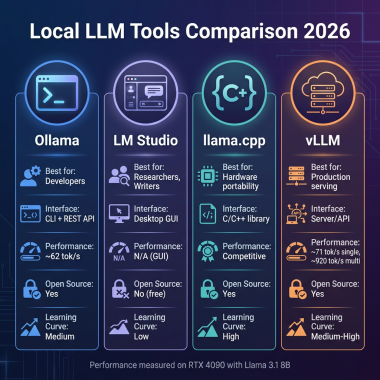
Four tools dominate the local LLM landscape in 2026. Each serves different use cases, skill levels, and deployment scenarios. Here’s the executive summary:
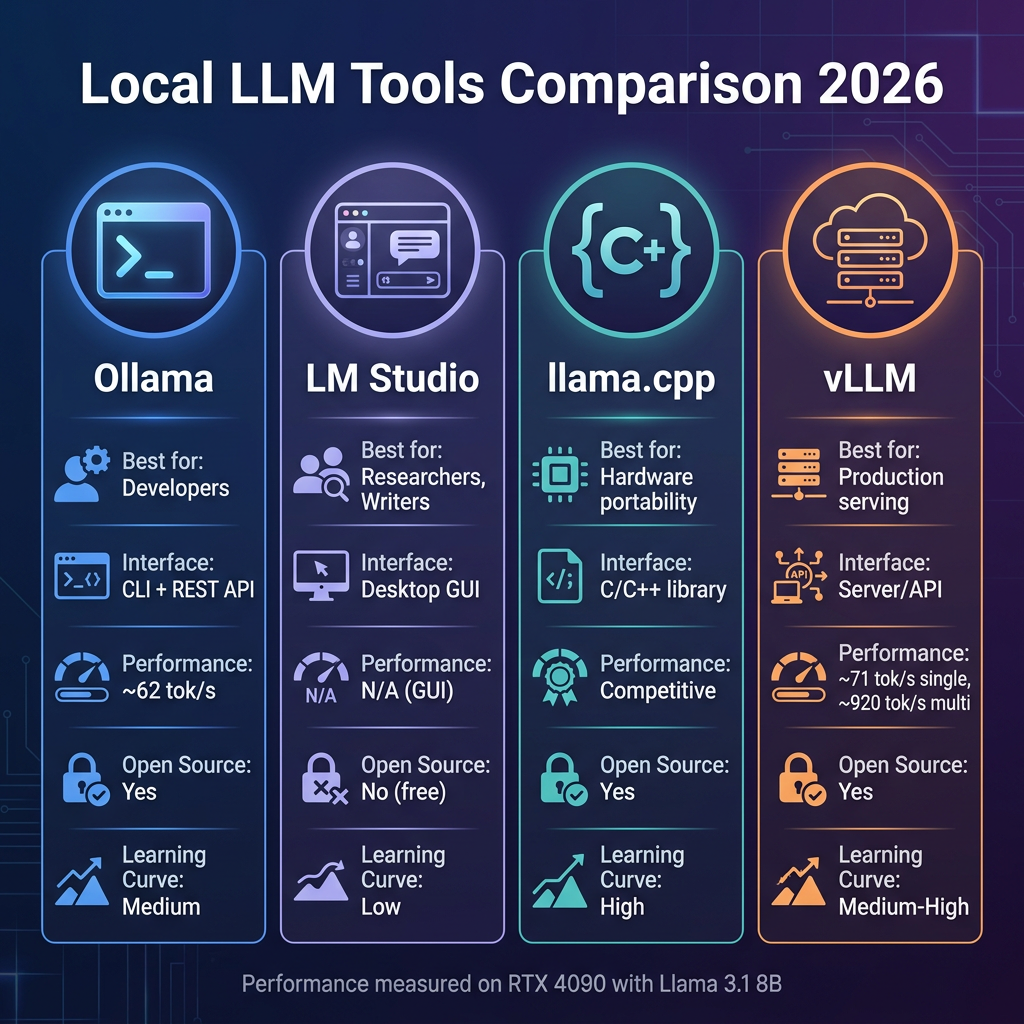
| Tool | Best For | Interface | Open Source | Learning Curve |
|---|---|---|---|---|
| Ollama | Developers, API-first workflows | CLI + REST API | Yes | Medium |
| LM Studio | Researchers, writers, non-coders | Desktop GUI | No (free) | Low |
| llama.cpp | Hardware portability, edge devices | C/C++ library | Yes | High |
| vLLM | Production serving, multi-user | Server/API | Yes | Medium-High |
Ollama: The Developer’s Choice
Ollama has become the de facto standard for developers running local LLMs. With over 162,000 GitHub stars, it’s the most popular open-source tool in this space—and for good reason.
What Makes Ollama Special
Ollama combines a simple CLI interface with a REST API, making it perfect for developers who want to integrate local LLMs into their applications. The Modelfile format—similar to Dockerfiles—lets you define model configurations, system prompts, and parameters in a reproducible way.
Installation and Basic Usage
# macOS/Linux
curl -fsSL https://ollama.com/install.sh | sh

# Pull and run a model
ollama pull llama3.1:8b
ollama run llama3.1:8b

# API access
curl http://localhost:11434/api/generate -d '{
  "model": "llama3.1:8b",
  "prompt": "Why is local LLM inference important?"
}'
Performance Characteristics
On an RTX 4090, Ollama achieves approximately 62 tokens per second with Llama 3.1 8B using Q4_K_M quantization. This is more than fast enough for interactive use and many production workloads.
When to Choose Ollama
- You’re building applications that need a local LLM API
- You want Docker-like reproducibility for model configurations
- You prefer CLI workflows over GUIs
- You need both interactive chat and programmatic access
LM Studio: The GUI Powerhouse
Not everyone wants to live in the terminal. LM Studio brings local LLMs to the desktop with a polished GUI that makes model discovery, configuration, and experimentation accessible to non-developers.
Key Features
- Built-in Model Browser: Search and download models from Hugging Face without leaving the app
- Visual Parameter Controls: Adjust temperature, top-p, context length with sliders
- Side-by-Side Testing: Compare multiple models simultaneously
- OpenAI-Compatible API: Exposes a /v1/chat/completions endpoint for app integration
The Trade-off
LM Studio is closed-source but free for personal use. For many users, the convenience outweighs this concern. The GUI abstracts away complexity that might otherwise block experimentation.
When to Choose LM Studio
- You’re a researcher, writer, or analyst who needs LLM access without coding
- You want to experiment with different models quickly
- You need a visual interface for prompt engineering
- You prefer desktop apps over command-line tools
llama.cpp: The Universal Engine
llama.cpp is the foundation that powers many other tools—including Ollama. It’s a pure C/C++ implementation of LLM inference with no external dependencies, making it the most portable option available.
Why llama.cpp Matters
Created by Georgi Gerganov, llama.cpp pioneered the GGUF format—the standard for quantized models. Its memory-mapped execution allows models to run on systems with less RAM than the model size would suggest. This is the engine that made local LLMs feasible on consumer hardware.
Hardware Support
llama.cpp runs on:
- NVIDIA GPUs (CUDA)
- AMD GPUs (ROCm, Vulkan)
- Apple Silicon (Metal)
- Intel/AMD CPUs (AVX, AVX2, AVX-512)
- Mobile devices (iOS, Android)
- Web browsers (WASM)
When to Choose llama.cpp
- You need maximum hardware portability
- You’re building a custom application and want full control
- You’re targeting edge devices or unusual platforms
- You want to understand (or modify) the inference engine itself
vLLM: The Production Server
While Ollama and LM Studio excel at single-user scenarios, vLLM is built for serving. If you’re running an LLM API that multiple users or applications will hit simultaneously, vLLM is the clear winner.
Performance That Scales
vLLM’s secret weapons are Continuous Batching and PagedAttention. These innovations allow vLLM to handle concurrent requests with dramatically better throughput than alternatives.
The Numbers Don’t Lie
On the same RTX 4090 hardware:
- Single-user: vLLM achieves ~71 tok/s vs Ollama’s ~62 tok/s
- 50 concurrent users: vLLM delivers ~920 tok/s aggregate vs Ollama’s ~155 tok/s
- p99 latency at 50 users: vLLM maintains ~2.8s vs Ollama’s ~24.7s
In multi-GPU setups, vLLM is approximately 3x faster than llama.cpp for distributed inference.
When to Choose vLLM
- You’re building a production API serving multiple users
- Latency under load is critical
- You have multi-GPU hardware to leverage
- You need enterprise-grade serving features
Performance Benchmarks
Here’s how the tools stack up on identical hardware (RTX 4090, Llama 3.1 8B):
| Tool | Single-User (tok/s) | 50-User Aggregate (tok/s) | p99 Latency @ 50 Users |
|---|---|---|---|
| vLLM | ~71 | ~920 | ~2.8s |
| Ollama | ~62 | ~155 | ~24.7s |
| llama.cpp | ~60-65 | ~180 | ~18s |
| LM Studio | N/A (GUI) | N/A | N/A |
Hardware Requirements: What You Actually Need
The model size and quantization level determine your hardware requirements:
| Model Size | Q4_K_M VRAM | Q8 VRAM | Example Hardware |
|---|---|---|---|
| 7B | 4-5 GB | 8-10 GB | RTX 3060, MacBook Pro M3 |
| 14B | 8-10 GB | 16-20 GB | RTX 4070, MacBook Pro M3 Max |
| 30B | 16-20 GB | 32-40 GB | RTX 4090, Mac Studio M2 Ultra |
| 70B | 40-48 GB | 80+ GB | Mac Mini M4 Pro 48GB, A100 80GB |
The sweet spot for most users is Q4_K_M quantization—it delivers 95%+ of full precision quality at half the VRAM. For the absolute best quality, Q8 is available at 2x the memory cost.
Which Tool Should You Choose?
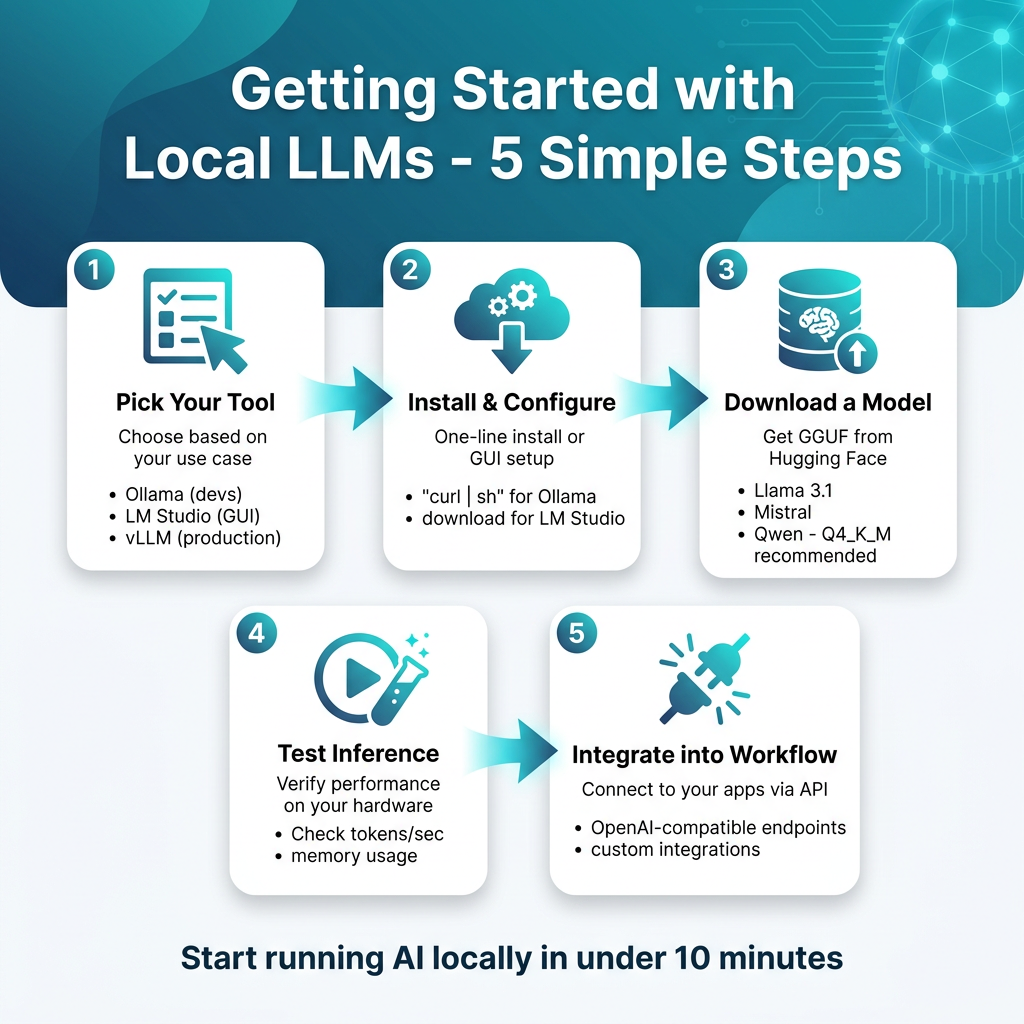
Your choice depends on your use case and technical comfort:
Choose Ollama if…
- You’re a developer building AI-powered applications
- You want a simple CLI + API interface
- You need Docker-like reproducibility with Modelfiles
- You want the largest community and ecosystem
Choose LM Studio if…
- You prefer GUIs over command lines
- You’re experimenting with different models
- You’re a researcher, writer, or non-technical user
- You want visual parameter controls and side-by-side testing
Choose llama.cpp if…
- You need maximum hardware portability
- You’re targeting edge devices or unusual platforms
- You want to build custom inference pipelines
- You care about having zero dependencies
Choose vLLM if…
- You’re serving an LLM API to multiple users
- Performance under load is critical
- You have multi-GPU hardware
- You need production-grade serving infrastructure
Frequently Asked Questions
Can I run local LLMs on my laptop?
Yes, depending on your hardware. A modern MacBook Pro with 16GB RAM can comfortably run 7B models. For 13B models, 32GB RAM is recommended. Discrete GPUs with 8GB+ VRAM significantly improve performance.
Are local LLMs as good as GPT-5 or Claude?
For many tasks, yes. Models like Llama 3.1 70B, Qwen 2.5 72B, and DeepSeek V3 match or exceed GPT-4 level performance. They won’t beat GPT-5 or Claude Opus on the hardest reasoning tasks, but they’re excellent for coding, writing, analysis, and most production use cases.
What’s the difference between GGUF and other formats?
GGUF (Georgi Gerganov Universal Format) is the standard for quantized models. It stores both the tensor weights and metadata in a single file, making it easy to distribute and load models. Other formats like Safetensors are typically used for full-precision models and require separate configuration files.
Can I use local LLMs for commercial projects?
Yes, but check the license of the specific model. Models like Llama 3.1, Mistral, and Qwen have permissive licenses allowing commercial use. Always verify the license terms on the model’s Hugging Face page before deploying commercially.
How do I update models when new versions are released?
Ollama: ollama pull modelname to get the latest version. LM Studio: Use the built-in model browser to check for updates. For llama.cpp and vLLM, download new GGUF files from Hugging Face and replace the old ones.
Conclusion: The Future Is Local
Running local LLMs in 2026 isn’t just possible—it’s practical, economical, and increasingly necessary. Whether you choose Ollama for development, LM Studio for experimentation, llama.cpp for portability, or vLLM for production serving, you have powerful options that rival cloud APIs at a fraction of the cost.
The tools are mature. The models are capable. The only question is: what will you build?
If you’re building AI-powered applications and need a payment infrastructure that handles global tax compliance automatically, check out Fungies.io. We help developers monetize their AI tools without the headache of VAT, sales tax, and payment processing.
References
- Ollama GitHub Repository
- LM Studio Official Website
- llama.cpp GitHub Repository
- vLLM GitHub Repository
- GGUF Format Documentation
- vLLM: Efficient Memory Management for Large Language Model Serving with PagedAttention
\n