Here’s a number that should get your attention: 85% of developers now use AI coding assistants regularly, and teams that integrate them properly report a 40% productivity increase on average. But here’s the catch—simply installing GitHub Copilot or Cursor doesn’t automatically make you faster. The developers seeing real gains are the ones who’ve deliberately integrated these tools into their workflows.
In this guide, I’ll walk you through exactly how to integrate AI coding assistants into your development workflow. No fluff. Just a practical, step-by-step approach based on what actually works in 2026.
What Are AI Coding Assistants (And Why They Matter)
AI coding assistants are tools that use large language models to help you write, review, debug, and refactor code. They’ve evolved far beyond simple autocomplete. In 2026, these tools can:
- Generate entire functions from natural language descriptions
- Refactor code across multiple files simultaneously
- Debug errors by analyzing stack traces and suggesting fixes
- Write tests based on existing code
- Explain complex codebases in plain English
The market has exploded to $7.37 billion, and the latest data shows that 46% of all new code is now AI-generated. More importantly, 22% of merged code in production repositories is AI-authored. This isn’t a fad—it’s how software is being built now.
Step 1: Audit Your Current Workflow
Before you pick a tool, you need to understand where AI can actually help. I see too many developers grab Cursor because it’s trending, then use it for tasks where it adds no value.
Track your time for one week. Note:
- How much time do you spend writing boilerplate code?
- How often are you searching Stack Overflow for syntax?
- How long do you spend debugging repetitive errors?
- How much time goes to writing tests?
- How often do you refactor similar patterns across files?
Developers who integrate AI coding assistants properly save a median of 5-8 hours per week. But those savings only come when you apply AI to the right tasks.
Step 2: Choose the Right Tool for Your Stack
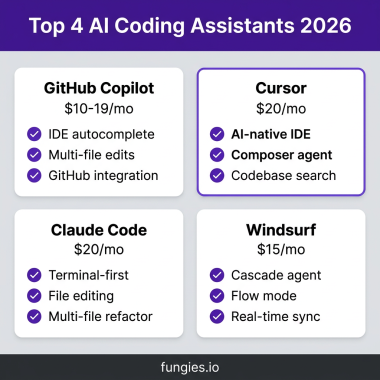
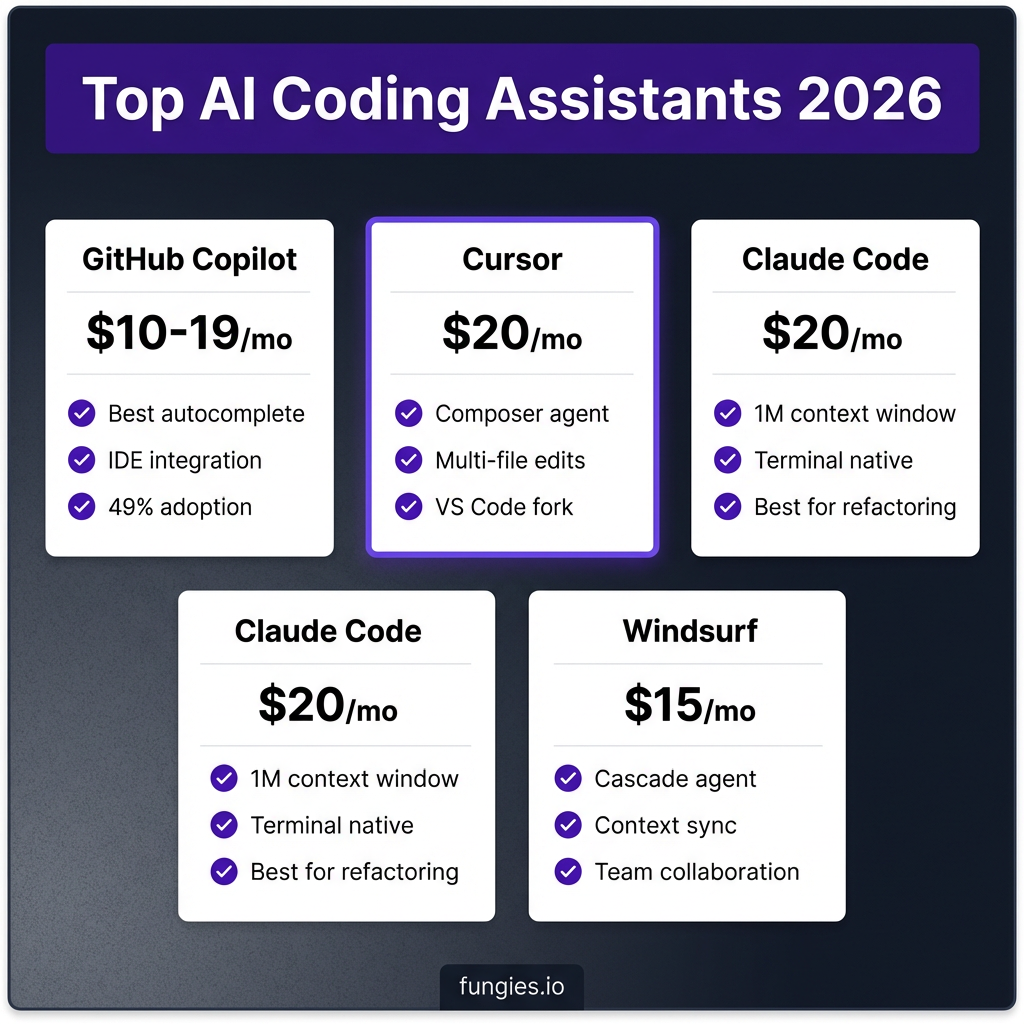
Not all AI coding assistants work the same way. Here’s how the top four compare in 2026:
| Tool | Best For | Price | Key Strength |
|---|---|---|---|
| GitHub Copilot | Inline autocomplete | $10-19/mo | IDE integration, 49% adoption |
| Cursor | Multi-file edits | $20/mo | Composer agent, VS Code fork |
| Claude Code | Complex refactoring | $20/mo | 1M token context, terminal native |
| Windsurf | Team collaboration | $15/mo | Cascade agent, context sync |
When to Choose Each Tool
GitHub Copilot fits if you want subtle assistance while typing. It integrates with VS Code, JetBrains, Vim, and Neovim. It’s the safest choice for teams already in the GitHub ecosystem.
Cursor is a full VS Code fork with AI built in. The Composer feature lets you describe changes in natural language and apply them across files. Developers report it’s best for greenfield projects and prototyping.
Claude Code runs in your terminal. It’s powered by Claude Opus 4.6 with a 1M token context window—meaning it can understand entire codebases at once. This is the tool for complex refactoring and architecture changes.
Windsurf focuses on “Context Sync”—creating a real-time map of your workspace so the AI never hallucinates file paths. It’s gaining traction for team environments where multiple developers work on the same codebase.
Step 3: Configure Context and Rules
Here’s where most developers mess up. They install the tool and expect magic. But AI coding assistants work best when you give them context about your codebase.
For Cursor: Create .cursorrules
Create a .cursorrules file in your project root. This file tells Cursor how to generate code for your specific project:
# Project Context
- This is a React + TypeScript application
- We use functional components with hooks
- Styling is done with Tailwind CSS
- API calls use React Query
- We prefer explicit types over inference

# Code Style
- Use async/await, not .then()
- Prefer destructuring in function parameters
- Write unit tests for all utility functions
- Follow the existing file structure pattern
For Claude Code: Use CLAUDE.md
Claude Code reads a CLAUDE.md file for project context. Be specific about your architecture:
# Project Overview
This is a Python FastAPI backend with PostgreSQL.

# Architecture
- Domain-driven design with repositories
- SQLAlchemy for ORM
- Pydantic models for validation
- pytest for testing

# Commands
- Run tests: pytest
- Run server: uvicorn main:app --reload
- Database migrations: alembic upgrade head
For GitHub Copilot: Use Copilot Instructions
Copilot supports custom instructions in VS Code settings. Go to Settings > GitHub Copilot > Instructions and add:
- This project uses Python 3.11+ with type hints
- Follow PEP 8 style guide
- Use dataclasses for data structures
- Prefer composition over inheritance
Step 4: Start With Low-Risk Tasks
Don’t rewrite your entire codebase on day one. Start with tasks where mistakes are easy to catch:
- Write tests: Ask AI to generate unit tests for existing functions. You can verify correctness by running them.
- Documentation: Generate docstrings and README updates. Low risk, immediate value.
- Boilerplate: Use AI for repetitive patterns—API endpoints, React components with similar structure, database models.
- Refactoring: Rename variables, extract functions, convert callbacks to async/await.
As you build trust with the tool, expand to more complex tasks. The developers seeing 40%+ productivity gains are those who’ve learned when to trust the AI and when to intervene.
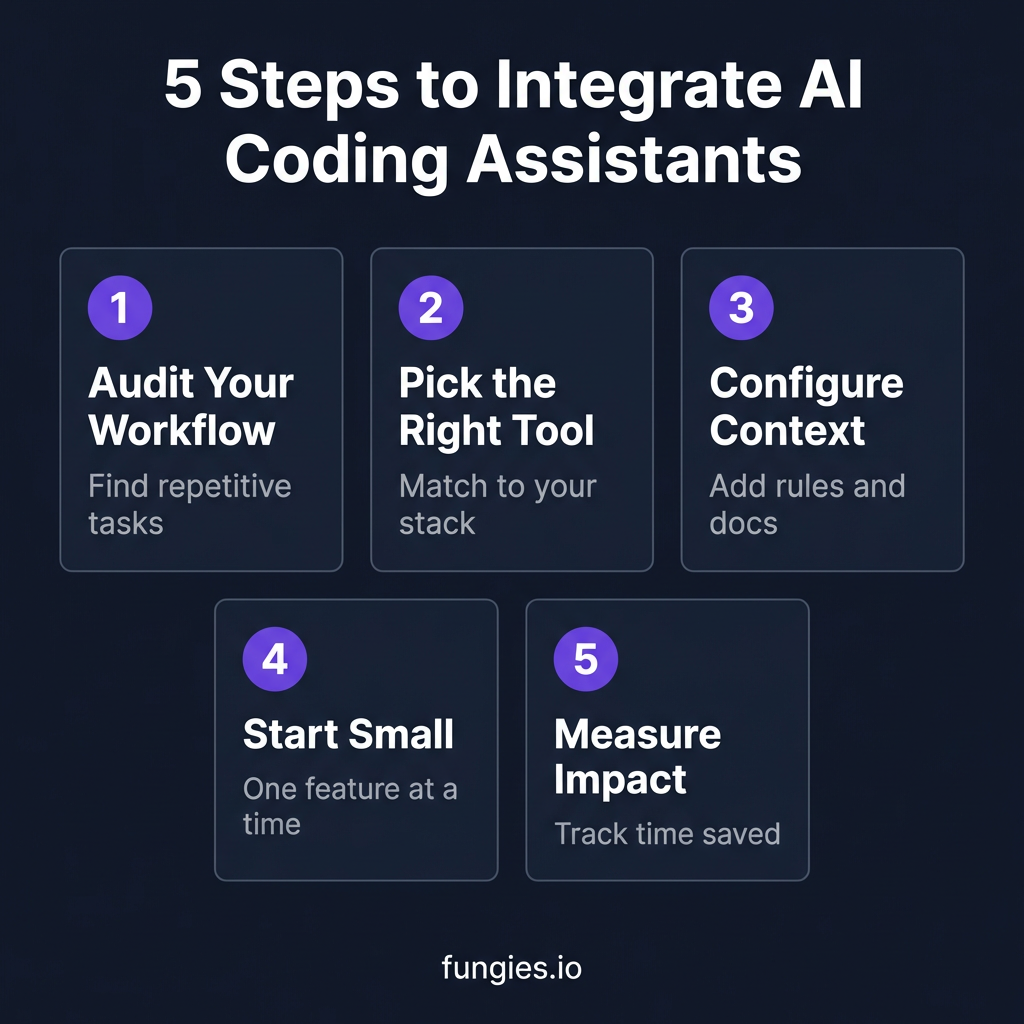
Step 5: Build Review and Validation Into Your Workflow
Here’s a critical stat: AI-generated code has 2.74x more vulnerabilities than human-written code. You cannot blindly accept AI suggestions.
Establish these practices:
- Always review AI-generated code before committing. Look for security issues, logic errors, and performance problems.
- Run your full test suite after AI-assisted changes. AI can break things in subtle ways.
- Use AI for code review too. Paste your code into Claude and ask: “What edge cases am I missing?” or “Are there security issues here?”
- Keep a human in the loop for architectural decisions. AI is great at implementation, not design.
Advanced Integration: Multi-Tool Workflows
The most productive developers in 2026 use multiple AI tools together. Here’s a common setup:
- Cursor or Copilot for daily coding and autocomplete
- Claude Code for complex refactoring and architecture changes
- ChatGPT or Claude web for research and planning
Developers using 2.3 AI tools on average report the highest satisfaction. The rough split is 55-65% Cursor, 25-35% Claude Code, with the remainder in other tools.
Measuring Your Success
You can’t improve what you don’t measure. Track these metrics:
| Metric | How to Track | Target |
|---|---|---|
| Time to implement features | Compare before/after AI integration | 20-40% reduction |
| Code review feedback | Track comments per PR | Maintain or improve quality |
| Bug rate | Production incidents | No increase |
| Developer satisfaction | Weekly self-assessment | Improved workflow happiness |
If your bug rate increases or code quality drops, you’re moving too fast. Scale back and focus on review practices.
Common Integration Mistakes (And How to Avoid Them)
Mistake 1: Expecting Perfect Code
AI generates plausible-looking code, not necessarily correct code. One developer described AI-generated code as looking “like 10 devs worked on it without talking to each other.” Always review.
Mistake 2: Not Providing Context
AI assistants work best when they understand your codebase. Invest time in creating .cursorrules, CLAUDE.md, or Copilot instructions. The 10 minutes you spend on this saves hours later.
Mistake 3: Ignoring Security
AI can suggest code with SQL injection vulnerabilities, hardcoded secrets, or insecure dependencies. Run security scans on AI-generated code just like you would on human-written code.
Mistake 4: Using AI for Everything
Some tasks are faster to do manually. Don’t use AI for one-line changes or trivial edits. Save it for complex logic, boilerplate generation, and cross-file refactoring.
Key Takeaways
- 85% of developers use AI coding assistants—the question is whether you’re using them effectively
- Proper integration can save 5-8 hours per week
- Choose tools based on your workflow: Copilot for autocomplete, Cursor for multi-file edits, Claude Code for refactoring
- Always configure context files (.cursorrules, CLAUDE.md) for better results
- Start with low-risk tasks (tests, docs, boilerplate) before complex refactoring
- Always review AI-generated code—it has 2.74x more vulnerabilities
- Measure your productivity gains to validate the integration
Frequently Asked Questions
Which AI coding assistant is best for beginners?
GitHub Copilot is the easiest starting point. It integrates seamlessly with popular IDEs and provides subtle autocomplete suggestions without changing your workflow. Start here, then explore Cursor or Claude Code as you get comfortable.
Can AI coding assistants replace developers?
No. The role is shifting from “code writer” to “AI orchestrator.” 90% of engineers are shifting from coding to AI orchestration. The valuable skills are now architecture, system design, and code review—not syntax memorization.
How much do AI coding assistants cost?
GitHub Copilot is $10-19/month, Cursor and Claude Code are $20/month, Windsurf is $15/month. Most developers find the productivity gains (5-8 hours saved weekly) easily justify the cost.
Is AI-generated code secure?
AI-generated code has 2.74x more vulnerabilities than human-written code. Always review AI suggestions, run security scans, and never commit AI-generated code without human review—especially for authentication, authorization, or data handling.
Should I use multiple AI coding tools?
Yes. Developers using 2.3 tools on average report the highest satisfaction. A common setup is Cursor for daily coding + Claude Code for complex refactoring. Each tool excels at different tasks.
Conclusion
Integrating AI coding assistants into your workflow isn’t about replacing your skills—it’s about amplifying them. The developers thriving in 2026 aren’t the ones who can memorize the most syntax. They’re the ones who can direct AI tools effectively, review their output critically, and maintain ownership of their code.
Start with an audit of your current workflow. Pick one tool that fits your stack. Configure it properly with context files. Begin with low-risk tasks. Build review practices. Measure your results.
The 40% productivity gain is real—but only if you integrate AI deliberately. Follow the steps in this guide, and you’ll be in that group.
Ready to build something? Get started with Fungies.io and focus on what matters—shipping great software.
References
- Modall: AI in Software Development Statistics 2026
- Panto: AI Coding Assistant Statistics
- Trigi Digital: The Impact of AI Coding in 2026
- Programming Helper: AI Code Assistants 2026 Survey Data
- AI Magicx: Cursor vs Claude Code April 2026
- NXCode: Claude Code vs Cursor 2026
- Addy Osmani: My LLM Coding Workflow Going Into 2026