67% of developers say AI assistants can’t do anything beyond writing code without proper integration. Yet experienced developers now use 2.3 AI tools on average—not because they need more tools, but because they’ve learned to integrate them strategically into their workflow.
This guide shows you exactly how to do that. No hype. Just a step-by-step integration framework that actually works.
What Are AI Coding Assistants (And Why They Matter Now)
AI coding assistants are software tools that use large language models to help developers write, review, debug, and refactor code. They range from autocomplete suggestions to fully autonomous agents that can implement entire features.
The difference between 2024 and 2026 is integration maturity. Early AI tools were standalone features you had to adapt to. Today’s assistants are workflow-native—they fit into how you already work instead of forcing you to change.
Why this matters for your productivity:
- Cursor reports a 72% autocomplete acceptance rate among active users
- Claude Code’s 1M token context window lets you work across entire codebases
- GitHub Copilot’s coding agent can convert issues directly into pull requests
- Developers using integrated AI tools report 30-55% faster feature delivery
The key word is integrated. A tool sitting in your sidebar isn’t helping. One that understands your codebase, follows your conventions, and works across your stack—that’s where the value is.
The 5 Types of AI Coding Tools
Not all AI coding assistants work the same way. Understanding the categories helps you choose the right tool for your specific workflow.
1. AI-Native IDEs
These are full development environments built around AI from the ground up.
Best for: Developers who want AI deeply integrated into every part of their workflow
Example: Cursor (VS Code fork with built-in AI)
2. Terminal-Native Agents
Command-line tools that bring AI capabilities to your terminal.
Best for: Developers who live in the terminal and want AI without leaving it
Example: Claude Code
3. IDE Extensions
Plugins that add AI features to existing editors like VS Code, JetBrains, or Neovim.
Best for: Developers happy with their current editor who want AI augmentation
Example: GitHub Copilot
4. Browser-Based Environments
Full development environments that run in your browser with AI built in.
Best for: Quick prototyping, teaching, or when you need to code from any device
Example: Replit
5. Autonomous AI Engineers
Tools designed to work independently on tasks with minimal supervision.
Best for: Well-defined tasks, bug fixes, or when you need to parallelize work
Example: Devin
Quick Comparison Table
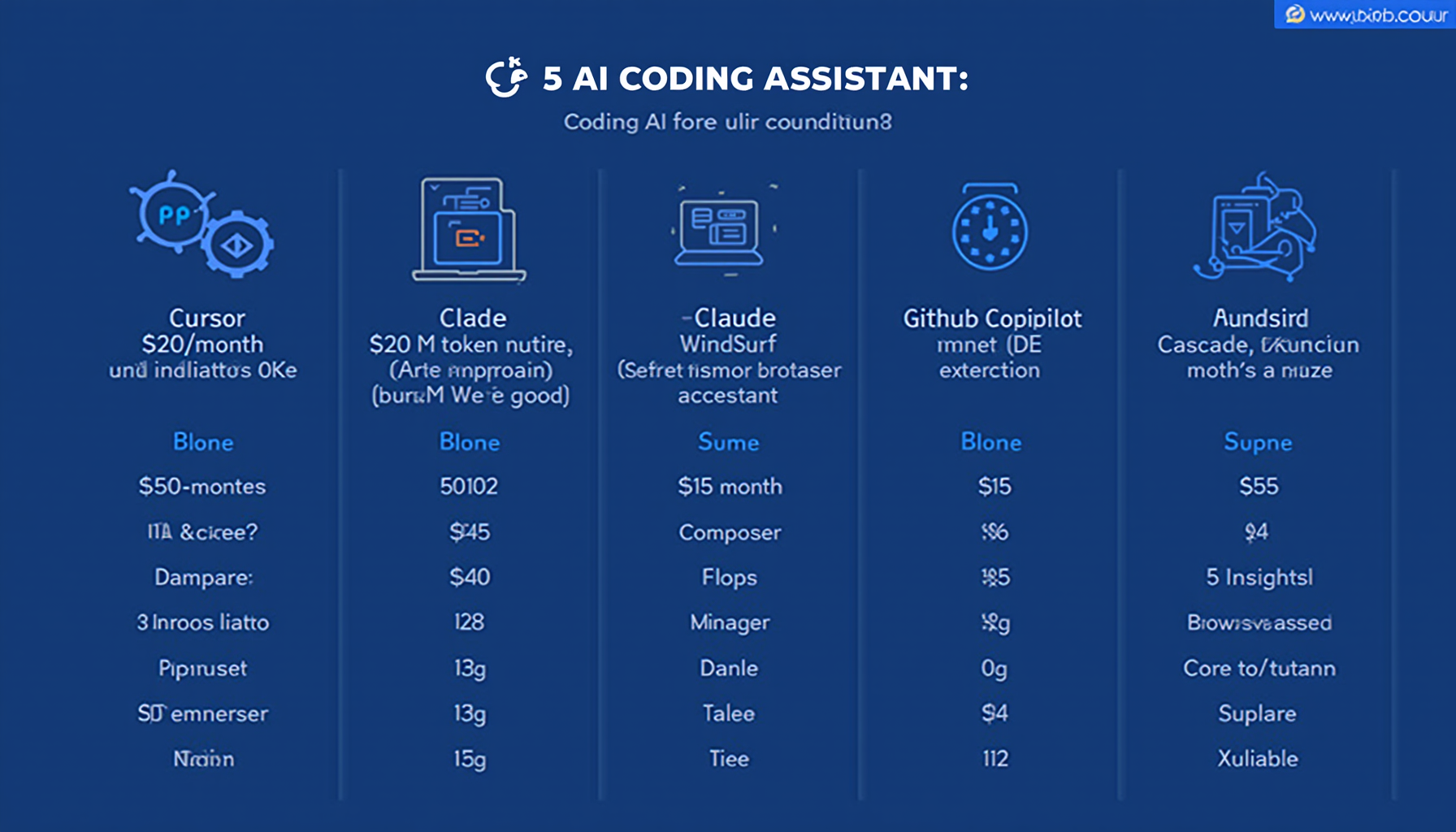
| Tool | Type | Price | Best For | Key Feature |
|---|---|---|---|---|
| Cursor | AI-Native IDE | $20/month | Daily development | 72% autocomplete acceptance, Composer multi-file editing |
| Claude Code | Terminal Agent | $20/month | Terminal workflows | 1M token context window |
| GitHub Copilot | IDE Extension | $10/month (Pro) | Multi-IDE teams | Coding agent converts issues to PRs |
| Windsurf | AI-Native IDE | $15/month | Flow-state coding | Cascade agent, Flow mode |
| Replit | Browser-Based | Free / $17/mo Core | Prototyping & learning | Agent asks clarifying questions |
| Devin | Autonomous Engineer | $20/month | Parallel task execution | Fully autonomous development |
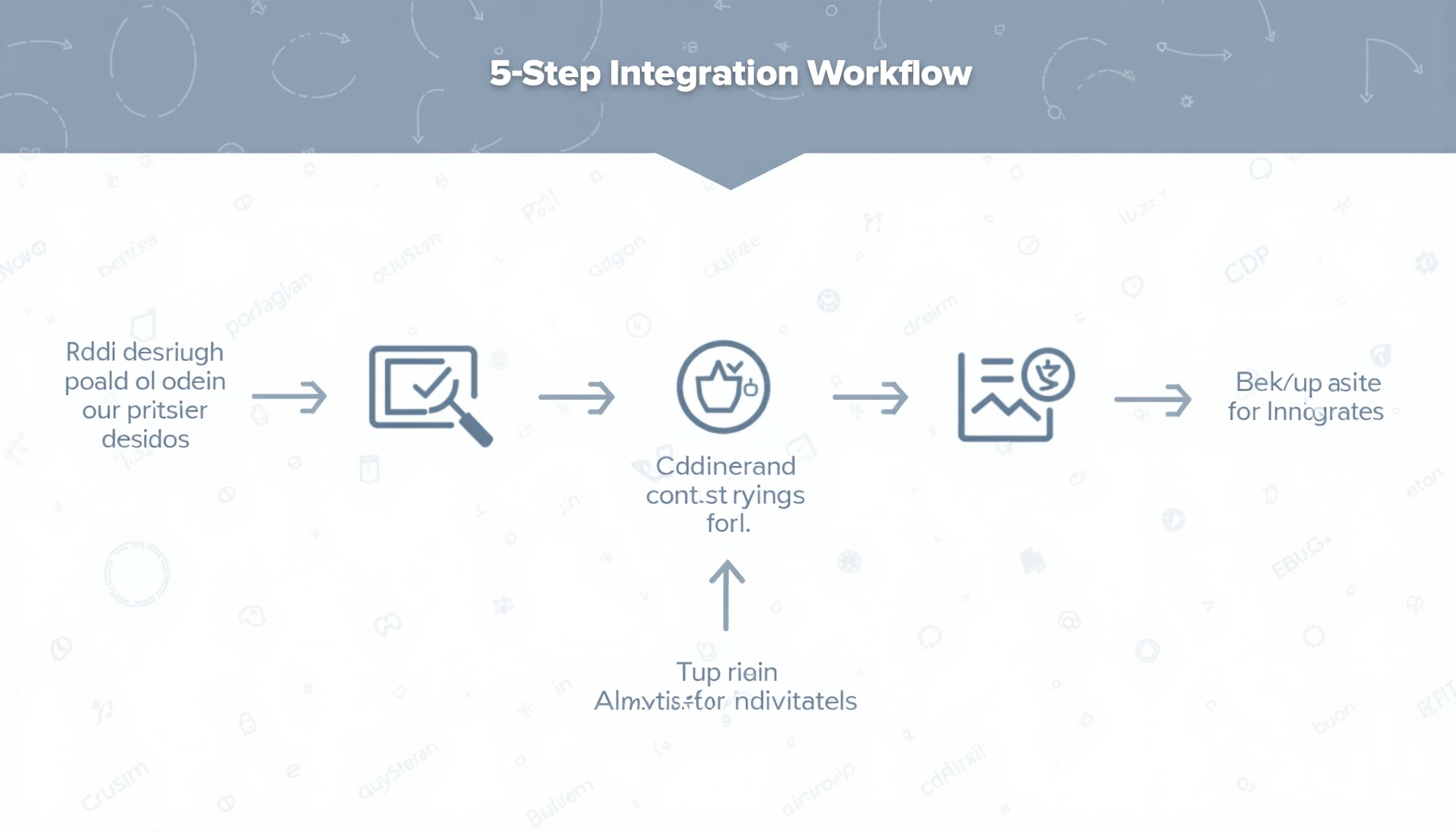
Step-by-Step Integration Guide
Here’s the framework that works. Follow these steps in order—skipping ahead usually means missing critical setup that makes everything else work better.
Step 1: Audit Your Current Workflow
Before adding any AI tool, document how you actually work now.
Questions to answer:
- What percentage of your time goes to writing new code vs. reading/debugging existing code?
- Where do you get stuck most often? (Understanding legacy code, writing boilerplate, debugging, testing?)
- What tools do you currently use? (IDE, terminal, browser-based tools?)
- What’s your team’s code review process?
- Are there security or compliance requirements that limit tool choices?
Action item: Spend one day noting every time you switch contexts, look up documentation, or get stuck. These friction points are where AI will help most.
Step 2: Choose Your Primary Tool
Based on your audit, pick ONE tool to start with. The biggest mistake developers make is trying to integrate multiple AI assistants simultaneously—you end up with conflicts, confusion, and no clear workflow.
Decision matrix:
- If you use VS Code and want minimal change: Start with GitHub Copilot
- If you want the most powerful AI-native experience: Start with Cursor
- If you work primarily in terminal/CLI: Start with Claude Code
- If you need browser-based flexibility: Start with Replit
- If you want to experiment with autonomous coding: Start with Devin
Price considerations:
| Tool | Monthly Cost | Free Tier |
|---|---|---|
| GitHub Copilot | $10/month (Pro) | 50 requests/month |
| Cursor | $20/month | Limited |
| Claude Code | $20/month | Limited |
| Windsurf | $15/month | Limited |
| Replit Core | $17/month | Starter plan available |
| Devin | $20/month | Limited |
Step 3: Set Up Context Rules
AI assistants work best when they understand your codebase conventions. This step is where most developers fail—they install the tool and expect it to magically understand their patterns.
For Cursor:
- Create a
.cursorrulesfile in your project root - Document your coding standards, naming conventions, and architecture decisions
- Include examples of good code from your codebase
For Claude Code:
- Use the
/initcommand to create a CLAUDE.md file - Describe your tech stack, testing approach, and code organization
- Reference key files and directories
For GitHub Copilot:
- Configure your IDE settings for consistent suggestions
- Use Copilot Chat to ask about your specific codebase
- Train on your team’s existing code patterns
General best practices:
- Document your tech stack versions
- Define your testing requirements
- Specify code style (formatting, naming, comments)
- Include security guidelines
Step 4: Start with Low-Risk Tasks
Don’t ask your new AI assistant to architect your next major feature on day one. Start with tasks where mistakes are easy to catch and fix.
Week 1 tasks:
- Writing unit tests for existing functions
- Generating documentation
- Refactoring small, well-defined functions
- Explaining unfamiliar code
Week 2-3 tasks:
- Implementing utility functions
- Writing boilerplate code
- Creating data validation logic
- Simple CRUD operations
Week 4+ tasks:
- Feature implementation with clear requirements
- Bug fixes with reproduction steps
- Code review assistance
- Architecture suggestions
Step 5: Measure and Iterate
Track whether the integration is actually helping. Without measurement, you’re just guessing.
Metrics to track:
- Time to complete similar tasks (before vs. after)
- Number of iterations needed for AI-generated code
- Acceptance rate of AI suggestions
- Bug rate in AI-assisted code
- Your own subjective productivity assessment
Review weekly:
- What’s working well?
- Where is the AI struggling?
- Do you need to update your context rules?
- Should you adjust your task difficulty?
Best Practices for Each Tool Type
AI-Native IDEs (Cursor, Windsurf)
Do:
- Use Composer/Cascade for multi-file changes
- Set up background agents for long-running tasks
- Customize keybindings for AI commands
- Learn the specific prompt patterns that work best
Don’t:
- Accept every suggestion without review
- Let AI change files you haven’t examined
- Ignore the tool’s confidence indicators
Terminal Agents (Claude Code)
Do:
- Use the full context window for large refactors
- Combine with tmux/screen for persistent sessions
- Leverage the agent for exploratory coding
- Use it alongside your IDE, not instead of
Don’t:
- Run commands you don’t understand
- Skip reading the agent’s reasoning
- Forget to commit before major changes
IDE Extensions (GitHub Copilot)
Do:
- Use inline suggestions for boilerplate
- Leverage Copilot Chat for explanations
- Configure the coding agent for issue-to-PR workflows
- Use the free tier to test before subscribing
Don’t:
- Rely on it for security-critical code without review
- Ignore when suggestions don’t match your patterns
- Assume it understands your business logic
Browser-Based (Replit)
Do:
- Use for quick prototypes and experiments
- Leverage the collaborative features
- Take advantage of the built-in deployment
- Use the Agent’s clarifying questions to refine requirements
Don’t:
- Use for large, complex codebases
- Expect the same performance as local development
- Ignore the limitations of browser-based tools
Autonomous Engineers (Devin)
Do:
- Provide extremely clear specifications
- Use for well-scoped, independent tasks
- Review all changes before merging
- Start with bug fixes and small features
Don’t:
- Give vague requirements
- Expect it to handle ambiguous problems
- Skip the review process
LLM API Pricing Comparison (For Custom Integrations)
If you’re building custom AI integrations or using API-based tools, here’s the current pricing landscape per 1M tokens:
| Model | Input Cost | Output Cost | Best For |
|---|---|---|---|
| GPT-4.1 | $2.00 | $8.00 | General coding tasks |
| GPT-4.1 nano | $0.10 | $0.40 | Simple completions, cost-sensitive |
| Claude Sonnet 4.6 | $3.00 | $15.00 | Complex reasoning, large context |
| Claude Opus 4.6 | $5.00 | $25.00 | Most capable, highest quality |
| Gemini 2.5 Pro | $1.25 | $10.00 | Balanced performance/cost |
| Gemini 2.5 Flash | $0.15 | $0.60 | Fast, inexpensive tasks |
| DeepSeek V3.2 | $0.14 | $0.28 | Budget-conscious development |
Cost optimization tips:
- Use cheaper models for simple tasks (completions, formatting)
- Reserve expensive models for complex reasoning and architecture
- Cache responses when possible
- Monitor token usage per feature
Common Pitfalls and How to Avoid Them
Pitfall 1: Expecting Perfect Code
AI assistants generate plausible code, not correct code. They can confidently suggest solutions that look right but contain subtle bugs.
Solution: Always review AI-generated code. Run tests. Check edge cases. Treat AI output as a first draft, not a final product.
Pitfall 2: Context Overload
Throwing your entire codebase at an AI without structure leads to confusion and poor results.
Solution: Be selective about what context you provide. Use your context rules file to guide the AI to the most relevant files and patterns.
Pitfall 3: Ignoring Security
AI tools may suggest code with security vulnerabilities, especially around authentication, data handling, and dependencies.
Solution: Never commit AI-generated code without security review. Run static analysis tools. Check for hardcoded secrets. Verify dependency versions.
Pitfall 4: Skill Atrophy
Over-reliance on AI can degrade your own coding abilities over time.
Solution: Use AI for acceleration, not replacement. Write complex logic yourself. Review AI suggestions to learn from them. Maintain your problem-solving skills.
Pitfall 5: Inconsistent Integration
Switching between AI tools without a clear strategy creates workflow fragmentation.
Solution: Pick one primary tool. Master it before adding others. Document your AI workflow so your team can be consistent.
FAQ
Which AI coding assistant is best for beginners?
GitHub Copilot is the most beginner-friendly. It integrates into familiar IDEs, has a free tier to test, and provides gentle suggestions rather than taking over. The learning curve is minimal—you get value immediately without changing your workflow.
Can AI coding assistants replace developers?
No. Current AI tools are accelerators, not replacements. They excel at boilerplate, documentation, and well-defined tasks. They struggle with architecture decisions, complex debugging, and understanding business context. The developers who thrive will be those who learn to work with AI, not those who expect to be replaced by it.
How do I prevent AI from generating insecure code?
Three practices: (1) Include security guidelines in your context rules, (2) Always run security scans on AI-generated code, (3) Never use AI for authentication, authorization, or cryptography without expert review. Treat AI-generated security code as a starting point for discussion, not a solution.
What’s the difference between Cursor and Claude Code?
Cursor is an AI-native IDE—a complete development environment with AI built in. Claude Code is a terminal-based agent that works alongside your existing tools. Choose Cursor if you want an integrated IDE experience. Choose Claude Code if you prefer terminal workflows or want AI that works across multiple contexts (IDE, desktop, Slack).
How much does it cost to use AI coding assistants professionally?
Expect $10-20/month for individual professional use. Teams should budget $20-40/month per developer depending on usage patterns. API-based custom integrations vary widely based on token consumption—monitor usage closely and set spending limits.
Conclusion
Integrating AI coding assistants into your workflow isn’t about finding the “best” tool—it’s about finding the right tool for your workflow and integrating it properly.
The developers seeing real productivity gains aren’t using more AI tools. They’re using one tool well, with clear context rules, measured outcomes, and realistic expectations.
Start with the audit. Choose one tool. Set up your context rules. Begin with low-risk tasks. Measure everything. Iterate.
That’s the integration framework that works in 2026.
Ready to streamline more than just your coding workflow? Fungies.io handles payments, tax compliance, and checkout for your SaaS or digital products—so you can focus on building, not billing. No code required. Get started free.
References
- Cursor AI – “The AI Code Editor” – https://cursor.com
- Anthropic – “Claude Code” – https://docs.anthropic.com/en/docs/agents-and-tools/claude-code/overview
- GitHub – “GitHub Copilot Documentation” – https://docs.github.com/en/copilot
- Replit – “Replit Agent” – https://replit.com
- Cognition AI – “Devin” – https://cognition.ai
- Codeium – “Windsurf” – https://codeium.com/windsurf
- OpenAI API Pricing – https://openai.com/api/pricing
- Anthropic API Pricing – https://anthropic.com/pricing
- Google AI Studio Pricing – https://ai.google.dev/pricing
- DeepSeek API Pricing – https://deepseek.com/pricing