Here’s a number that surprised me: you can run a 70 billion parameter language model on your laptop in 2026. Not in a data center. Not through an API. Right on your own hardware, completely offline, with zero subscription fees.
Three years ago, this was science fiction. Today, it’s a brew install ollama away. The open-source LLM ecosystem has matured to the point where local inference isn’t just possible—it’s practical for real development work.
This guide walks you through setting up your first local LLM from scratch. No assumptions, no skipped steps. By the end, you’ll have a working AI assistant running entirely on your own machine.
Why Run LLMs Locally?
Before we dive into setup, let’s be clear about what you’re getting:
- Complete privacy — Your data never leaves your machine. No API logging, no training on your inputs, no compliance headaches.
- Zero ongoing costs — Buy the hardware once. Run inference forever. A heavy OpenAI API user spending $300/month breaks even on a $1,500 GPU in under 6 months.
- Offline capability — Work on planes, in remote locations, or during outages. Your AI works when the internet doesn’t.
- No rate limits — Process 10 million tokens a day if you want. Your only constraint is your hardware.
The trade-offs? You’re responsible for setup, maintenance, and hardware limits. But for developers who value control, that’s a feature, not a bug.
What You Need: Hardware Requirements
VRAM is the only spec that matters for local LLMs. Everything else—CUDA cores, tensor flops, clock speed—is secondary.
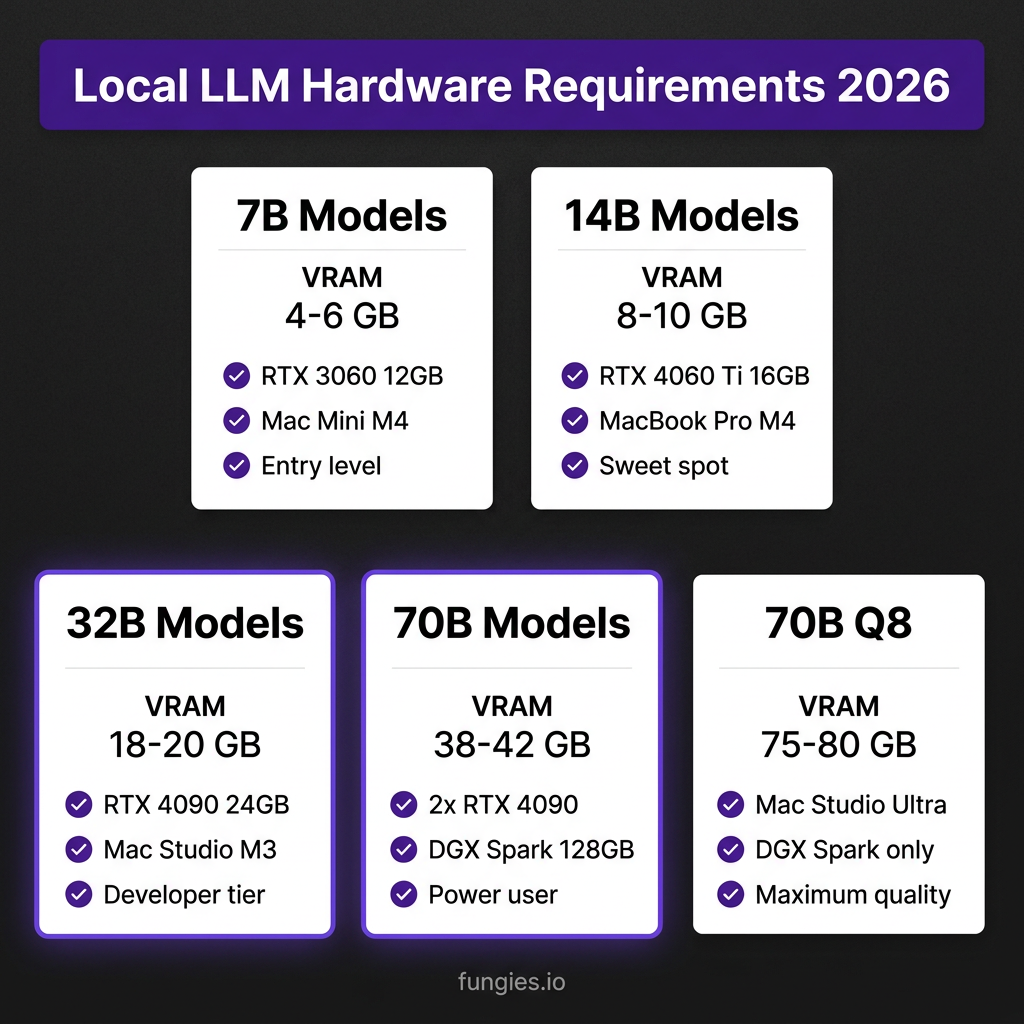
| Model Size | Quantization | VRAM Required | Example Hardware |
|---|---|---|---|
| 7B (Llama 3.1, Qwen 3) | Q4_K_M | 4-6 GB | RTX 3060 12GB, Mac Mini M4 16GB |
| 14B (Qwen 3, Mistral Small) | Q4_K_M | 8-10 GB | RTX 4060 Ti 16GB, MacBook Pro M4 24GB |
| 32B (DeepSeek, Qwen 3.5) | Q4_K_M | 18-20 GB | RTX 4090 24GB, Mac Studio M3 Ultra |
| 70B (Llama 3.3, Qwen 3.5) | Q4_K_M | 38-42 GB | 2× RTX 4090, Mac Studio M3 Ultra 192GB |
| 70B (Llama 3.3) | Q8_0 | 75-80 GB | DGX Spark 128GB, Mac Studio M4 Ultra |
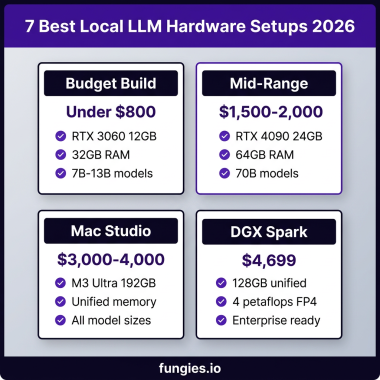
Minimum viable setup: Any NVIDIA GPU with 8GB+ VRAM or Apple Silicon Mac with 16GB+ unified memory. This gets you running 7B models at usable speeds (20-40 tokens/second).
Sweet spot for developers: RTX 4090 (24GB) or Mac Studio M3 Ultra (192GB unified memory). These handle 32B models comfortably and 70B models with quantization.
Step 1: Install Ollama
Ollama is the fastest path to running local LLMs. Think of it as Docker for AI models—one command to install, one command to run. It handles quantization, GPU detection, and memory management automatically.
macOS Installation
# Install via Homebrew
brew install ollama

# Start the service
ollama serve
Linux Installation
# One-line installer
curl -fsSL https://ollama.com/install.sh | sh

# Or using the official installer
wget https://ollama.com/download/ollama-linux-amd64.tgz
tar -xzf ollama-linux-amd64.tgz
sudo mv ollama /usr/local/bin/
Windows Installation
Download the installer from ollama.com/download. Windows 11 with WSL2 is recommended for best compatibility.
Step 2: Pull Your First Model
Ollama hosts pre-quantized versions of popular open-source models. The naming convention is simple: model-name:tag where the tag specifies size and quantization.
# Pull Llama 3.1 8B (great starting point)
ollama pull llama3.1:8b

# Pull Qwen 3 7B (excellent for coding)
ollama pull qwen3:7b

# Pull Mistral Small 3 (fast, efficient)
ollama pull mistral-small:24b

# List downloaded models
ollama list
Understanding quantization tags:
q4_0— Fastest, smallest, slight quality lossq4_k_m— Sweet spot for most users (recommended)q5_k_m— Better quality, slightly slowerq8_0— Near-unquantized quality, requires more VRAMfp16— Full precision, maximum quality, maximum VRAM
Step 3: Run Your First Inference
Two ways to interact: command line or API.
Command Line
# Interactive chat mode
ollama run llama3.1:8b

# Single prompt
ollama run llama3.1:8b "Explain quantum computing in 3 sentences"
REST API
Ollama exposes an OpenAI-compatible API on localhost:11434:
curl http://localhost:11434/api/generate -d '{
  "model": "llama3.1:8b",
  "prompt": "Write a Python function to reverse a string",
  "stream": false
}'
For chat completions (OpenAI-compatible):
curl http://localhost:11434/v1/chat/completions -d '{
  "model": "llama3.1:8b",
  "messages": [
    {"role": "user", "content": "Explain recursion with a Python example"}
  ]
}'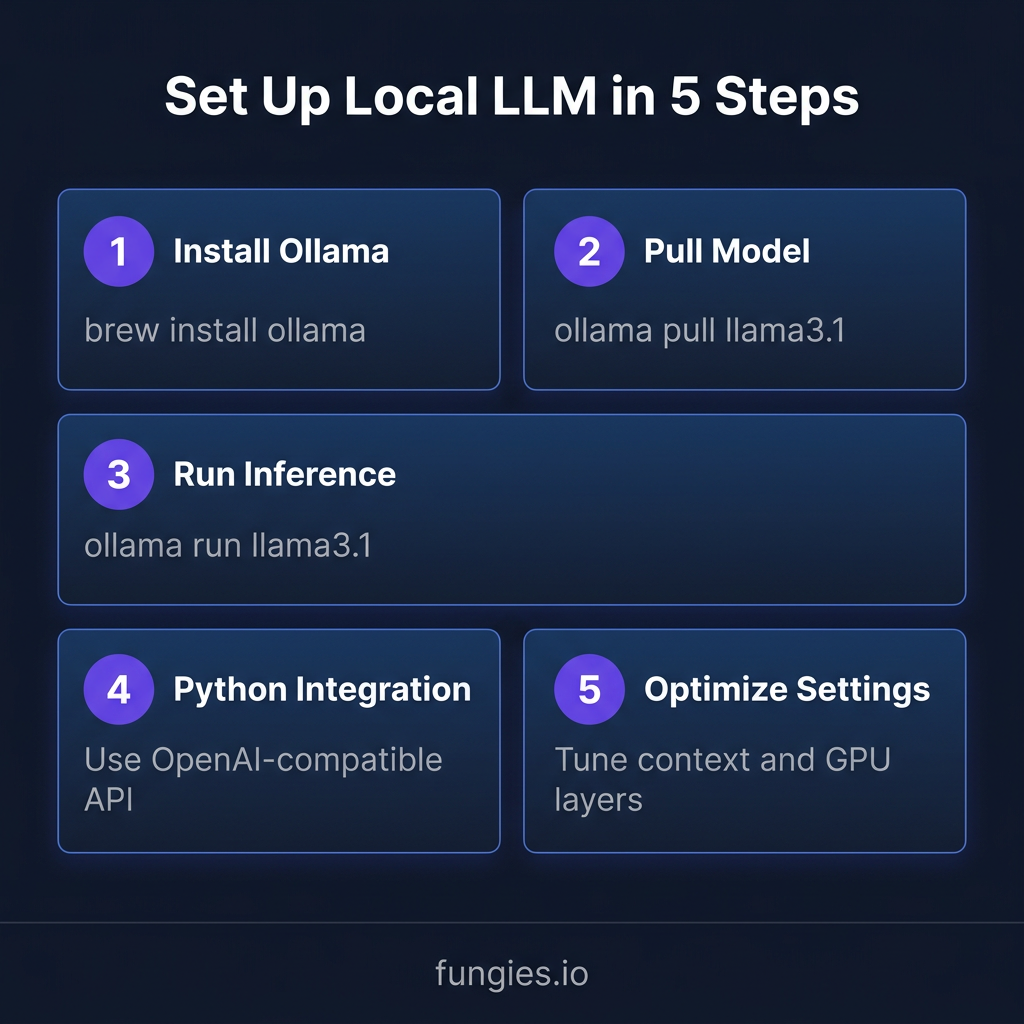
Step 4: Build a Python Integration
Here’s a complete Python client for your local LLM:
import requests
import json

OLLAMA_URL = "http://localhost:11434"

def chat(model, message, system=None):
    payload = {
        "model": model,
        "messages": [{"role": "user", "content": message}],
        "stream": False
    }
    if system:
        payload["messages"].insert(0, {"role": "system", "content": system})

    response = requests.post(f"{OLLAMA_URL}/api/chat", json=payload)
    return response.json()["message"]["content"]

# Usage
code_review = chat(
    model="qwen3:7b",
    message="Review this function for bugs: def add(a, b): return a + b",
    system="You are a senior software engineer. Be concise and specific."
)
print(code_review)
Step 5: Optimize for Your Hardware
Default settings work, but tuning gets you 20-50% more performance.
GPU Acceleration
Ollama automatically detects NVIDIA GPUs. Verify with:
ollama ps # Shows loaded models and GPU usageFor Apple Silicon, Metal acceleration is automatic on macOS 13+.
Context Length
Default context is 2048 tokens. Increase for long documents:
# Create a custom model with 8K context
cat > Modelfile << 'EOF'
FROM llama3.1:8b
PARAMETER num_ctx 8192
EOF

ollama create llama3.1-8k -f Modelfile
Number of GPU Layers
Force more layers onto GPU for better performance:
# In Modelfile
PARAMETER num_gpu 50  # Adjust based on your VRAM
Model Selection Guide
Not all models are equal. Here's what works best for specific tasks:
| Use Case | Recommended Model | Size | Tokens/sec (RTX 4090) |
|---|---|---|---|
| General chat | Llama 3.1 8B | 8B | 85-95 |
| Coding assistance | Qwen 3 7B / 32B | 7-32B | 75-40 |
| Long documents | Gemma 4 27B | 27B | 35-45 |
| Fast iteration | Phi-4 Mini | 3.8B | 120+ |
| Maximum quality | Llama 3.3 70B Q4 | 70B | 18-25 |
| Multilingual | Qwen 3 32B | 32B | 30-38 |
Performance Benchmarks: Real Numbers
Here are actual benchmarks from community testing in 2026:
| Hardware | Model | Quantization | Tokens/sec |
|---|---|---|---|
| RTX 4090 (24GB) | Llama 3.1 8B | Q4_K_M | 95 t/s |
| RTX 4090 (24GB) | Llama 3.3 70B | Q4_K_M | 22 t/s |
| RTX 3090 (24GB) | Qwen 3 32B | Q4_K_M | 28 t/s |
| Mac Studio M3 Ultra | Llama 3.3 70B | Q4_K_M | 25-30 t/s |
| Mac Mini M4 Pro (48GB) | Qwen 3 32B | Q4_K_M | 35 t/s |
| DGX Spark (128GB) | Llama 3.3 70B | FP8 | 2.7 t/s |
| DGX Spark (128GB) | Llama 3.1 8B | FP16 | 45 t/s |
What these numbers mean: 20+ tokens/second is usable for interactive work. 40+ feels instant. 10 or below is painful for real-time use but fine for batch processing.
Advanced: Production Serving with vLLM
Ollama is perfect for personal use. For multi-user scenarios or production APIs, upgrade to vLLM:
# Install vLLM
pip install vllm

# Serve a model with OpenAI-compatible API
vllm serve meta-llama/Llama-3.1-8B-Instruct \
  --port 8000 \
  --tensor-parallel-size 1 \
  --max-model-len 8192
vLLM delivers 5-20x higher throughput on multi-user workloads using PagedAttention memory optimization. It's the industry standard for serving LLMs at scale.
Key Takeaways
- Start small: Llama 3.1 8B on 8GB VRAM is enough to experience local LLMs
- Quantization is your friend: Q4_K_M loses minimal quality while saving 75% VRAM
- Ollama for exploration, vLLM for production: Match the tool to your use case
- VRAM rules everything: Plan your hardware around the models you want to run
- The ecosystem is mature: What required custom CUDA code in 2023 is now a one-line command
FAQ
Can I run local LLMs without a GPU?
Yes, but it's slow. llama.cpp supports CPU-only inference. A modern 8-core CPU runs 7B models at 5-10 tokens/second. Usable for experimentation, painful for daily work.
How does local compare to ChatGPT quality?
Llama 3.3 70B and Qwen 3 32B match GPT-4o on many benchmarks. For coding specifically, local models often outperform cloud APIs because you can run them at higher quantization (Q8) without cost penalties.
What's the cheapest way to start?
Intel Arc B580 ($249) or a used RTX 3060 12GB ($200-250). Both handle 7B models well. For Mac users, the Mac Mini M4 16GB ($599) is excellent value.
Can I use local LLMs with my existing tools?
Yes. Ollama's OpenAI-compatible API works with most tools: Continue.dev for VS Code, LibreChat for chat UI, and any LangChain/LlamaIndex application.
Is my data really private?
Completely. The model runs entirely on your hardware. No network calls, no telemetry, no logging. Your prompts never leave your machine.
Conclusion
Setting up a local LLM in 2026 is genuinely simple. Install Ollama, pull a model, start chatting. The hard part—optimization, hardware selection, integration—comes after you've experienced what's possible.
My recommendation? Start tonight. Pull Llama 3.1 8B. Ask it to explain something you've been learning. Feel the difference when AI responds without a network round-trip, without rate limits, without subscription anxiety.
The future of AI isn't just cloud APIs. It's running powerful models on your own terms. And that future is already here.
Ready to build AI-powered applications? Fungies.io handles payments, tax compliance, and checkout for your SaaS or digital products—so you can focus on shipping.