Here’s a number that should make you pause: a solo developer spending $80/month on Claude API calls could break even on a local GPU setup in just 7 months—and then run inference for free for years. In 2026, with RTX 5090s shipping and open-source models rivaling GPT-4o, building a home AI server has shifted from hobbyist experiment to legitimate production strategy.
This guide covers everything you need to build a 24/7 home AI server: hardware tiers for every budget, the software stack that actually works, remote access setup, and the real cost breakdown including electricity and break-even points.
Why Build a Home AI Server in 2026?
Running large language models locally isn’t just about privacy—though that’s a major factor. It’s about total cost of ownership (TCO), control, and capability. Here’s what changed in 2026:
- Model quality: Llama 4, Qwen 3.6, and DeepSeek V3.2 run at 50+ tokens per second on consumer hardware and score within 10-15% of GPT-4o on coding benchmarks
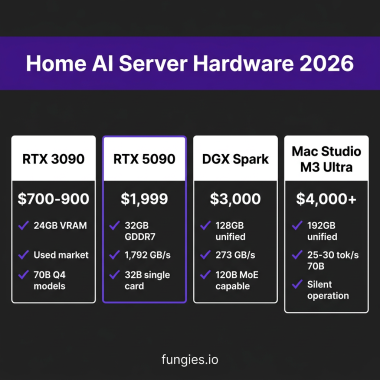
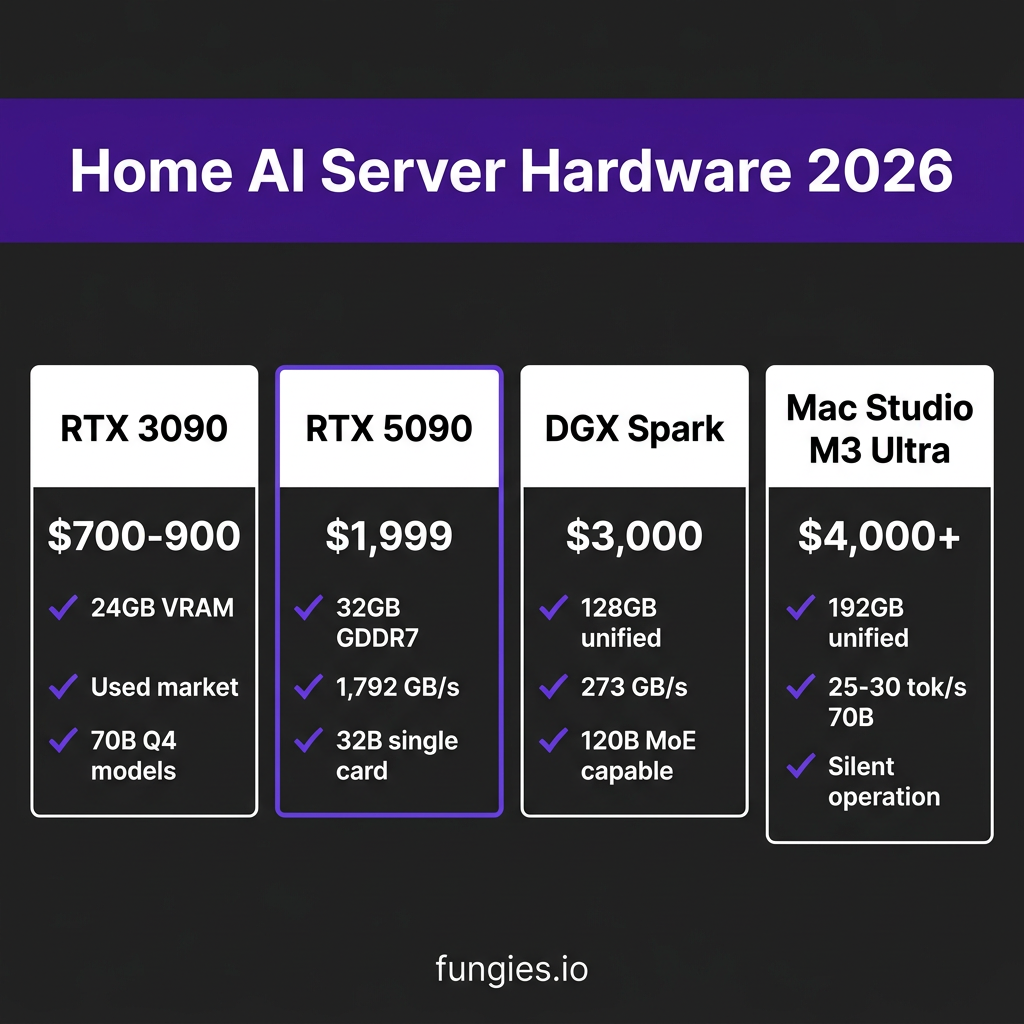
- Hardware prices: Used RTX 3090s (24GB) now sell for $700-900, making 70B parameter models accessible
- Software maturity: Ollama and vLLM handle quantization, memory management, and GPU acceleration automatically
- Break-even speed: A $1,500 hardware investment breaks even in 6-12 months for moderate API users
Cloud inference for a 70B model can cost $300-800 per month for heavy users. A one-time hardware investment gives you complete data privacy, zero rate limits, and offline access.
Hardware Requirements by Use Case
The VRAM math is roughly linear: a 7B parameter model at Q4 quantization requires approximately 4-5GB of VRAM. Here’s what you need for different model sizes:
| Model Size | Minimum VRAM | Recommended VRAM | Hardware Example |
|---|---|---|---|
| 7B (Q4) | 4-5 GB | 8 GB | RTX 5060 Ti, Apple M2 |
| 14B (Q4) | 8-9 GB | 12 GB | RTX 4070, Apple M3 |
| 32B (Q4) | 18-20 GB | 24 GB | RTX 3090/4090 |
| 70B (Q4) | 35-40 GB | 48 GB+ | 2x RTX 3090, RTX PRO 6000 |
| 120B+ MoE | 80 GB+ | 128 GB+ | DGX Spark, Mac Studio M3 Ultra |
24GB VRAM is the sweet spot. This lets you run 7B models at full precision, 13-14B models comfortably with quantization, and 34B models at aggressive quantization. For 70B models, you need 40GB+ or dual GPUs.
The Complete Build: Hardware Tiers
Tier 1: Budget Build ($800-1,200)
- GPU: Used RTX 3090 (24GB) – $700-900
- CPU: AMD Ryzen 5 5600X or Intel i5-12400 – $150-200
- RAM: 64GB DDR4 – $120-150
- Storage: 2TB NVMe SSD – $100-150
- PSU: 850W 80+ Gold – $100-130
What it runs: 7B at full precision, 14B at Q4, 32B at Q4, 70B with CPU offloading (slow). Perfect for entry-level local inference.
Tier 2: Enthusiast Build ($2,000-2,500)
- GPU: RTX 5090 (32GB GDDR7) – $1,999
- CPU: AMD Ryzen 7 7700X – $300-350
- RAM: 64GB DDR5 – $180-220
- Storage: 2TB NVMe Gen4 – $120-150
- PSU: 1000W 80+ Gold – $150-200
What it runs: 32B models at Q4 on a single card, 70B at Q4 across dual cards (add second 5090 later). The RTX 5090’s 1,792 GB/s bandwidth makes it the price-performance sweet spot for 2026.
Tier 3: Professional Build ($4,000-5,000)
- GPU: RTX PRO 6000 (96GB) – $8,000+ or 2x RTX 4090 (48GB total)
- CPU: AMD Threadripper or Intel Xeon – $500-800
- RAM: 128GB DDR5 – $400-500
- Storage: 4TB NVMe + 8TB HDD – $300-400
- PSU: 1600W 80+ Titanium – $400-500
What it runs: 70B models at FP16, 120B+ MoE models at Q4. This is enterprise-grade local inference.
Tier 4: Apple Silicon Alternative ($3,500-6,000)
- Mac Studio M3 Ultra with 128-192GB unified memory – $4,000-6,000
What it runs: 70B models at 25-30 tok/s (Q4), completely silent operation, no GPU driver headaches. The unified memory architecture means no VRAM limitations—192GB is all accessible for model weights.
Software Stack: Ollama vs vLLM
You have two main options for serving models: Ollama for simplicity, vLLM for production.
| Feature | Ollama | vLLM |
|---|---|---|
| Setup | One command | Requires Python/PyTorch |
| Best for | Development, experimentation | Production, high throughput |
| API | OpenAI-compatible | OpenAI-compatible |
| Quantization | Automatic | Manual config |
| Throughput | Good | Excellent (PagedAttention) |
| Learning curve | Minimal | Moderate |
Recommendation: Start with Ollama. It’s Docker for AI models—pull and run with a single command. When you need higher throughput or concurrent users, migrate to vLLM.
Step-by-Step Setup Guide
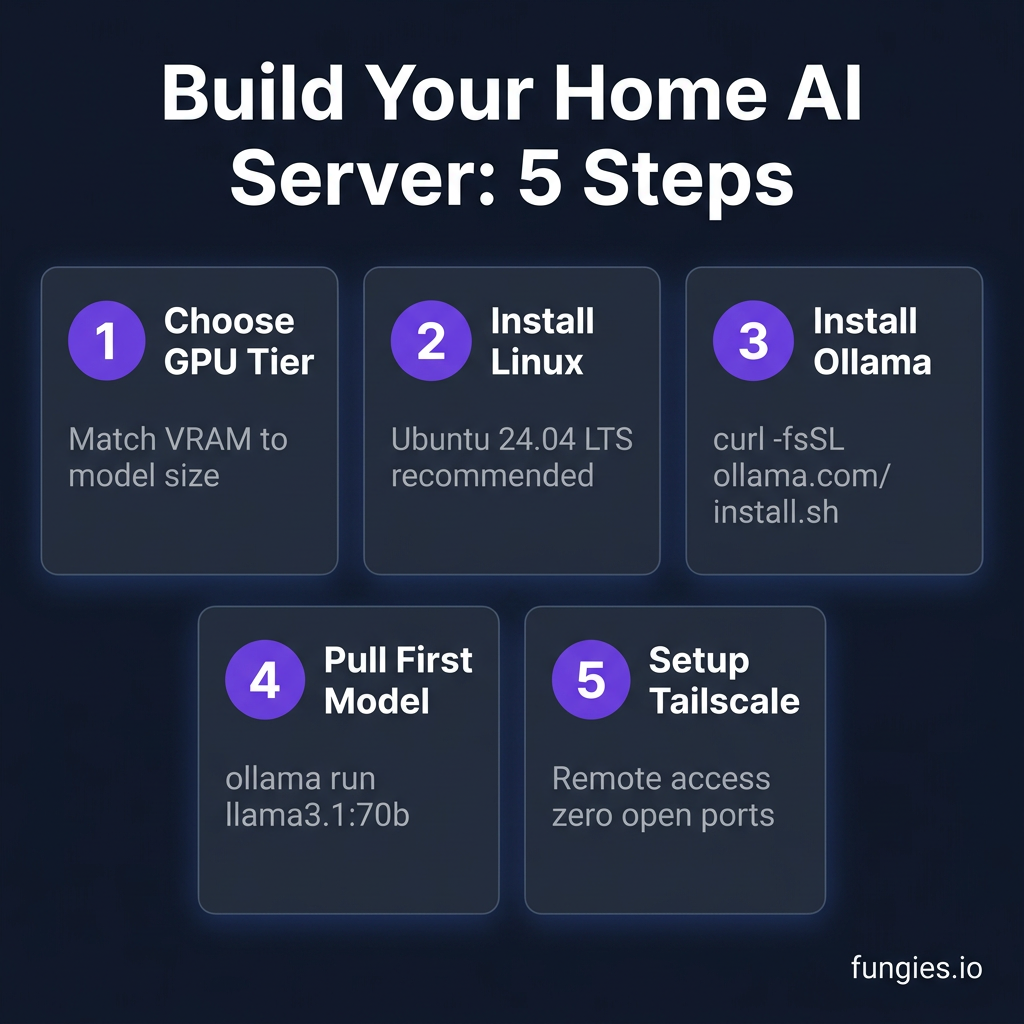
Step 1: Install Ubuntu 24.04 LTS
Linux is the standard for AI workloads. Ubuntu 24.04 LTS provides the best driver support and stability:
- Download Ubuntu 24.04 LTS Server
- Create bootable USB with Rufus (Windows) or dd (Linux/Mac)
- Install with OpenSSH server enabled
- Update:
sudo apt update && sudo apt upgrade -y
Step 2: Install NVIDIA Drivers and CUDA
# Add NVIDIA package repositories
wget https://developer.download.nvidia.com/compute/cuda/repos/ubuntu2404/x86_64/cuda-keyring_1.0-1_all.deb
sudo dpkg -i cuda-keyring_1.0-1_all.deb
sudo apt update

# Install CUDA toolkit
sudo apt install -y cuda-toolkit-12-5

# Verify installation
nvidia-smi
Step 3: Install Ollama
# One-line installer
curl -fsSL https://ollama.com/install.sh | sh

# Verify
ollama --version

# Start service
sudo systemctl enable ollama
sudo systemctl start ollama
Step 4: Pull and Run Your First Model
# Pull Llama 3.1 70B (requires ~40GB)
ollama pull llama3.1:70b

# Run interactive mode
ollama run llama3.1:70b

# Or start API server
ollama serve
The Ollama API is OpenAI-compatible at http://localhost:11434/v1/chat/completions. Point your existing tools there.
Remote Access with Tailscale
You don’t need to open ports on your router. Tailscale creates a secure mesh VPN:
# Install Tailscale
curl -fsSL https://tailscale.com/install.sh | sh

# Authenticate
sudo tailscale up

# Get your server's Tailscale IP
tailscale ip -4
Now access your AI server from anywhere using the Tailscale IP—no port forwarding, no firewall rules, zero attack surface.
Power & Cooling Considerations
A home AI server runs 24/7. Here’s what that costs:
| Component | Idle Power | Load Power | Monthly Cost (at $0.15/kWh) |
|---|---|---|---|
| RTX 3090 build | 80W | 350W | $15-25 |
| RTX 5090 build | 90W | 450W | $20-35 |
| Dual GPU build | 120W | 600W | $30-50 |
| Mac Studio M3 Ultra | 25W | 180W | $8-15 |
Cooling tips:
- Ensure case has front-to-back airflow
- Use a UPS to protect against power outages (corrupts model downloads)
- Consider undervolting GPUs to reduce power draw 10-15% with minimal performance loss
Cost Breakdown & Break-Even Analysis
Let’s run the numbers for a solo developer spending $80/month on API calls:
| Cost Component | Amount |
|---|---|
| Hardware (RTX 3090 build) | $1,200 |
| Electricity (12 months) | $240 |
| Total Year 1 Cost | $1,440 |
| Cloud API (12 months at $80/mo) | $960 |
| Savings Year 1 | None yet |
| Break-even point | Month 18 |
| Savings Year 2 | $720+ |
For heavier users spending $200/month on APIs, break-even happens in 7-9 months. After that, you’re running inference for the cost of electricity alone.
FAQ
What’s the minimum hardware to start?
A used RTX 3090 (24GB) for $700-900 is the entry point for serious local inference. You can run 7B models at full precision and 70B models with quantization.
Can I use AMD GPUs?
AMD ROCm support has improved, but NVIDIA still dominates for local LLMs. Most tools (Ollama, vLLM) optimize for CUDA. If using AMD, expect more setup friction.
Is a Mac better than a PC for local LLMs?
For unified memory and silent operation, yes. Mac Studio M3 Ultra with 192GB can run 70B models smoothly. For raw performance per dollar, NVIDIA GPUs win.
How do I update models?
Ollama makes it simple: ollama pull llama3.1:70b downloads the latest version. Models are cached locally, so updates are incremental.
Can multiple people use the same server?
Yes. Ollama’s API server handles concurrent requests. For heavy multi-user scenarios, upgrade to vLLM with PagedAttention for better throughput.
Conclusion
Building a home AI server in 2026 is more accessible than ever. Whether you start with a $700 used RTX 3090 or go all-in with a DGX Spark, the math works: break-even in 7-18 months, then years of free inference.
The combination of mature open-source models, affordable used hardware, and polished software like Ollama means you don’t need to be a ML engineer to run production-quality AI locally.
Ready to get started? Check your current API spending—that number tells you exactly how quickly a home AI server pays for itself.
Start building with Fungies.io →