Here’s a surprising statistic: a single NVIDIA RTX 4090 running vLLM can handle 50 concurrent users with a p99 latency of just 2.8 seconds. Compare that to Ollama under the same load, where latency balloons to 24.7 seconds. That’s nearly 9x faster—and you’re not paying per token to OpenAI, Anthropic, or Google.
Running Large Language Models (LLMs) locally isn’t just a privacy play anymore. In 2026, it’s become a legitimate performance and cost strategy for developers, startups, and enterprises alike. Whether you’re building AI-powered features, prototyping applications, or simply don’t want your data leaving your machine, local LLM inference has never been more accessible.
In this guide, I’ll walk you through everything you need to know to run LLMs locally: the best tools available, hardware requirements, performance benchmarks, and a step-by-step setup using Ollama. By the end, you’ll know exactly which solution fits your use case—and how to get it running today.
Why Run LLMs Locally? The Real Benefits
Before diving into tools and setup, let’s address the fundamental question: why bother running LLMs locally when cloud APIs are just an HTTP call away?
1. Complete Data Privacy
When you use OpenAI’s GPT-5, Claude, or Gemini, your data travels to their servers. For many applications—healthcare, finance, legal, or any proprietary business logic—this is a non-starter. Local inference keeps everything on your hardware. No data leaves. No training on your inputs. No compliance headaches.
2. Predictable Costs (No Per-Token Fees)
Cloud LLM APIs charge per token. At scale, these costs compound quickly:
| Provider | Input (per 1M tokens) | Output (per 1M tokens) |
|---|---|---|
| OpenAI GPT-5 | $10.00 | $30.00 |
| Claude Opus 4.6 | $5.00 | $25.00 |
| DeepSeek V3.2 | $0.14 | $0.28 |
| Local Inference | $0 | $0 |
With local inference, you pay for hardware once. An RTX 4090 ($1,600) pays for itself after processing roughly 53 million output tokens via GPT-5. For high-volume applications, local deployment is dramatically more economical.
3. Full Control and Customization
Want to fine-tune a model on your proprietary dataset? Need to run inference at the edge without internet connectivity? Local LLMs give you complete control over the model, parameters, and deployment environment. You’re not limited by API rate limits, model availability windows, or provider-specific quirks.
4. Latency and Performance
For applications requiring real-time responses—chatbots, coding assistants, interactive tools—local inference eliminates network round-trips. With optimized engines like vLLM, you can achieve sub-100ms time-to-first-token (TTFT) for cached prompts.
The 6 Best Local LLM Tools in 2026: A Detailed Comparison
Not all local LLM solutions are created equal. Some prioritize ease of use; others maximize throughput. Here’s a breakdown of the six best options available in 2026, with real performance data and use case recommendations.
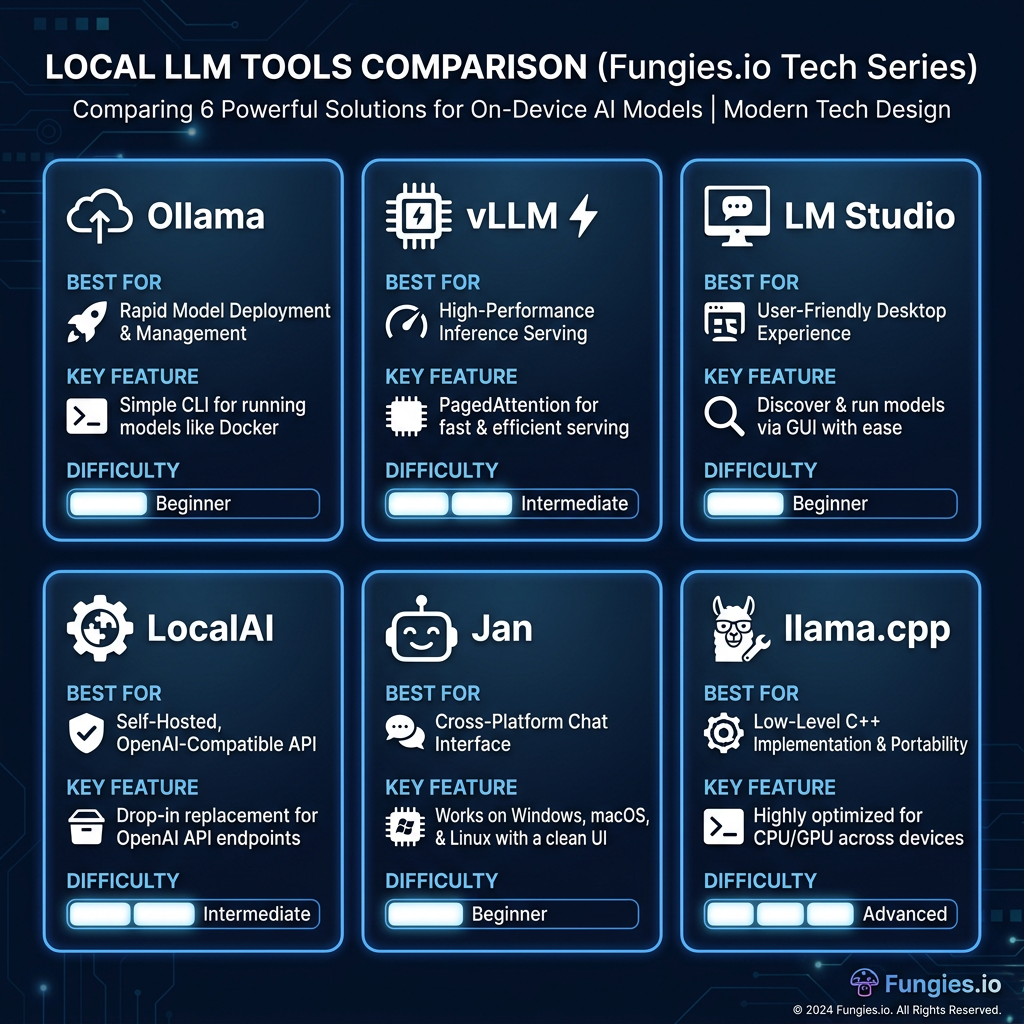
1. Ollama — Best for Developers Getting Started
Ollama has become the de facto standard for developers who want a simple, reliable way to run LLMs locally. It abstracts away the complexity of model formats, quantization, and inference engines behind a clean CLI and REST API.
Key Features:
- Simple CLI:
ollama run llama3.1 - Native support for GGUF models (the standard for consumer hardware)
- Modelfile format for customizing system prompts and parameters
- Built-in REST API for integration with applications
- Cross-platform (macOS, Linux, Windows)
Best For: Developers building prototypes, small teams, and anyone who values simplicity over maximum performance.
Difficulty: Beginner
2. vLLM — Best for Production and High Throughput
vLLM is a production-grade inference engine designed for serving LLMs at scale. Its secret weapon is continuous batching (PagedAttention), which dramatically improves throughput for concurrent requests.
Performance Benchmarks (RTX 4090, Llama 3.1 8B):
| Metric | Ollama | vLLM |
|---|---|---|
| Single-user throughput | ~62 tok/s (Q4_K_M) | ~71 tok/s (FP16) |
| 50-user aggregate | ~155 tok/s | ~920 tok/s |
| p99 latency at 50 users | ~24.7s | ~2.8s |
That’s a 5.9x throughput advantage and nearly 9x better latency under load.
Key Features:
- Continuous batching with PagedAttention
- OpenAI-compatible API server
- Tensor parallelism for multi-GPU setups
- Quantization support (AWQ, GPTQ, FP8)
- Production-ready monitoring and logging
Best For: Production deployments, high-traffic APIs, and applications serving multiple concurrent users.
Difficulty: Advanced
3. LM Studio — Best GUI for Beginners
Not everyone loves the command line. LM Studio provides a polished desktop application for downloading, configuring, and chatting with local LLMs. It’s the most beginner-friendly option on this list.
Key Features:
- Beautiful cross-platform GUI (macOS, Windows, Linux)
- Built-in model browser and downloader
- Chat interface with conversation history
- Local server mode for API access
- GPU/CPU offload configuration
Best For: Non-technical users, quick experimentation, and anyone who prefers a visual interface.
Difficulty: Beginner
4. LocalAI — Best Universal API Hub
LocalAI positions itself as a drop-in replacement for OpenAI’s API. It supports multiple backends (llama.cpp, vLLM, transformers) and provides a unified interface for text generation, embeddings, vision, and audio.
Key Features:
- Full OpenAI API compatibility
- Multimodal support (text, vision, audio)
- Multiple backend support
- Docker deployment ready
- Model gallery with one-click installs
Best For: Teams migrating from OpenAI, multimodal applications, and Docker-centric workflows.
Difficulty: Intermediate
5. Jan — Best for 100% Offline Use
Jan is an open-source desktop application that runs entirely offline. It’s built for privacy-conscious users who want a ChatGPT-like experience without any cloud dependencies.
Key Features:
- 100% offline operation
- ChatGPT-like interface
- Built-in model management
- Local API server
- Extensions for custom functionality
Best For: Privacy-focused users, air-gapped environments, and those wanting a complete offline AI assistant.
Difficulty: Beginner
6. llama.cpp — Best for Maximum Control
llama.cpp is the foundational C++ implementation that powers many other tools on this list (including Ollama). It offers the most control but requires more technical expertise.
Key Features:
- Maximum performance optimization potential
- Support for exotic hardware (ARM, WebAssembly, etc.)
- GGML/GGUF format pioneer
- Highly configurable inference parameters
- Minimal dependencies
Best For: Embedded systems, custom hardware, and developers who need fine-grained control over inference.
Difficulty: Advanced
Step-by-Step: Setting Up Your First Local LLM with Ollama
Let’s walk through a complete setup using Ollama, the most beginner-friendly option. By the end of these five steps, you’ll have a working local LLM and API endpoint.
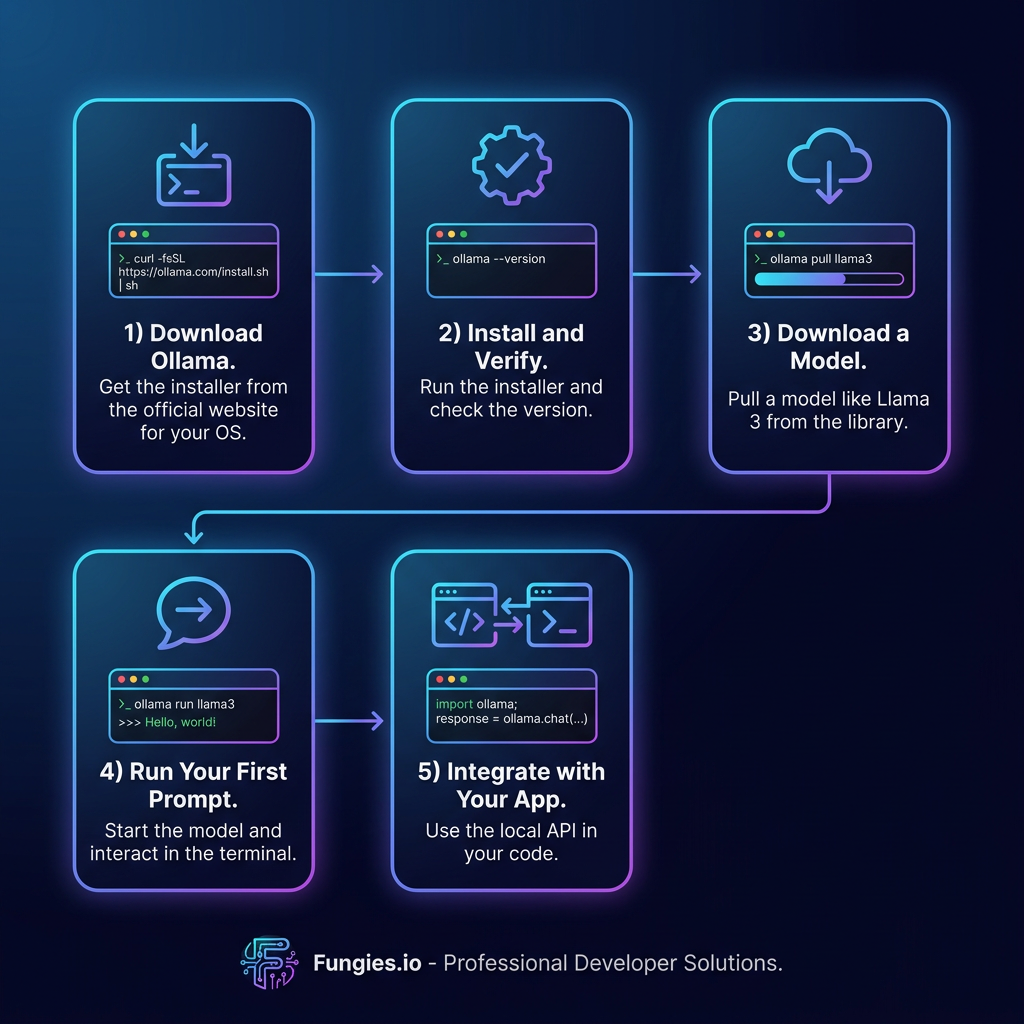
Step 1: Download Ollama
Visit ollama.com and download the installer for your operating system. Ollama supports macOS, Linux, and Windows.
Step 2: Install and Verify
Run the installer and open a terminal. Verify the installation:
ollama --version
# Output: ollama version 0.6.x
Step 3: Download a Model
Ollama hosts a library of pre-configured models. Let’s download Llama 3.1 8B, an excellent general-purpose model:
ollama pull llama3.1
This downloads the ~4.7GB quantized model. For machines with less RAM, try smaller models like phi4 or gemma3:1b.
Step 4: Run Your First Prompt
Start an interactive chat session:
ollama run llama3.1
Type your prompt and press Enter. To exit, type /bye.
Step 5: Integrate with Your Application
Ollama exposes a REST API on port 11434. Here’s a simple Python example:
import requests

response = requests.post('http://localhost:11434/api/generate', json={
    'model': 'llama3.1',
    'prompt': 'Explain quantum computing in simple terms',
    'stream': False
})

print(response.json()['response'])
That’s it—you now have a local LLM API ready for integration.
Hardware Requirements: What You Actually Need
One of the most common questions is: “What hardware do I need to run local LLMs?” The answer depends on model size and performance requirements.
| Hardware | VRAM/Memory | Best For | Approx. Cost |
|---|---|---|---|
| NVIDIA DGX Spark | 128GB unified | Enterprise, 70B+ models | $4,699 |
| RTX 4090 | 24GB VRAM | 8B-70B models (quantized) | $1,600 |
| RTX 3090 | 24GB VRAM | Budget high-VRAM option | $800-1,000 |
| Mac M4 Ultra | Up to 512GB | Apple ecosystem, quiet operation | $3,500+ |
| 8GB RAM Systems | Shared | Small models (Phi-4, Gemma 3 1B) | Any |
Model Size vs. VRAM Requirements
Here’s a practical guide to what fits where:
| Model Size | Quantization | VRAM Required | Example Models |
|---|---|---|---|
| 1B-4B | Q4_K_M | 2-4GB | Gemma 3 1B, Phi-4 |
| 7B-9B | Q4_K_M | 4-6GB | Llama 3.1 8B, Mistral 7B |
| 13B-14B | Q4_K_M | 8-10GB | Llama 3.3 70B (Q4), Qwen 14B |
| 30B-34B | Q4_K_M | 18-22GB | Yi-34B, CodeLlama 34B |
| 70B+ | Q4_K_M | 40GB+ | Llama 3.3 70B (FP16) |
Pro tip: Quantization (GGUF format) reduces model size with minimal quality loss. A 70B model at Q4_K_M quantization fits in ~40GB VRAM and performs nearly as well as the full FP16 version.
Performance Optimization Tips
Once you have a basic setup running, here are proven strategies to maximize performance:
1. Choose the Right Model Format
Different formats optimize for different scenarios:
- GGUF: Best for consumer hardware; excellent compression with good quality
- GPTQ: 4-bit quantization; slightly faster than GGUF on NVIDIA GPUs
- AWQ: Activation-aware quantization; best for batched inference
- Safetensors: Standard PyTorch format; use with vLLM for maximum throughput
2. Enable GPU Offloading
For models larger than your VRAM, use partial GPU offloading. In Ollama, this happens automatically. For llama.cpp, use the -ngl (number of GPU layers) flag:
./main -m model.gguf -ngl 35 # Offload 35 layers to GPU
3. Use Continuous Batching for APIs
If you’re serving an API to multiple users, use vLLM or enable batching in your inference server. This can improve throughput by 5-10x compared to sequential processing.
4. Optimize Context Length
Don’t use 128K context if you only need 4K. Shorter contexts use less memory and process faster. Set the context window to match your actual use case.
5. Consider Multi-GPU Setups
For 70B+ models or high-throughput serving, multiple GPUs provide both more VRAM and compute. vLLM’s tensor parallelism makes multi-GPU deployment straightforward.
Cost Comparison: Local vs. Cloud APIs
Let’s run the numbers on a realistic scenario: a SaaS application processing 10 million output tokens per month.
| Solution | Monthly Cost (10M tokens) | Annual Cost |
|---|---|---|
| OpenAI GPT-5 | $300 | $3,600 |
| Claude Opus 4.6 | $250 | $3,000 |
| DeepSeek V3.2 | $2.80 | $33.60 |
| Local (RTX 4090) | $0* | $0* |
*After initial hardware purchase (~$1,600 for RTX 4090)
Break-even analysis: An RTX 4090 pays for itself in 5-6 months compared to GPT-5, or immediately compared to Claude Opus. After that, every token is free.
For high-volume applications, the savings are substantial. A company processing 100 million tokens monthly would spend $30,000/year on GPT-5 versus a one-time $1,600 hardware investment.
Frequently Asked Questions
Can I run local LLMs without a GPU?
Yes, but performance will be significantly slower. Modern CPUs can run quantized models, especially smaller ones (1B-7B parameters). Expect 5-20 tokens per second on a high-end CPU versus 50-100+ on a GPU.
Are local LLMs as good as ChatGPT?
For many tasks, yes. Models like Llama 3.1 70B, Qwen 2.5 72B, and DeepSeek V3 rival GPT-4 in performance. Smaller models (7B-13B) are excellent for specific tasks like coding, summarization, or structured data extraction.
What’s the best model for coding?
CodeLlama, DeepSeek Coder, and Qwen 2.5 Coder are specifically trained for code generation. For general-purpose models, Llama 3.1 and Mistral perform well on coding tasks.
How do I update models?
With Ollama, simply run ollama pull modelname again to get the latest version. For other tools, download the updated model file and replace the old one.
Can I use local LLMs for commercial applications?
Most open-weight models (Llama, Mistral, Qwen) permit commercial use. Always check the specific license for each model. Models released under Apache 2.0 or MIT licenses are generally safe for commercial use.
Conclusion: Start Local Today
Running LLMs locally in 2026 is more accessible than ever. Whether you’re a solo developer prototyping an AI feature or an engineering team building production APIs, there’s a local solution that fits your needs.
For beginners, start with Ollama or LM Studio. For production APIs at scale, invest in learning vLLM. And if privacy is paramount, Jan offers a complete offline experience.
The cost savings alone justify the hardware investment for most high-volume use cases. Combine that with complete data privacy and full control over your AI stack, and local LLM deployment becomes an obvious choice for serious builders.
Ready to build AI-powered features for your SaaS? Sign up for Fungies and handle payments, taxes, and compliance with one simple integration—so you can focus on what matters: building great products.