In 2026, running large language models locally isn’t just for researchers anymore. With Ollama crossing 174,000 GitHub stars and llama.cpp hitting 100,000 stars faster than PyTorch or TensorFlow, local inference has gone mainstream. But here’s the problem: most developers waste hours choosing the wrong tool for their workflow. This guide cuts through the noise and shows you exactly which local LLM inference engine to use—and how to set it up.
What Are Local LLM Inference Tools?
Local LLM inference tools are the software layer that sits between your model weights and your GPU, translating tokens into compute. Pick the wrong one and you’ll get slow performance, memory crashes, or API headaches. Pick the right one and you’ll get cloud-quality AI running privately on your own hardware.
These tools handle model loading, tokenization, inference optimization, and often expose an API that existing applications can use. The best part? They’re all free and open source (with one exception we’ll note).
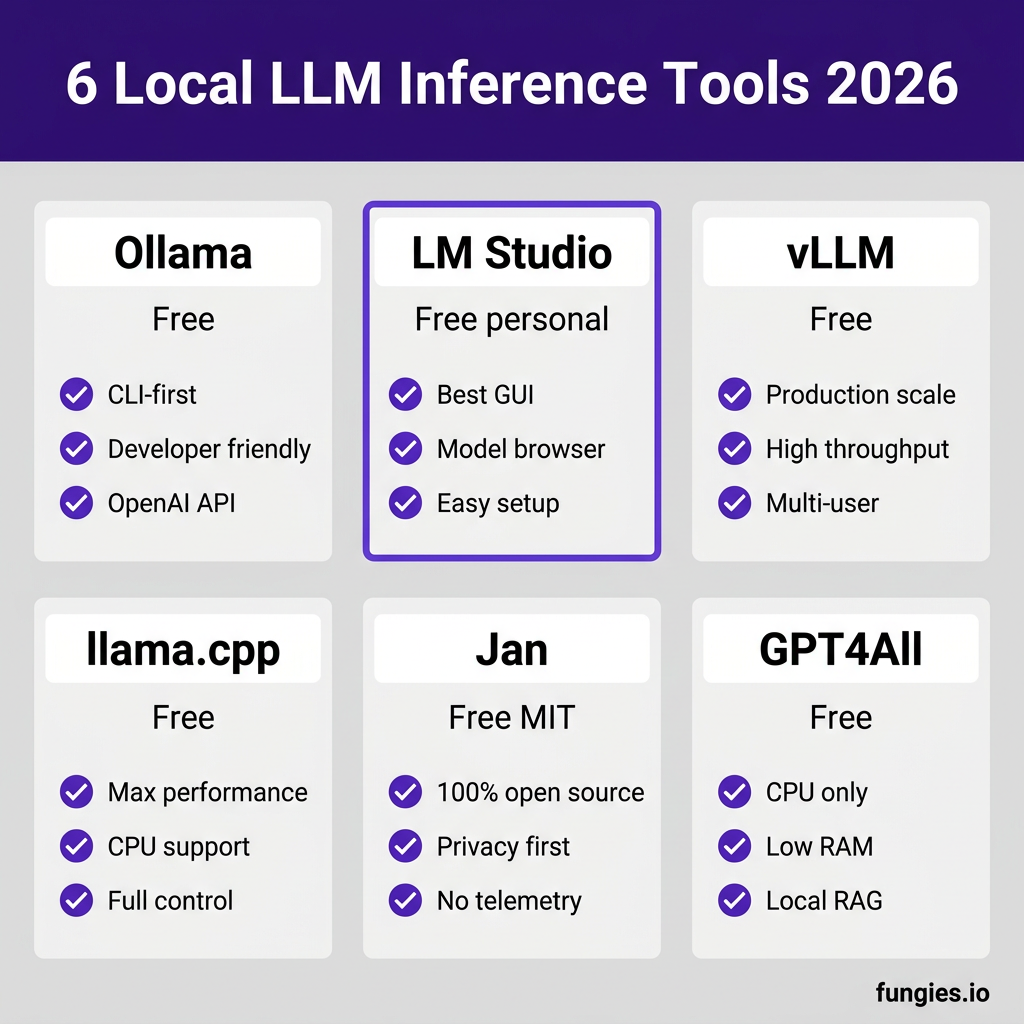
1. Ollama: The Developer’s Choice
Ollama has become the default starting point for developers running local LLMs. One command—ollama run llama3—and you’re chatting with a model.
Key Features
- Single-command model downloads and execution
- Built-in OpenAI-compatible API server
- Modelfile format for custom configurations
- Cross-platform: macOS, Linux, Windows
- Supports GGUF format models
Performance Benchmarks
| Model | Quantization | Tokens/sec (RTX 4090) |
|---|---|---|
| Llama 3.1 8B | Q4_K_M | ~62 tok/s |
| DeepSeek-R1 8B | Q4_K_M | ~58 tok/s |
| Qwen 2.5 32B | Q4_K_M | ~18 tok/s |
When to Use Ollama
- Prototyping and solo development
- API integration with existing tools
- Quick model testing and comparison
- Docker-like workflow for LLMs
Installation
# macOS/Linux
curl -fsSL https://ollama.com/install.sh | sh

# Windows: Download from ollama.com

# Verify installation
ollama --version
Basic Usage
# Pull and run a model
ollama run llama3.1:8b

# List downloaded models
ollama list

# Start API server
ollama serve

# API endpoint: http://localhost:11434
2. LM Studio: The GUI Powerhouse
LM Studio wraps llama.cpp in a polished desktop interface. If you want to run local LLMs without touching the terminal, this is your tool.
Key Features
- Built-in Hugging Face model browser
- One-click model downloads
- Chat interface with conversation history
- OpenAI-compatible local server (port 1234)
- Multi-model loading and switching
LM Studio uses llama.cpp under the hood, so performance is nearly identical to running llama.cpp directly. The overhead from the GUI is minimal—typically under 5%.
When to Use LM Studio
- Non-technical users who need a GUI
- Researchers comparing multiple models
- Teams needing a shared local AI endpoint
- Quick experimentation without CLI
API Server Setup
1. Load a model in LM Studio
2. Click "Start Server" (top right)
3. Endpoint: http://localhost:1234/v1/chat/completions
4. Use with any OpenAI-compatible client
3. vLLM: The Production Engine
vLLM is built for throughput, not convenience. If you’re serving models to multiple users or building an application, vLLM’s PagedAttention and continuous batching deliver 2-4x higher throughput than alternatives.
Key Features
- PagedAttention for memory-efficient serving
- Continuous batching for high throughput
- Tensor parallelism for multi-GPU setups
- OpenAI-compatible API
- Production-grade logging and metrics
Performance Benchmarks (RTX 4090)
| Users | Ollama (tok/s) | vLLM (tok/s) | Improvement |
|---|---|---|---|
| 1 | ~62 | ~71 | 14% |
| 10 | ~85 | ~340 | 300% |
| 50 | ~155 | ~920 | 494% |
When to Use vLLM
- Multi-user applications
- API services with concurrent requests
- High-throughput document processing
- Production deployments
Installation
# Requires Python 3.8-3.12
pip install vllm

# Or with CUDA 12.1
pip install vllm --extra-index-url https://download.pytorch.org/whl/cu121
Basic Usage
# Serve a model
vllm serve meta-llama/Llama-3.1-8B-Instruct

# With custom settings
vllm serve meta-llama/Llama-3.1-8B-Instruct \
  --tensor-parallel-size 2 \
  --max-model-len 8192

# API endpoint: http://localhost:8000
4. llama.cpp: The Engine Under Everything
llama.cpp is the C++ implementation that powers Ollama, LM Studio, and countless other tools. If you need maximum control and don’t mind getting your hands dirty, go straight to the source.
Key Features
- Pure C++ for maximum performance
- GGUF quantization support
- CPU inference (no GPU required)
- Metal support for Apple Silicon
- ROCm support for AMD GPUs
Performance: llama.cpp vs Ollama
| Metric | llama.cpp | Ollama | Difference |
|---|---|---|---|
| Code generation (tok/s) | ~52 | ~30 | +73% |
| Model loading time | 6.85s | 8.69s | +26.8% |
| Memory efficiency | Higher | Standard | ~10% better |
When to Use llama.cpp Directly
- Maximum performance is critical
- Custom quantization needs
- CPU-only inference
- Embedded or edge deployments
- You need to modify the engine
Installation
# Clone and build
git clone https://github.com/ggerganov/llama.cpp.git
cd llama.cpp

# Build with CUDA
make GGML_CUDA=1

# Or CMake
cmake -B build -DGGML_CUDA=ON
cmake --build build --config Release
5. Jan: The Open-Source Alternative
Jan is the fully open-source (MIT license) answer to LM Studio. If you care about code auditability and privacy, Jan delivers a polished GUI without proprietary constraints.
Key Features
- 100% open source (MIT license)
- Local API server (port 1337)
- Multiple concurrent model endpoints
- Extensions and plugin system
- No telemetry or tracking
Jan vs LM Studio
| Feature | Jan | LM Studio |
|---|---|---|
| License | MIT (open source) | Proprietary |
| Price | Free | Free personal, paid commercial |
| API endpoints | Multiple ports | Single port |
| Customization | High (forkable) | Limited |
| Model discovery | Good | Excellent |
When to Use Jan
- Privacy-maximalist workflows
- Commercial use without licensing fees
- Need to fork or customize the tool
- Multiple isolated model endpoints
6. GPT4All: The CPU Champion
GPT4All from Nomic AI is designed for running models on consumer hardware—including machines without GPUs. If you have an older laptop or want to run AI on a CPU-only server, GPT4All is your best bet.
Key Features
- CPU-optimized inference
- No GPU required
- Local document chat (RAG)
- Python SDK for automation
- Commercial use allowed
When to Use GPT4All
- No discrete GPU available
- Older hardware (4-8GB RAM)
- Edge or embedded deployments
- Local RAG with documents
Tool Comparison Matrix
| Tool | Best For | GUI | API | License | Learning Curve |
|---|---|---|---|---|---|
| Ollama | Developers, CLI | ❌ | ✅ | MIT | Low |
| LM Studio | Beginners, GUI | ✅ | ✅ | Proprietary | Very Low |
| vLLM | Production | ❌ | ✅ | Apache 2.0 | Medium |
| llama.cpp | Power users | ❌ | ✅ | MIT | High |
| Jan | Privacy, open source | ✅ | ✅ | MIT | Low |
| GPT4All | CPU-only | ✅ | ✅ | MIT | Low |
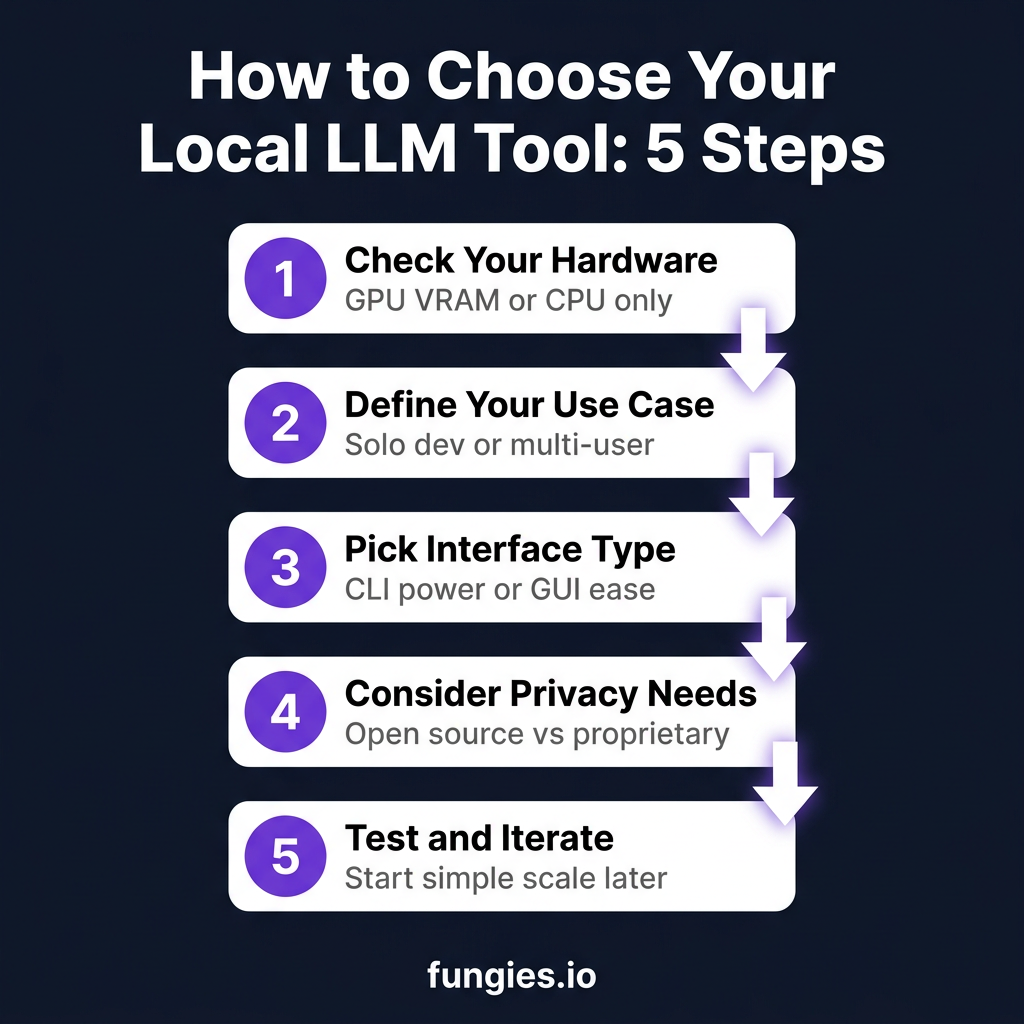
How to Choose: Decision Framework
For Solo Developers
Start with Ollama. It’s the fastest path from zero to running models. When you outgrow it, you can migrate to llama.cpp or vLLM without changing your API calls.
For Teams
Use LM Studio for quick prototyping and vLLM for production serving. LM Studio’s server mode is perfect for shared development environments.
For Privacy-First Workflows
Choose Jan. It’s fully auditable, has no telemetry, and you can fork it if needed.
For Production APIs
Deploy vLLM. The throughput gains from PagedAttention and continuous batching are worth the setup complexity.
For Maximum Performance
Go straight to llama.cpp. Skip the abstraction layers and get every bit of performance from your hardware.
FAQ
Can I use these tools with my existing OpenAI client code?
Yes. Ollama, LM Studio, vLLM, and Jan all expose OpenAI-compatible endpoints. Just change the base URL and API key (usually “not-needed” or “dummy”).
Which tool has the best model selection?
LM Studio has the best built-in model browser with direct Hugging Face integration. Ollama has a curated registry. For llama.cpp and vLLM, you download GGUF files manually from Hugging Face.
Do I need a GPU?
No. llama.cpp and GPT4All run well on CPU-only machines. Performance will be slower (2-10 tok/s vs 30-70 tok/s), but perfectly usable for many tasks.
Can I run multiple models at once?
LM Studio and Jan support loading multiple models simultaneously on different ports. vLLM can serve one model per process—run multiple processes for multiple models.
Which is fastest for single-user use?
llama.cpp edges out Ollama by 20-30% in raw tokens per second. The difference is usually 5-15 tok/s on an RTX 4090.
Are these tools free?
All tools listed are free for personal use. LM Studio requires a commercial license for business use. Jan, Ollama, vLLM, llama.cpp, and GPT4All are fully open source.
Key Takeaways
- Start simple: Ollama gets you running in minutes
- Scale with vLLM: When you need to serve multiple users
- GUI users: LM Studio for ease, Jan for open source
- Power users: llama.cpp gives maximum control
- CPU-only: GPT4All runs on anything
The local LLM inference tools ecosystem in 2026 is mature enough that you can build real products without touching cloud APIs. Your data stays private, your costs stay predictable, and your models run exactly how you want them.
Ready to start building with AI? Create your Fungies account and add AI-powered checkout to your app in minutes.
References
- Ollama: https://ollama.com
- LM Studio: https://lmstudio.ai
- vLLM: https://docs.vllm.ai
- llama.cpp: https://github.com/ggerganov/llama.cpp
- Jan: https://jan.ai
- GPT4All: https://gpt4all.io