Here’s a stat that should wake you up: 90% of developers now use AI coding tools in their daily workflow. Not experimenting with them. Not “planning to try them someday.” Actually using them. Every day. If you’re still writing every line of code manually, you’re now in the minority.
The shift happened fast. In just a few years, AI coding assistants went from novelty to necessity. They’re not just autocomplete on steroids anymore—they’re collaborative partners that can understand entire codebases, write tests, debug errors, and even architect complex features.
But with so many options flooding the market, how do you choose? I’ve spent months testing the major players, comparing their real-world performance, pricing, and unique strengths. This guide cuts through the marketing hype and gives you the data you need to make the right choice for your workflow.
What Are AI Coding Assistants (And Why You Need One)
AI coding assistants are AI-powered tools that integrate with your development environment to help you write, understand, and debug code faster. They use large language models trained on billions of lines of code to predict what you want to write, explain existing code, suggest improvements, and even generate entire functions or files.
The numbers tell the story:
- 41% of all code written globally is now AI-generated
- Developers save an average of 3.6 hours per week using AI tools
- 46% reduction in time spent on routine coding tasks (McKinsey)
- The AI coding assistant market hit $8.5 billion in 2026
- 52% of developers use AI tools daily
These aren’t just productivity gains—they’re workflow transformations. The developers who’ve adopted AI assistants aren’t just coding faster; they’re shipping features they wouldn’t have attempted before, learning new languages more quickly, and spending more time on creative problem-solving instead of boilerplate.
The 7 Best AI Coding Assistants Ranked
I’ve evaluated these tools based on real-world usage, pricing transparency, context window size, IDE support, and unique features. Here’s how they stack up.
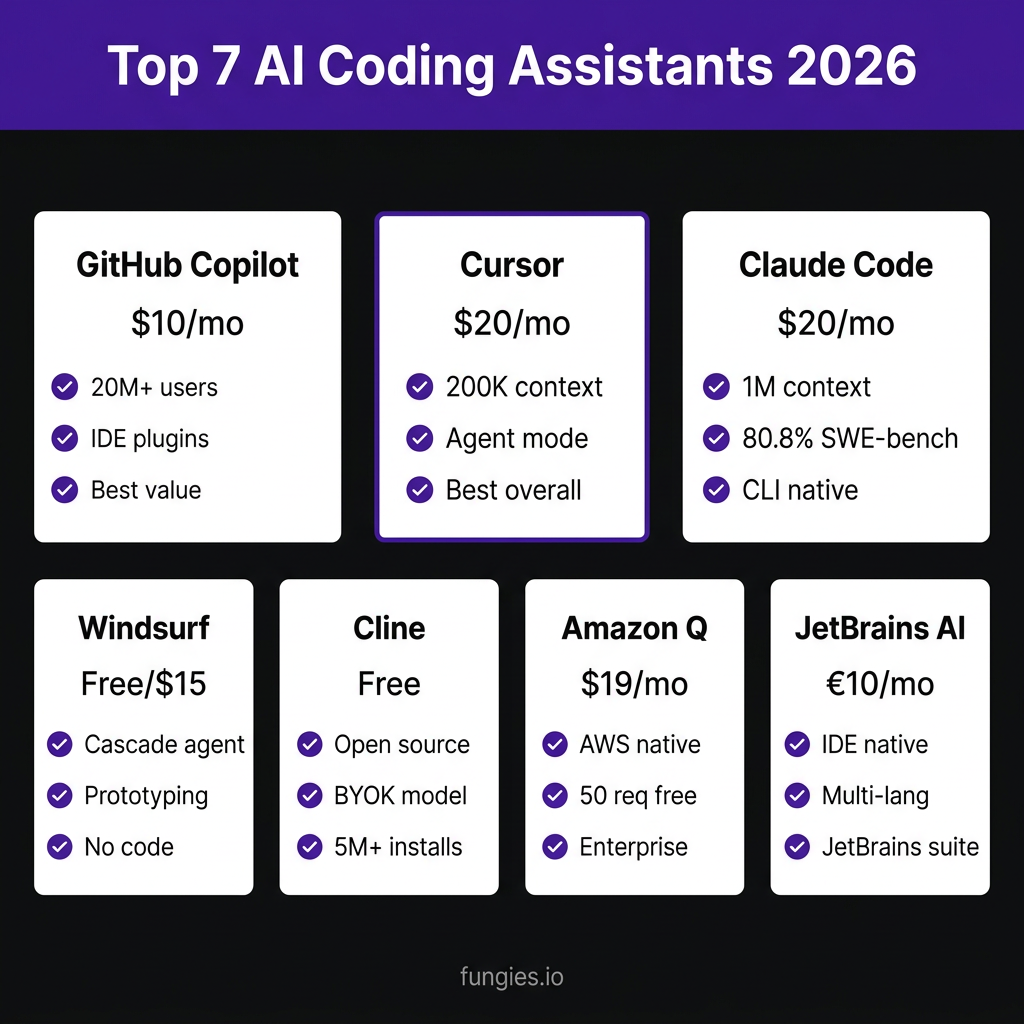
1. Cursor — Best Overall for Professional Developers
Pricing: $20/mo Pro, $200/mo Ultra
Context Window: 200K tokens
Best For: Complex projects, multi-file refactoring, agentic workflows
Cursor has become the darling of serious developers, and for good reason. Built as a fork of VS Code, it feels familiar while adding powerful AI capabilities that go far beyond simple autocomplete.
The standout feature is Cursor’s agent mode. You can describe complex tasks—”refactor this authentication system to use JWT tokens”—and Cursor will plan, execute, and verify changes across multiple files. The 200K token context window means it can understand large codebases without losing track of dependencies.
Pros:
- Native VS Code experience with AI deeply integrated
- Powerful agent mode for complex multi-file operations
- Excellent at understanding project context
- Fast, responsive interface
Cons:
- Requires switching from your current editor
- Ultra tier at $200/mo is expensive for individuals
- Can be overkill for simple projects
2. GitHub Copilot — Best Value and Market Leader
Pricing: $10/mo Pro, $39/mo Pro+
Users: 20M+
Best For: Individual developers, teams already on GitHub
Copilot started the AI coding revolution, and it remains the most widely adopted tool with over 20 million users and 90% penetration among Fortune 100 companies. Its strength is in its simplicity: install the extension, start coding, and watch it predict what you need.
The recent addition of Copilot Chat and Copilot Workspace has expanded its capabilities significantly. You can now ask questions about your code, generate documentation, and even plan multi-step changes.
Pros:
- Works in virtually every IDE (VS Code, JetBrains, Vim, Neovim)
- Best-in-class autocomplete that feels almost telepathic
- Deep GitHub integration for PR descriptions and code review
- Most affordable paid option at $10/mo
Cons:
- Less powerful agent capabilities compared to Cursor
- Context window limitations on complex projects
- Sometimes suggests outdated patterns
3. Claude Code — Best for Complex Problem-Solving
Pricing: $20/mo Pro, $200/mo Max
Context Window: 1M tokens
SWE-bench Score: 80.8%
Best For: Complex debugging, large codebase understanding, CLI workflows
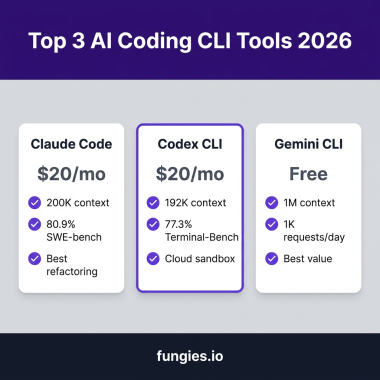
Anthropic’s Claude Code is a CLI-native tool that brings the power of Claude 4 to your terminal. With a massive 1 million token context window and the highest SWE-bench score of any assistant (80.8%), it’s the go-to choice for developers working with large, complex codebases.
Claude Code excels at understanding entire projects. You can ask it to “find the bug in the authentication flow” and it will search, analyze, and propose fixes across your entire codebase. The CLI-first approach means it integrates seamlessly with your existing workflow.
Pros:
- Largest context window (1M tokens)
- Highest benchmark scores for code understanding
- Excellent at debugging complex issues
- CLI-native fits any workflow
Cons:
- No GUI—purely terminal-based
- Steeper learning curve for non-CLI users
- Max tier is pricey for individual use
4. Windsurf — Best for Rapid Prototyping
Pricing: Free for individuals, $15/mo Pro
Best For: Prototyping, beginners, no-code enthusiasts
Windsurf (formerly Codeium) has carved out a niche with its Cascade agent, which can build entire applications from natural language descriptions. The free tier is genuinely usable, making it perfect for hobbyists and those just getting started with AI coding.
The Cascade feature is the star here. Describe what you want—”build a React todo app with local storage”—and Windsurf will generate the files, install dependencies, and get you running.
Pros:
- Generous free tier
- Cascade agent excels at rapid prototyping
- Lowest paid tier at $15/mo
- Good for beginners
Cons:
- Less sophisticated than Cursor or Claude for complex tasks
- Smaller community and ecosystem
- Occasionally generates code that needs significant cleanup
5. Cline — Best Free Open-Source Option
Pricing: Free (open source, BYOK), $20/mo Teams
Installs: 5M+
GitHub Stars: 61.2K
Best For: Cost-conscious developers, privacy-focused teams, BYOK users
Cline is an open-source VS Code extension that lets you bring your own API keys (BYOK). This means you can use it completely free if you have access to LLM APIs, or pay only for the tokens you use. With over 5 million installs and 61,000 GitHub stars, it’s one of the most popular open-source coding assistants.
The BYOK model is particularly attractive for privacy-conscious developers or those who want to use specific models (like local LLMs) that other assistants don’t support.
Pros:
- Completely free if you have API keys
- Open source—fully transparent and customizable
- Supports any LLM with an API
- Strong community support
Cons:
- Requires managing your own API keys and costs
- Less polished than commercial alternatives
- No built-in model—relies on external providers
6. Amazon Q Developer — Best for AWS Ecosystem
Pricing: $19/mo, 50 agent requests/mo free tier
Best For: AWS developers, enterprise teams, infrastructure-as-code
Amazon Q Developer is purpose-built for AWS environments. It understands CloudFormation, CDK, Lambda, and the entire AWS service catalog better than any general-purpose assistant. If you’re building on AWS, this tool will save you hours of documentation diving.
The free tier includes 50 agent requests per month, which is enough to evaluate whether it fits your workflow before committing.
Pros:
- Unmatched AWS knowledge
- Generous free tier
- Integrates with AWS Console and CLI
- Strong security and compliance features for enterprises
Cons:
- Limited value outside AWS ecosystem
- Fewer general coding features than competitors
- Enterprise focus may feel heavy for small projects
7. JetBrains AI / Junie — Best for JetBrains IDE Users
Pricing: €10/mo Pro, €30/mo Ultimate
Best For: IntelliJ IDEA, PyCharm, WebStorm users, multi-language projects
JetBrains’ AI Assistant (and the newer Junie agent) is deeply integrated into the JetBrains suite of IDEs. If you’re already using IntelliJ IDEA, PyCharm, WebStorm, or any other JetBrains product, this is the most seamless option.
The integration goes deeper than just an extension—AI features are woven into the IDE’s existing workflows, from refactoring to testing to documentation.
Pros:
- Native IDE integration
- Excellent multi-language support
- Works with JetBrains’ existing code analysis
- Affordable pricing
Cons:
- Only works in JetBrains IDEs
- Less advanced agent capabilities than Cursor or Claude
- Smaller feature set than standalone tools
Quick Comparison: All 7 Tools at a Glance
| Tool | Price | Context | Best For | IDE Support |
|---|---|---|---|---|
| Cursor | $20-200/mo | 200K tokens | Complex projects | VS Code fork |
| GitHub Copilot | $10-39/mo | Standard | Value, teams | All major IDEs |
| Claude Code | $20-200/mo | 1M tokens | Large codebases | CLI only |
| Windsurf | Free/$15/mo | Standard | Prototyping | VS Code |
| Cline | Free/BYOK | Depends on model | Budget, privacy | VS Code |
| Amazon Q | $19/mo | Standard | AWS projects | VS Code, JetBrains |
| JetBrains AI | €10-30/mo | Standard | JetBrains users | JetBrains only |
How to Choose the Right AI Coding Assistant
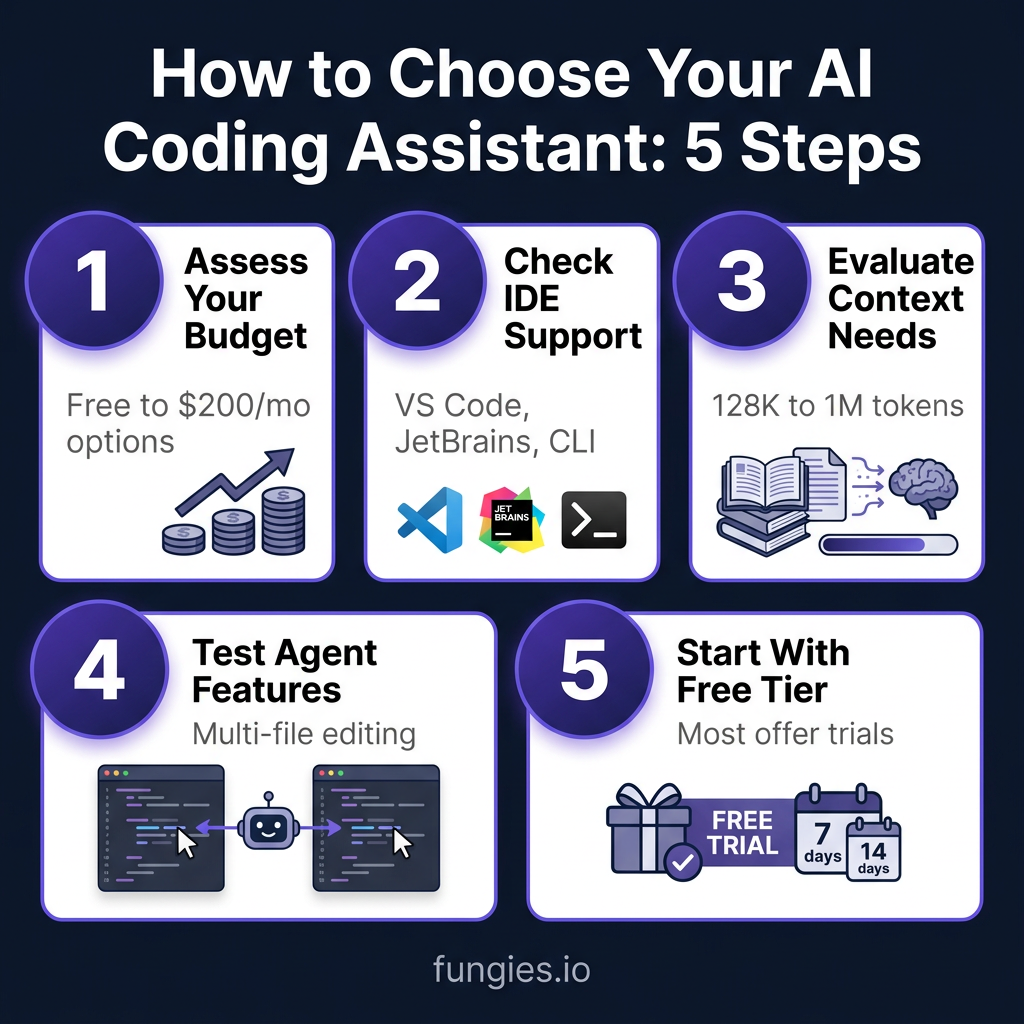
Choosing the right tool comes down to five key factors:
1. Assess Your Budget
Free options exist (Cline with BYOK, Windsurf free tier), but paid tools generally offer better performance and features. For individual developers, $10-20/mo is the sweet spot. Teams should budget $20-40 per developer.
2. Check IDE Support
If you’re committed to VS Code, Cursor and Copilot are obvious choices. JetBrains users should start with JetBrains AI. CLI enthusiasts will love Claude Code. Don’t switch editors just for an AI tool—pick one that fits your existing workflow.
3. Evaluate Context Needs
Working on a small project? Any tool will do. Managing a large monorepo? You need Cursor (200K tokens) or Claude Code (1M tokens). Context window size directly impacts how well the AI understands your codebase.
4. Test Agent Features
Basic autocomplete is table stakes now. The real differentiator is agent capabilities—can the tool plan and execute multi-file changes? Cursor and Claude Code lead here, but try the free tiers to see what works for your workflow.
5. Start With Free Trials
Most tools offer free tiers or trials. Spend a week with each on a real project before committing. The “best” tool is the one that fits how you actually work.
Key Takeaways
- Cursor is the best overall choice for professional developers working on complex projects
- GitHub Copilot offers the best value and widest IDE support
- Claude Code dominates for large codebases and complex debugging
- Windsurf is perfect for rapid prototyping and beginners
- Cline is the go-to for budget-conscious and privacy-focused developers
- Amazon Q is unbeatable for AWS-specific development
- JetBrains AI is the natural choice for JetBrains IDE users
The AI coding assistant you choose will shape how you work for years to come. The good news? Most offer free tiers, so you can experiment before committing. The bad news? Once you start using one, you’ll wonder how you ever coded without it.
Frequently Asked Questions
Will AI coding assistants replace developers?
No. AI assistants augment developers, they don’t replace them. The tools excel at routine tasks, boilerplate generation, and pattern recognition. They struggle with architectural decisions, understanding business requirements, and creative problem-solving. Developers who use AI will replace developers who don’t.
Is my code safe with AI coding assistants?
It depends on the tool and your settings. Most commercial tools (Copilot, Cursor, Claude) don’t train on your private code, but check their privacy policies. For maximum privacy, use Cline with a local LLM or self-hosted solution.
Can I use multiple AI coding assistants?
Yes. Many developers use Copilot for autocomplete and Cursor or Claude for complex tasks. Just be mindful of context switching and subscription costs.
What’s the difference between autocomplete and agent mode?
Autocomplete predicts the next few lines of code based on context. Agent mode can plan, execute, and verify multi-step changes across multiple files. It’s the difference between a smart text predictor and a coding partner.
Do AI coding assistants work for all programming languages?
Most support popular languages (Python, JavaScript, TypeScript, Java, C++, Go) very well. Support for niche or newer languages varies. Check the tool’s documentation for specific language support.
Conclusion
AI coding assistants have moved from experimental tools to essential parts of the modern development workflow. With 90% of developers already using them and 41% of global code now AI-generated, the question isn’t whether to adopt these tools—it’s which one to choose.
The right choice depends on your specific needs: Cursor for complex projects, Copilot for value and versatility, Claude Code for massive codebases, Windsurf for prototyping, Cline for budget and privacy, Amazon Q for AWS work, and JetBrains AI for JetBrains users.
Whatever you choose, start with a free trial and test it on real work. The time savings—3.6 hours per week on average—make these tools pay for themselves almost immediately.
And if you’re building a SaaS product or game and need a merchant of record to handle payments, taxes, and compliance, check out Fungies. We handle the boring stuff so you can focus on shipping great code—with or without AI assistance.
References
- JetBrains/Stack Overflow Developer Survey 2026
- McKinsey & Company: “The Economic Potential of Generative AI” (2026)
- GitHub Copilot User Statistics (2026)
- Anthropic Claude 4 Technical Report
- Developer Experience (DX) Research Report 2026
- AI Coding Assistant Market Analysis 2026