85% of developers now use AI coding assistants regularly. That’s not a projection — it’s the reality of software development in 2026. The question isn’t whether you should use AI coding tools. It’s how to integrate them without turning your codebase into a maintenance nightmare.
I’ve spent the last six months testing every major AI coding assistant on real production code. From GitHub Copilot’s autocomplete to Claude Code’s terminal agent to Cursor’s all-in-one IDE experience. What I learned: the tool matters less than how you use it.
What Are AI Coding Assistants in 2026?
AI coding assistants have evolved from simple autocomplete to agentic systems capable of multi-file refactoring, autonomous planning, and deep codebase reasoning. The 2026 landscape includes three distinct categories:
- IDE Extensions: GitHub Copilot, Amazon Q, Tabnine — integrate into your existing editor
- AI-Native IDEs: Cursor, Windsurf — built from the ground up around AI assistance
- Terminal Agents: Claude Code, Aider — command-line tools for complex tasks
The SWE-bench Verified benchmark — the gold standard for evaluating AI coding agents — shows just how far we’ve come. Claude Opus 4.7 (Adaptive) scores 87.6% on real GitHub issues from Django, Flask, and scikit-learn. GPT-5.3 Codex hits 85%. Even mid-tier models now outperform where top models were just 18 months ago.
Choosing the Right AI Coding Assistant
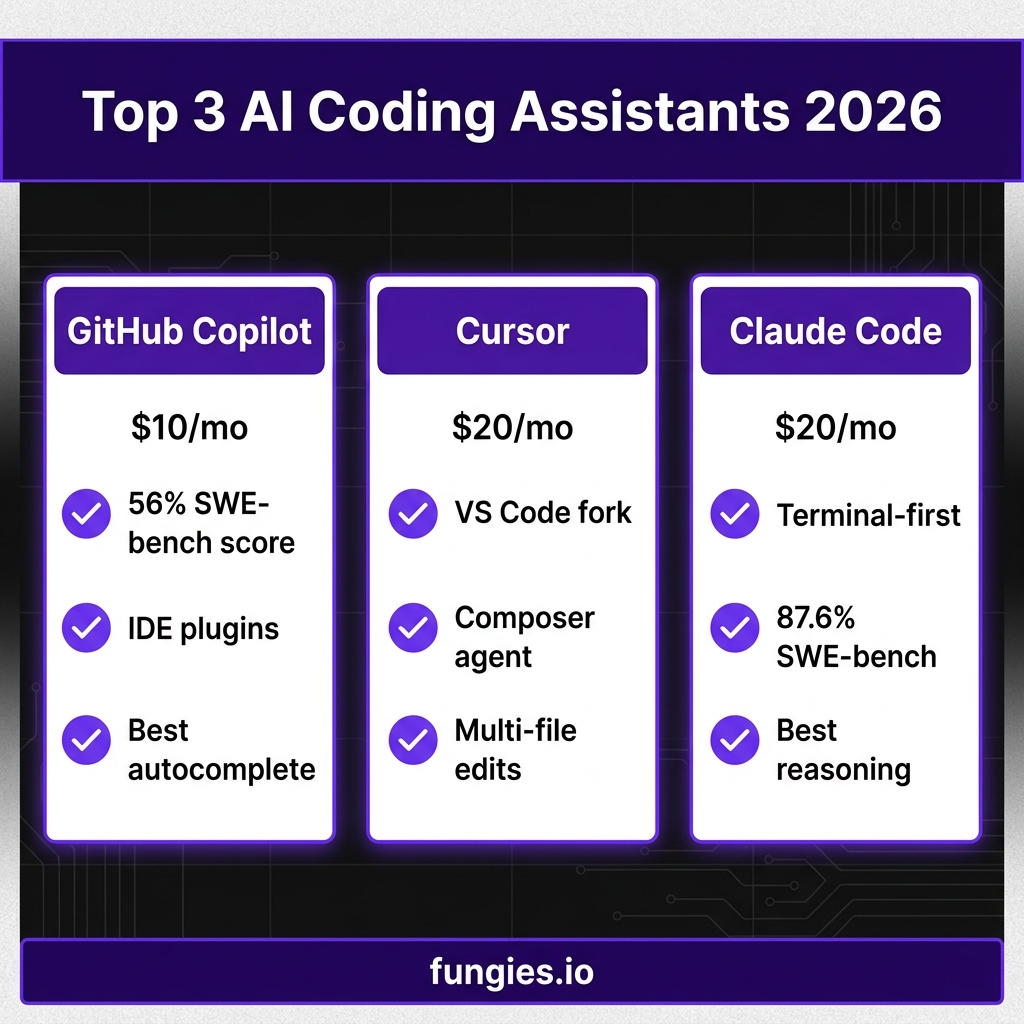
There’s no single “best” AI coding assistant. The right choice depends on your workflow, team constraints, and the kind of autonomy you need. Here’s how the top three compare:
| Feature | GitHub Copilot | Cursor | Claude Code |
|---|---|---|---|
| Price | $10/mo (Pro) | $20/mo (Pro) | $20/mo (API) |
| SWE-bench Score | 56% | ~60% | 87.6% |
| Interface | IDE Plugin | AI-Native IDE | Terminal/CLI |
| Best For | Autocomplete | Multi-file edits | Complex reasoning |
| Context Window | 128K | 200K+ | 200K |
| Free Tier | 50 requests/mo | Limited | $5 credit |
GitHub Copilot: Best for Reliable Day-to-Day Coding
At $10/month, Copilot is the most affordable option with the widest IDE support. It works in VS Code, all JetBrains IDEs, Neovim, Visual Studio, Xcode, and Eclipse. If you use PyCharm, IntelliJ, or Neovim, Copilot is often your only option for in-editor AI assistance.
The 56% SWE-bench score doesn’t tell the whole story. Copilot excels at inline suggestions and routine coding tasks. It’s less capable at complex architectural changes, but it’s reliable, fast, and won’t surprise you with unexpected behavior.
Cursor: Best for AI-Native IDE Experience
Cursor is a VS Code fork where AI is baked into every layer. Tab completions, inline chat, multi-file Composer, subagents, and cloud agents are all native. The Composer feature alone justifies the $20/month price for many developers — it can refactor across dozens of files while maintaining context.
The tradeoff: you use Cursor’s standalone editor, or you don’t use Cursor at all. If you’re already deeply invested in VS Code extensions and customizations, the migration cost is real.
Claude Code: Best for Terminal-First Workflows
Claude Code is an agentic assistant that works in your terminal, IDE, desktop app, and even Slack. With an 87.6% SWE-bench Verified score, it leads the pack on complex reasoning tasks. It’s particularly strong at understanding Spring Boot, PostgreSQL, and backend architecture — the messy, multi-layered work that dominates real software engineering.
The terminal-first approach isn’t for everyone. But if you live in the command line, Claude Code offers unmatched power for refactoring, debugging, and architectural planning.
5 Steps to Integrate AI Into Your Development Workflow
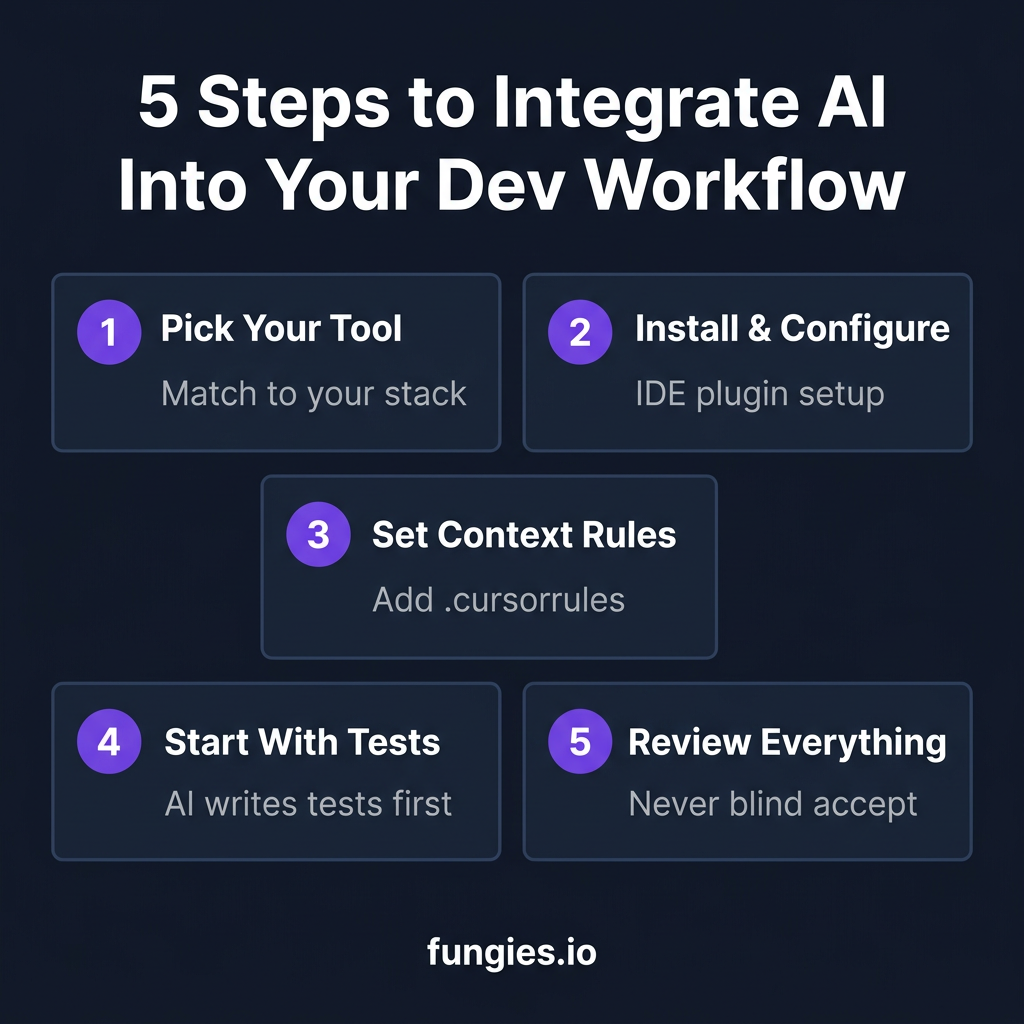
Step 1: Match the Tool to Your Stack
Don’t choose based on hype. Choose based on compatibility:
- VS Code users: All three options work. Cursor offers the deepest integration.
- JetBrains users: Copilot has the best support. Cursor and Claude Code require workarounds.
- Neovim users: Copilot is your best bet for native integration.
- AWS-heavy projects: Amazon Q at $19/mo integrates deeply with AWS workflows.
- Privacy-critical environments: Tabnine offers on-premise deployment options.
Step 2: Install and Configure Your IDE Plugin
Installation is straightforward, but configuration matters:
- Enable semantic indexing: Let the tool index your codebase for better context
- Set up keyboard shortcuts: The default shortcuts often conflict with existing bindings
- Configure ignore patterns: Exclude node_modules, .git, and generated files from context
- Set spending limits: API-based tools can rack up costs quickly on large refactors
Step 3: Define Context Rules
AI assistants work better when they understand your conventions. Create a .cursorrules file (or equivalent) in your project root:
# Project Context
- Framework: Next.js 14 with App Router
- Styling: Tailwind CSS with custom design system
- State: Zustand for client, React Query for server
- Testing: Vitest + React Testing Library

# Code Style
- Use TypeScript strict mode
- Prefer functional components with hooks
- Follow existing file naming conventions
- Write tests for all new utilities
This simple file dramatically improves suggestion quality. The AI stops suggesting class components when you’ve standardized on functions. It uses your actual state management library instead of guessing.
Step 4: Start With Tests and Documentation
The safest way to integrate AI coding assistants is to start with low-risk tasks:
- Generate test cases: AI excels at writing comprehensive test coverage
- Draft documentation: Let AI write the first draft of README files and API docs
- Refactor with tests: Use AI for refactoring when you have good test coverage
- Code review: Ask AI to review your code before human review
This builds trust and helps you understand the tool’s strengths and limitations before relying on it for critical features.
Step 5: Review Every Suggestion (Never Blind Accept)
This is the most important rule. AI coding assistants are confident generators of plausible-looking code. They’re not compilers. They’re not test suites. They don’t know your business logic.
Every suggestion needs human review. Every generated test needs verification. Every refactored function needs testing. The developers who get burned by AI tools are the ones who treat suggestions as gospel.
LLM API Pricing: What Integration Actually Costs
If you’re building AI-powered features into your own product, you need to understand API pricing. Here’s the current landscape as of May 2026:
| Model | Provider | Input/1M tokens | Output/1M tokens | Context |
|---|---|---|---|---|
| GPT-4.1 nano | OpenAI | $0.10 | $0.40 | 1M |
| Gemini 2.5 Flash-Lite | $0.10 | $0.40 | 1M | |
| Gemini 2.5 Flash | $0.15 | $0.60 | 1M | |
| GPT-4.1 | OpenAI | $2.00 | $8.00 | 1M |
| Gemini 2.5 Pro | $1.25 | $10.00 | 1M | |
| GPT-5 | OpenAI | $1.25 | $10.00 | 400K |
| Claude Opus 4.6 | Anthropic | $5.00 | $25.00 | 1M |
For most production use cases, mid-tier models offer the best quality-to-cost ratio. GPT-4.1 Nano and Gemini 2.5 Flash Lite are priced identically at $0.10/$0.40 per million tokens — 10x cheaper than Claude Haiku 4.5. A chatbot doing 100M output tokens per month pays $1,000 on GPT-5 or just $42 on DeepSeek V3.2.
Common Integration Pitfalls (And How to Avoid Them)
Pitfall 1: Context Overload
AI assistants have context windows measured in millions of tokens, but more context isn’t always better. Including irrelevant files dilutes the signal. Be selective about what you include in the context — focus on the files that matter for the current task.
Pitfall 2: Prompt Engineering Neglect
Vague prompts produce vague code. “Fix this bug” is less effective than “This function returns null for edge case X. Update it to handle Y and add a test case.” Specificity matters.
Pitfall 3: Dependency on Generated Code
AI-generated code that works today can break tomorrow when dependencies update. Treat generated code like any other dependency — pin versions, write tests, and understand what it’s doing.
Pitfall 4: Security Blind Spots
AI assistants can suggest code with security vulnerabilities. They don’t know your threat model. They don’t understand your compliance requirements. Always security-review AI-generated code, especially for authentication, authorization, and data handling.
Key Takeaways
- 85% of developers now use AI coding assistants — the question is how, not whether
- GitHub Copilot ($10/mo) wins on price and IDE compatibility
- Cursor ($20/mo) offers the most polished AI-native IDE experience
- Claude Code ($20/mo) leads on complex reasoning with 87.6% SWE-bench score
- Start with tests and documentation to build trust before critical features
- Review every suggestion — never blindly accept AI-generated code
- Define context rules in .cursorrules files for better suggestions
- Mid-tier LLMs offer the best cost-to-quality ratio for most use cases
Frequently Asked Questions
Which AI coding assistant is best for beginners?
GitHub Copilot is the most beginner-friendly. It’s affordable ($10/mo), works in every major IDE, and focuses on autocomplete rather than complex agentic tasks. The learning curve is gentler than Cursor or Claude Code.
Can AI coding assistants replace developers?
No. Even the best models score 87.6% on SWE-bench — that means they fail on 1 in 8 real-world tasks. AI assistants augment developers, they don’t replace them. The developers who thrive in 2026 are the ones who learn to work effectively with AI tools.
Is the free tier of GitHub Copilot useful?
The free tier offers 50 requests per month, which is enough to evaluate the tool but not enough for daily development. If you code regularly, the $10/month Pro plan is worth it.
How do I prevent AI from suggesting insecure code?
Always review AI-generated code, especially for security-critical functions. Use static analysis tools, require code review for AI-generated changes, and never use AI for cryptographic implementations or authentication logic without expert review.
What’s the best AI coding assistant for large codebases?
Cursor excels at large codebases thanks to its codebase search and multi-file Composer feature. Claude Code is also strong for complex refactoring across many files. For truly massive monorepos, consider Cody (free-$9/mo) which is specifically designed for large codebases.
Conclusion
AI coding assistants are now essential tools for software development. The 85% adoption rate among developers isn’t a fad — it’s a fundamental shift in how we write code. But integration matters more than selection. The best tool poorly integrated is worse than a mediocre tool used well.
Start with GitHub Copilot if you want reliability and broad IDE support. Choose Cursor if you’re ready to commit to an AI-native workflow. Try Claude Code if you live in the terminal and need deep reasoning capabilities. But whatever you choose, follow the integration steps: match to your stack, configure properly, define context rules, start with tests, and review everything.
The developers who thrive in 2026 won’t be the ones who resist AI. They’ll be the ones who learn to work with it effectively — treating AI as a powerful assistant that augments their expertise, not replaces it.
Ready to streamline your development workflow? Sign up for Fungies.io and focus on building great software while we handle payments, tax compliance, and checkout.
References
- SWE-bench Verified Benchmark 2026 — BenchLM.ai
- Claude Code vs GitHub Copilot vs Cursor (2026) — Cosmic JS
- Cursor vs Copilot (2026) — Morph LLM
- Cross-Provider LLM API Pricing Comparison (April 2026) — PE Collective
- LLM API Pricing Comparison 2026 — CloudIDR
- SWE-bench Leaderboard 2026 — CodeAnt
- Claude Code vs Cursor vs Copilot: The 2026 Developer Comparison — SitePoint