Running large language models locally gives you complete privacy, zero API costs, and full control over your AI stack. Whether you’re a developer building AI-powered applications, a researcher experimenting with models, or a privacy-conscious user who doesn’t want to send data to cloud providers, local LLM inference tools have matured significantly in 2026.
This guide covers everything you need to know: the seven best tools available today, how to set them up, performance benchmarks, and which tool fits your specific use case. By the end, you’ll know exactly which local LLM solution to choose and how to get it running.
What Is Local LLM Inference?
Local LLM inference means running AI models directly on your own hardware—your laptop, desktop, or server—instead of sending requests to cloud APIs like OpenAI or Anthropic. The model weights live on your machine, your data never leaves your device, and you pay nothing per token.
The trade-off is hardware requirements. While cloud APIs run on massive GPU clusters, local inference depends on your own setup. A modern gaming GPU with 12-24GB VRAM can run most 7B-13B parameter models smoothly. CPU-only setups work too, but at significantly slower speeds.
The 7 Best Local LLM Inference Tools in 2026
Not all local LLM tools are created equal. Some prioritize ease of use with polished GUIs. Others focus on raw performance or specific workflows like coding or creative writing. Here’s the complete breakdown.
1. Ollama — Best for Developers
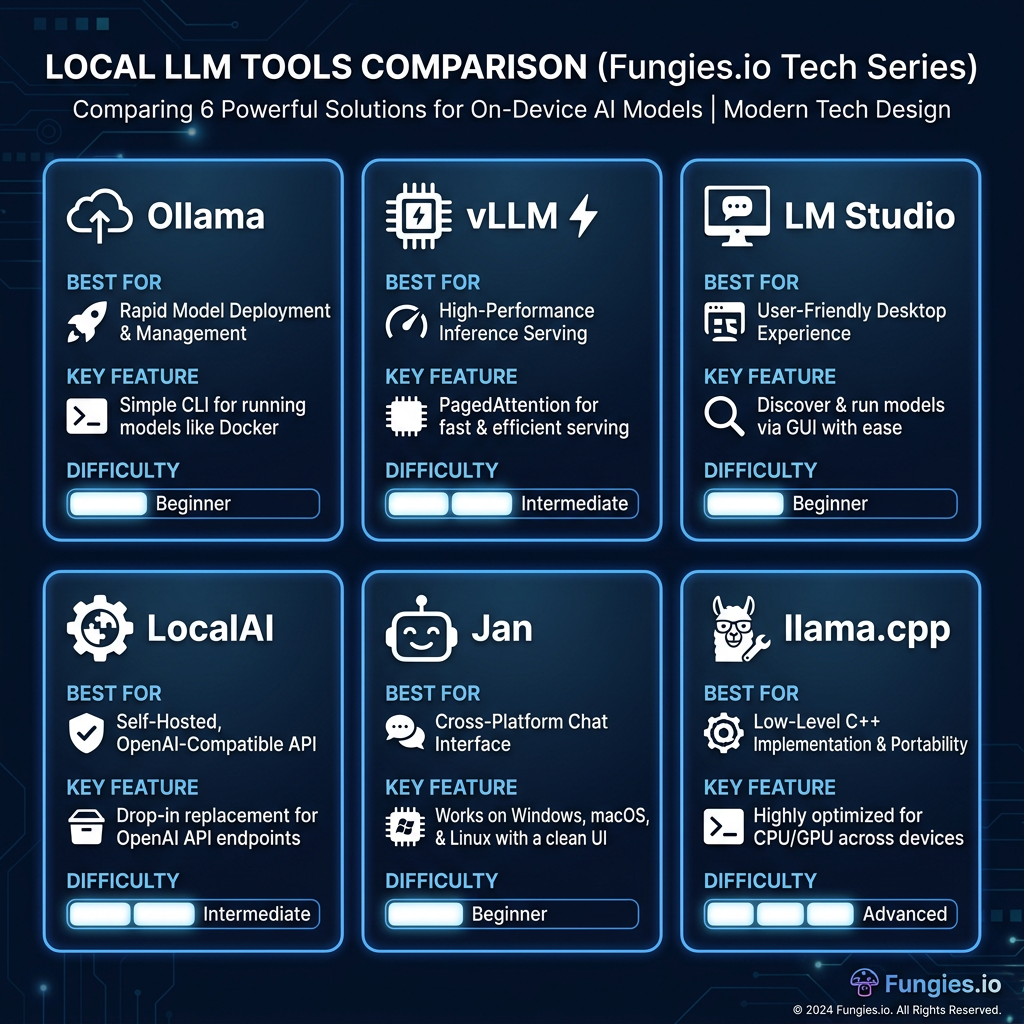
Ollama has become the default choice for developers who want a Docker-like experience for running LLMs. It’s CLI-first, lightweight, and exposes an OpenAI-compatible API on port 11434 that integrates seamlessly with existing tools.
Key features:
- Simple command-line interface:
ollama run llama3.1 - Built-in model library with one-command downloads
- OpenAI-compatible REST API for easy integration
- Docker-style model management (pull, run, list, rm)
- Modelfile system for custom model configurations
- Cross-platform: macOS, Linux, Windows
Best for: Developers building AI applications, API integrations, automation workflows, and anyone comfortable with command-line tools.
2. LM Studio — Best for Exploration
LM Studio offers the most polished GUI experience for discovering and running local models. Its built-in model browser connects to Hugging Face, letting you download and test models without touching a terminal.
Key features:
- Beautiful native GUI for macOS, Windows, Linux
- Integrated Hugging Face model browser
- Chat interface with conversation history
- OpenAI-compatible API on port 1234
- Advanced settings: context length, GPU layers, temperature
- Model quantization preview before download
Best for: Users who prefer graphical interfaces, researchers testing multiple models, and anyone who wants to explore LLMs without command-line knowledge.
3. llama.cpp — The Engine Underneath
llama.cpp is the C++ inference engine that powers most other tools on this list. It pioneered efficient GGUF format support and runs on everything from high-end GPUs to Raspberry Pis.
Key features:
- Pure C++ implementation for maximum performance
- GGUF format support (unified model format)
- Multiple quantization options (Q4_K_M, Q5_K_M, Q8_0)
- CPU and GPU acceleration (CUDA, Metal, Vulkan)
- Command-line interface with extensive parameters
- Server mode with OpenAI-compatible API
Best for: Power users who need maximum control, custom deployments, and developers building on top of a stable inference engine.
4. vLLM — Best for Production Serving
vLLM is designed for serving models to multiple users simultaneously. Its PagedAttention algorithm dramatically improves throughput for concurrent requests, making it ideal for production deployments.
Key features:
- PagedAttention for efficient memory management
- Continuous batching for high throughput
- OpenAI-compatible API server
- Tensor parallelism for multi-GPU setups
- Quantization support (AWQ, GPTQ, SqueezeLLM)
- Optimized for serving, not single-user interaction
Best for: Production deployments, multi-user applications, API services, and scenarios where throughput matters more than latency.
5. Jan — Best Privacy-Focused GUI
Jan is a desktop application built around privacy and local-first AI. It’s essentially a polished wrapper around llama.cpp with a focus on keeping all your data on your device.
Key features:
- 100% offline operation
- Clean, modern desktop interface
- Built-in model management
- Thread-based conversations
- Local API server mode
- Open-source and auditable
Best for: Privacy-conscious users, those who want a simple GUI without cloud dependencies, and users who prioritize data sovereignty.
6. GPT4All — Best for Document Q&A
GPT4All distinguishes itself with built-in RAG (Retrieval-Augmented Generation) capabilities. It can ingest your documents and answer questions based on their content without sending anything to external servers.
Key features:
- Local document ingestion (PDF, TXT, DOCX)
- Built-in vector database for RAG
- No-code chat interface
- Cross-platform desktop app
- One-click model installation
- Privacy-focused: no data collection
Best for: Knowledge workers who need to query documents, students researching papers, and anyone building a personal knowledge base with AI.
7. KoboldCpp — Best for Creative Writing
KoboldCpp targets writers and roleplay enthusiasts. Its browser-based interface includes features specifically designed for storytelling: memory management, author’s note, and world info.
Key features:
- Browser-based GUI (no installation needed)
- Memory and context management for long stories
- Author’s note for style guidance
- World info database for consistent lore
- Multiple sampling methods for creative control
- Adventure mode for interactive fiction
Best for: Fiction writers, roleplay enthusiasts, game developers writing dialogue, and anyone using LLMs for creative storytelling.
Complete Comparison Table
| Tool | Interface | Engine | API | Best For |
|---|---|---|---|---|
| Ollama | CLI | llama.cpp | OpenAI-compatible (11434) | Developers |
| LM Studio | GUI | llama.cpp | OpenAI-compatible (1234) | Exploration |
| llama.cpp | CLI | Native C++ | Yes (server mode) | Maximum control |
| vLLM | CLI/Server | Custom | OpenAI-compatible | Production serving |
| Jan | GUI | llama.cpp | Yes | Privacy-focused users |
| GPT4All | GUI | llama.cpp | Yes | Document Q&A |
| KoboldCpp | Browser | llama.cpp | Limited | Creative writing |
How to Set Up Local LLM Inference: 5-Step Guide

Step 1: Choose Your Tool
Your choice depends on your technical comfort level and use case:
- Developers: Ollama for API integration
- GUI preference: LM Studio or Jan
- Document Q&A: GPT4All
- Creative writing: KoboldCpp
- Production serving: vLLM
Step 2: Download and Install
Ollama (macOS/Linux):
curl -fsSL https://ollama.com/install.sh | shLM Studio: Download from lmstudio.ai and drag to Applications (macOS) or run installer (Windows/Linux).
Jan: Download from jan.ai — available for macOS, Windows, and Linux.
Step 3: Download a Model
Models come in GGUF format with different quantization levels. Q4_K_M is the sweet spot—it reduces model size by approximately 75% with minimal quality loss compared to the full-precision version.
With Ollama:
ollama pull llama3.1:8bWith LM Studio/Jan: Use the built-in model browser to search and download. Look for models tagged with “Q4_K_M” for the best balance of speed and quality.
Step 4: Configure Settings
Key settings to adjust:
- Context length: 4096-8192 tokens for most use cases. Longer contexts need more VRAM.
- GPU layers: Offload as many layers to GPU as your VRAM allows. An RTX 4090 with 24GB can handle full 7B models on GPU.
- Temperature: 0.7 for creative tasks, 0.1-0.3 for factual queries.
Step 5: Start Using Your Local LLM
CLI with Ollama:
ollama run llama3.1:8bAPI usage:
curl http://localhost:11434/api/generate -d '{
  "model": "llama3.1:8b",
  "prompt": "Explain quantum computing in simple terms"
}'
GUI tools: Simply open the application and start chatting in the interface.
Performance Benchmarks: What to Expect
Performance varies dramatically based on your hardware. Here are real-world numbers for a 7B parameter model with Q4_K_M quantization:
| Hardware | Tokens/Second | Use Case |
|---|---|---|
| RTX 4090 (24GB) | 90-120 | Excellent for all local LLM tasks |
| RTX 4080 (16GB) | 70-90 | Great for 7B-13B models |
| RTX 3090 (24GB) | 80-100 | Previous-gen sweet spot |
| M3 Max (36GB unified) | 40-60 | Good for Apple Silicon users |
| M2 Pro (16GB) | 25-35 | Acceptable for smaller models |
| CPU only (modern desktop) | 5-15 | Usable but slow |
Key insight: 24GB VRAM is the sweet spot for local LLMs. It lets you run 7B models entirely on GPU with room for context, or 13B models with some CPU offloading.
Understanding Quantization
Quantization compresses model weights from 16-bit floats to lower precision. This reduces memory usage and increases speed, with a trade-off in output quality.
| Format | Size Reduction | Quality Impact | Recommendation |
|---|---|---|---|
| Q4_K_M | ~75% | Minimal | Best balance for most users |
| Q5_K_M | ~68% | Very low | When quality matters more |
| Q6_K | ~62% | Negligible | High-quality requirements |
| Q8_0 | ~50% | None noticeable | Maximum quality, more VRAM |
| F16 (full) | 0% | Baseline | Research, if VRAM allows |
Perplexity deltas show Q4_K_M adds roughly 0.5-1.0 perplexity points compared to full precision—barely noticeable in practice. For most applications, the speed and memory savings outweigh this minimal quality loss.
Hardware Recommendations for 2026
Best GPU for Local LLMs
The RTX 4090 (24GB) remains the consumer champion for local LLM inference. It delivers 90-120 tokens per second on 7B Q4 models and can handle 13B models entirely in VRAM. The 24GB capacity hits the sweet spot for most use cases.
For budget-conscious builders, the RTX 3090 (24GB) offers similar VRAM at a lower price point, though with slightly reduced speed.
VRAM Requirements by Model Size
| Model Size | Q4_K_M VRAM | Recommended GPU |
|---|---|---|
| 7B | ~4-6 GB | RTX 3060 12GB, RTX 4060 Ti |
| 13B | ~8-10 GB | RTX 3080 12GB, RTX 4070 Ti |
| 34B | ~20-24 GB | RTX 4090, RTX 3090 |
| 70B | ~40+ GB | Dual GPU or cloud |
Common Use Cases and Tool Recommendations
| Use Case | Recommended Tool | Why |
|---|---|---|
| API integration | Ollama | OpenAI-compatible, easy to script |
| Chat interface | LM Studio or Jan | Polished GUI, conversation history |
| Document analysis | GPT4All | Built-in RAG, local document ingestion |
| Creative writing | KoboldCpp | Memory management, story features |
| Production API | vLLM | High throughput, concurrent users |
| Maximum control | llama.cpp | All parameters exposed |
Troubleshooting Common Issues
Slow Performance
- Check GPU layers: Ensure layers are offloaded to GPU, not running on CPU
- Reduce context length: Shorter contexts use less memory and compute
- Use Q4_K_M quantization: Faster than higher precision formats
- Close other applications: Free up VRAM for the model
Out of Memory Errors
- Reduce GPU layers: Let some layers run on CPU
- Use a smaller model: Try 7B instead of 13B
- Lower quantization: Q4_K_M uses less memory than Q8_0
- Reduce context length: 2048 tokens instead of 8192
Model Download Failures
- Check disk space: Models are 4-8GB each
- Verify internet connection: Downloads can be large
- Try manual download: Download GGUF from Hugging Face, load locally
Frequently Asked Questions
Is local LLM inference completely free?
After hardware costs, yes. You pay nothing per token or per request. The only ongoing cost is electricity. For heavy users, local inference becomes cheaper than API calls within weeks.
Can I run local LLMs without a GPU?
Yes, but expect 5-15 tokens per second on modern CPUs. It’s usable for experimentation but frustrating for daily use. A GPU with 12GB+ VRAM transforms the experience.
Which models work best locally?
Llama 3.1 8B, Mistral 7B, and Qwen 2.5 7B are excellent starting points. They fit in consumer GPUs and perform surprisingly well. For coding, try CodeLlama or DeepSeek Coder.
Are local LLMs as good as GPT-4 or Claude?
For many tasks, 7B-13B local models come surprisingly close. They’re excellent for coding assistance, writing help, and general Q&A. For complex reasoning or very long contexts, cloud APIs still lead—but the gap narrows monthly.
Conclusion
Local LLM inference has reached a maturity point where it’s practical for everyday use. Tools like Ollama and LM Studio make setup trivial, while hardware like the RTX 4090 delivers performance that rivals cloud APIs for many tasks.
The right tool depends on your workflow: developers should start with Ollama, GUI-preferrers with LM Studio or Jan, document workers with GPT4All, and writers with KoboldCpp. For production serving, vLLM is unmatched.
With 24GB VRAM as the sweet spot and Q4_K_M quantization delivering 75% size reduction with minimal quality loss, there’s never been a better time to run AI locally. Your data stays private, your costs stay fixed, and your AI works exactly how you want it.