In June 2026, you can run a 70-billion parameter language model on hardware that fits under your desk. Not in a data center. Not on a $20,000 workstation. Under your desk, in a case the size of a shoebox, for under $2,500. The local LLM revolution isn’t coming — it’s here, and the hardware to run it has never been more accessible.
What Is a Home AI Server?
A home AI server is a dedicated machine built specifically for running large language models locally. Unlike cloud APIs that charge per token and send your data to third-party servers, a local setup gives you complete privacy, predictable costs, and the ability to run models 24/7 without rate limits.
The economics have shifted dramatically. In 2024, running a capable local LLM required enterprise-grade hardware. Today, a $1,600 gaming GPU can handle models that rival GPT-4 on most tasks. For developers, researchers, and privacy-conscious teams, building a home AI server is now a practical alternative to cloud dependency.
Understanding VRAM: The Only Spec That Matters
For local LLM inference, VRAM (Video RAM) is your primary constraint. It determines which models you can run and how fast they’ll perform. Here’s what you need to know:
| Model Size | Q4_K_M VRAM Required | Example Models |
|---|---|---|
| 7B | 4-6 GB | Llama 3.1 8B, Mistral 7B |
| 14B | 8-10 GB | Qwen 2.5 14B, Phi-4 |
| 32B | 18-22 GB | Llama 3.1 70B (Q4), Qwen 32B |
| 70B | 38-44 GB | Llama 3.1 70B, Mixtral 8x22B |
| 120B+ | 64 GB+ | DeepSeek V3, GPT-OSS 120B |
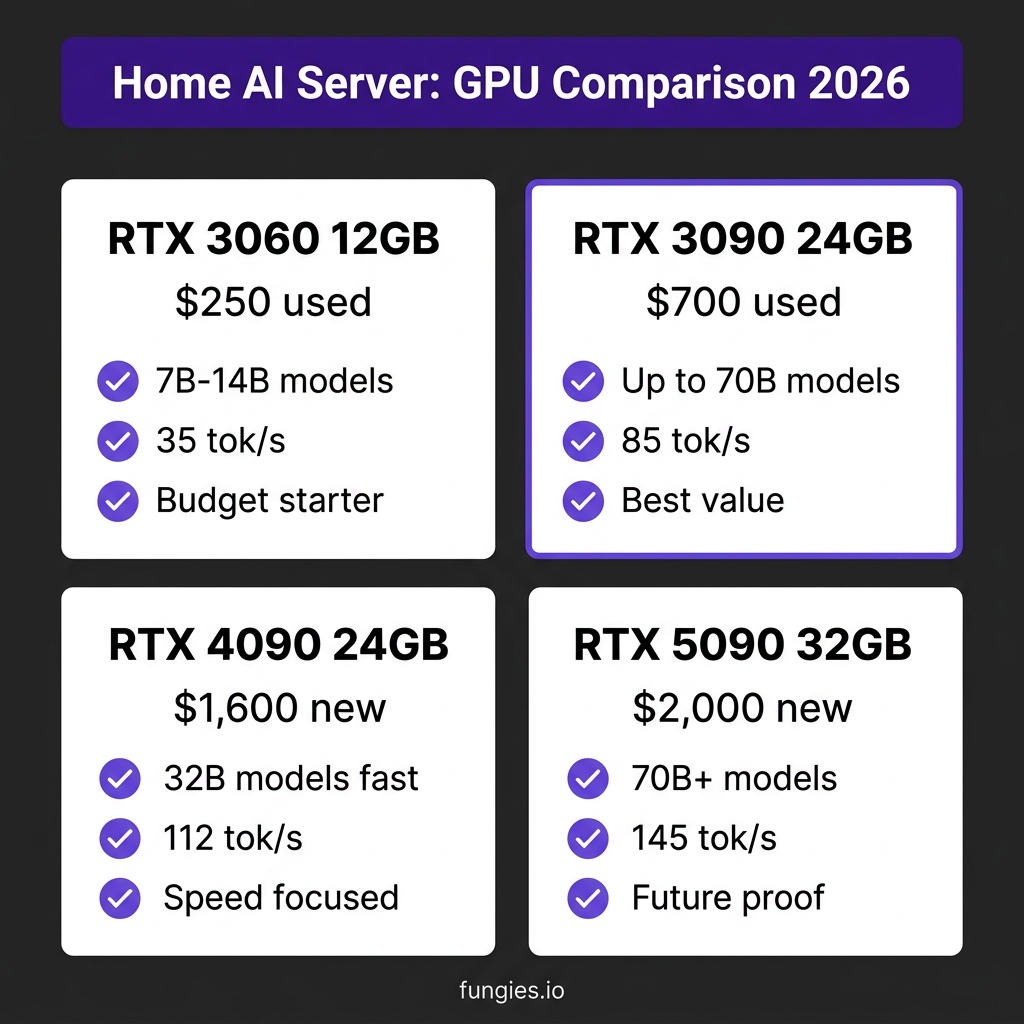
Key insight: Two used RTX 3090s (24GB each, ~$1,400 total) give you 48GB via NVLink — enough for 70B models. A single RTX 4090 (24GB, ~$1,600) can’t run 70B models at all without aggressive quantization that hurts quality.
Hardware Tiers: Build Options for Every Budget
Budget Tier: $600-800
- GPU: RTX 3060 12GB or used RTX 2080 Ti 11GB
- CPU: AMD Ryzen 5 5600X or Intel i5-12400
- RAM: 32GB DDR4
- Storage: 1TB NVMe SSD
- Capable of: 7B-14B models, ~15-25 tokens/sec
Mid-Range Tier: $1,500-2,000
- GPU: RTX 3090 24GB (used) or RTX 4090 24GB
- CPU: AMD Ryzen 7 7700X
- RAM: 64GB DDR5
- Storage: 2TB NVMe SSD
- Capable of: 32B-70B models (with dual 3090s), ~40-80 tokens/sec
High-End Tier: $3,000-4,500
- GPU: Dual RTX 3090s 24GB (NVLink) or RTX 5090 32GB
- CPU: AMD Ryzen 9 7950X
- RAM: 128GB DDR5
- Storage: 4TB NVMe SSD
- Capable of: 70B-120B models, ~60-120 tokens/sec
Apple Silicon Alternative
- Mac Studio M2 Ultra: 192GB unified memory (~$4,000)
- Mac Mini M4 Pro: 48GB unified memory (~$2,000)
- Advantage: No GPU compatibility issues, silent operation, excellent for 70B+ models
Real Performance Benchmarks (June 2026)
Based on community benchmarks from r/LocalLLaMA and verified testing:
| GPU | VRAM | Llama 3 8B (tok/s) | Llama 3 70B (tok/s) | Used Price |
|---|---|---|---|---|
| RTX 3060 12GB | 12GB | 35 | N/A | $250 |
| RTX 3090 | 24GB | 85 | 18 | $700 |
| RTX 4090 | 24GB | 112 | N/A | $1,600 |
| RTX 5090 | 32GB | 145 | 28 | $2,000 |
| Dual RTX 3090 | 48GB | 85 | 22 | $1,400 |
Key findings:
- RTX 4090 is ~32% faster than 3090 on small models but costs 2.3x more
- Dual 3090s with NVLink remain the best value for 70B+ models
- RTX 5090’s 32GB VRAM and FP4 support make it future-proof for 2026-2027 models
Software Stack: Ollama vs LM Studio vs vLLM
Ollama (Recommended for Developers)
- Best for: API-first workflows, automation, headless servers
- Interface: CLI + REST API at localhost:11434
- Pros: One-command install, OpenAI-compatible API, runs as daemon
- Cons: No built-in GUI, requires terminal comfort
LM Studio (Recommended for Beginners)
- Best for: Exploration, chatting, model comparison
- Interface: Polished desktop GUI
- Pros: Visual model browser, GPU slider controls, chat interface
- Cons: Requires app to be running, less automation-friendly
vLLM (Recommended for Production)
- Best for: High-throughput serving, multi-user scenarios
- Interface: Python library + OpenAI-compatible server
- Pros: PagedAttention for batching, 10-20x throughput vs Ollama
- Cons: Steeper setup, requires Python knowledge
Step-by-Step Build Guide
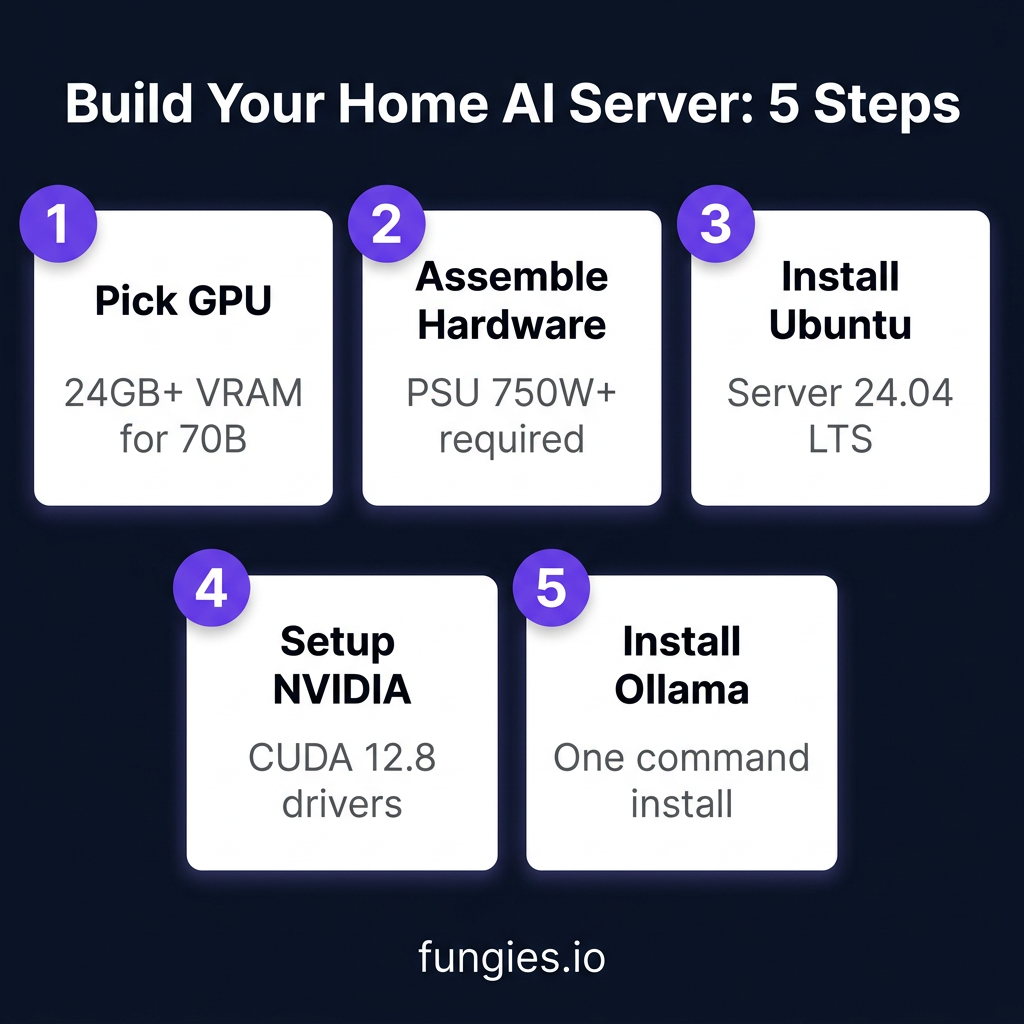
Step 1: Component Selection
Choose your tier based on the VRAM requirements above. For most builders in 2026, the sweet spot is a used RTX 3090 or new RTX 4090.
Step 2: Assembly
Standard PC build process applies. Key considerations:
- Ensure your PSU has enough wattage (750W+ for RTX 4090/5090)
- Use PCIe 4.0 x16 slot for maximum bandwidth
- Plan for cooling — these GPUs run hot under sustained load
Step 3: OS Installation
Ubuntu Server 24.04 LTS is the recommended choice for stability and driver support.
Step 4: NVIDIA Driver Setup
# Add NVIDIA package repositories
wget https://developer.download.nvidia.com/compute/cuda/repos/ubuntu2404/x86_64/cuda-keyring_1.1-1_all.deb
sudo dpkg -i cuda-keyring_1.1-1_all.deb
sudo apt-get update
sudo apt-get -y install cuda-toolkit-12-8
Step 5: Install Ollama
curl -fsSL https://ollama.com/install.sh | sh
ollama pull llama3.1:70b
ollama run llama3.1:70b
Step 6: Configure for Remote Access (Optional)
# Set environment variables
export OLLAMA_HOST=0.0.0.0:11434
export OLLAMA_ORIGINS=*
systemctl restart ollama
Cost Analysis: Local vs Cloud (12-Month TCO)
Scenario: Running 70B model, 100,000 tokens/day
| Approach | Hardware Cost | Electricity | Total Year 1 | Year 2+ |
|---|---|---|---|---|
| Cloud API (GPT-4) | $0 | ~$4,380 | $4,380 | $4,380 |
| RTX 3090 Server | $1,400 | ~$450 | $1,850 | $450 |
| RTX 4090 Server | $2,800 | ~$550 | $3,350 | $550 |
Break-even point: 4-8 months depending on usage and hardware choice.
Common Pitfalls to Avoid
- Underestimating VRAM: A 24GB card cannot run a 70B model without quality-destroying quantization. Plan for 1.5-2x model size in VRAM.
- Ignoring Memory Bandwidth: Two cards with NVLink don’t double bandwidth. For single-user inference, one fast card often beats two slower ones.
- Forgetting About Power: A dual-3090 system can pull 700W under load. That’s $50-80/month in electricity depending on your rates.
- Buying New When Used Works: RTX 3090s at $700 offer 90% of 4090 performance for 44% of the cost. The used market is your friend.
Key Takeaways
- VRAM is king: 24GB minimum for serious local work, 48GB+ for 70B models
- Used RTX 3090s are the value champions: Best price/performance for local LLMs in 2026
- Ollama gets you running in minutes: One command install, OpenAI-compatible API
- Break-even is 4-8 months: After that, local inference is nearly free
- Apple Silicon is a viable alternative: Especially for developers already in the Mac ecosystem
FAQ
Can I use AMD GPUs for local LLMs?
Yes, but with caveats. ROCm support has improved, but NVIDIA still has better software ecosystem support. For hassle-free local LLMs, stick with NVIDIA.
How much electricity does a home AI server use?
A single-GPU system (RTX 4090) pulls ~450W under load. Running 8 hours/day at $0.15/kWh costs about $16/month.
Can I run multiple models simultaneously?
Yes, if you have enough VRAM. A 48GB system can run two 24B models or one 70B model with room to spare.
Is local inference slower than cloud APIs?
For single-user scenarios, local can actually be faster due to zero network latency. A 4090 runs Llama 3 8B at ~112 tok/s — faster than most cloud APIs.
What about quantization? Does it hurt quality?
Q4_K_M (4-bit) quantization typically preserves 95-98% of model quality while cutting VRAM requirements in half. For most use cases, the trade-off is worth it.
Conclusion
Building a home AI server in 2026 is more accessible than ever. Whether you’re a developer looking to escape cloud rate limits, a researcher handling sensitive data, or just curious about running AI locally, the hardware and software have matured to the point where anyone can do it.
Start with a used RTX 3090, install Ollama, and you’ll be running 70B parameter models within an hour. The future of AI isn’t just in the cloud — it’s sitting on your desk.
Ready to accept payments for your AI-powered application? Get started with Fungies.io — the merchant of record platform that handles global tax compliance, fraud prevention, and 50+ payment methods so you can focus on building.
References
- NVIDIA DGX Spark Setup Guide — Fungies.io
- Local LLM Hardware Requirements 2026 — PromptQuorum
- Best GPUs for Local LLMs 2026 — Houtini
- Ollama vs LM Studio Comparison — Kunal Ganglani
- Local LLM vs Cloud Cost Analysis — SitePoint
- Open Source LLM Benchmarks 2026 — ComputingForGeeks
- RTX 5090 vs 4090 vs 3090 Comparison — Hostrunway
- r/LocalLLaMA GPU Benchmarks — Reddit