Here’s a number that should make you pause: running a 70B parameter LLM in the cloud costs between $300 and $800 per month for heavy users. Meanwhile, a one-time hardware investment of $1,500-$2,000 can give you unlimited local inference with complete privacy. The break-even point? Just 6 to 12 months.
Building a home AI server isn’t just for hardcore enthusiasts anymore. With tools like Proxmox, Ollama, and Open WebUI, you can have a production-ready local LLM setup running in a weekend. This guide covers everything from hardware selection to software configuration, with real performance numbers and three complete build tiers for every budget.
What Is a Home AI Server?
A home AI server is a dedicated machine running large language models locally instead of relying on cloud APIs like OpenAI or Anthropic. It typically consists of a GPU-accelerated PC running a hypervisor (Proxmox VE) that hosts virtual machines for AI inference, storage, and other services.
Unlike cloud APIs that charge per token, a local server lets you run unlimited inference once the hardware is paid for. You’re not rate-limited, your data never leaves your network, and you can experiment with open-source models without worrying about usage caps.
Why Build Your Own AI Server?
Privacy: Your prompts, code, and data never touch a third-party server. For developers working with proprietary code or sensitive information, this is non-negotiable.
Cost Control: Cloud inference pricing adds up fast. At $0.03 per 1K tokens (typical for GPT-4o-class models), a team generating 10 million tokens monthly pays $300. A local RTX 3090 setup handles that same workload for the cost of electricity (~$20-50/month).
No Rate Limits: Cloud APIs throttle you. Local hardware doesn’t. Run batch jobs, process large documents, or serve multiple users simultaneously without hitting quotas.
Model Freedom: Test cutting-edge open-source models the day they drop. No waiting for API availability or vendor approval.
Hardware Requirements: The VRAM Math
VRAM is the bottleneck for local LLMs. Here’s the real memory footprint for popular model sizes at Q4 quantization (the standard for production inference):
| Model Size | VRAM Required (Q4) | Example Models |
|---|---|---|
| 7B parameters | 4-5 GB | Llama 3.1 8B, Gemma 4B |
| 14B parameters | 8-10 GB | Qwen 2.5 14B, Mistral Medium |
| 32B parameters | 18-20 GB | DeepSeek 32B, Qwen 32B |
| 70B parameters | 38-40 GB | Llama 3.3 70B, DeepSeek 67B |
Key insight: A 24GB card (RTX 3090/4090) comfortably runs 32B models but falls short for 70B. The RTX 5090’s 32GB can run 70B models with room to spare, while dual RTX 3090s with NVLink provide 48GB for the largest models.
Performance Benchmarks: Real Token Speeds
Based on benchmarks from Spheron Network and RunPod, here are actual throughput numbers for local inference:
| GPU | Llama 3.1 8B (FP16) | Llama 3.3 70B (Q4) | VRAM |
|---|---|---|---|
| RTX 3090 | ~1,800 tok/s | ~28 tok/s | 24 GB |
| RTX 4090 | 2,550 tok/s | ~35 tok/s | 24 GB |
| RTX 5090 | 3,500 tok/s | 45+ tok/s | 32 GB |
For context, CPU-only inference delivers 1-2 tokens per second—effectively unusable for interactive work. GPU acceleration isn’t optional; it’s mandatory.
Complete Build Guide: Three Budget Tiers
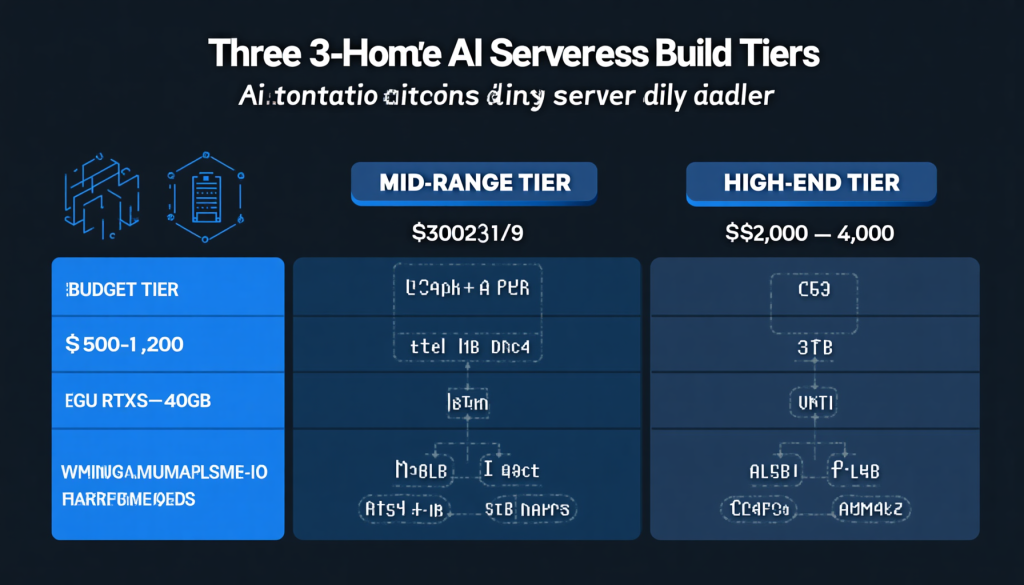
Budget Build ($800-1,200): The Experimentation Rig
Perfect for developers dipping their toes into local LLMs or running smaller models for specific tasks.
| Component | Recommendation | Est. Price |
|---|---|---|
| GPU | Used RTX 3090 24GB | $700-800 |
| CPU | Intel i5-14500 | $180 |
| RAM | 64GB DDR4-3200 | $120 |
| Storage | 1TB NVMe SSD | $70 |
| PSU | 750W 80+ Gold | $90 |
| Case | Mid-tower ATX | $70 |
Capabilities: Runs 7B and 14B models flawlessly. Handles 32B models with aggressive quantization. Ideal for coding assistants, document analysis, and experimentation.
Mid-Range Build ($1,500-2,000): The Developer Workstation
The sweet spot for most developers. Handles 32B models comfortably and can run 70B models with CPU offloading (slower but functional).
| Component | Recommendation | Est. Price |
|---|---|---|
| GPU | RTX 4090 24GB | $1,600 |
| CPU | AMD Ryzen 9 9900 | $450 |
| RAM | 128GB DDR5-5600 | $350 |
| Storage | 2TB NVMe Gen4 | $140 |
| PSU | 850W 80+ Gold | $120 |
| Case | Fractal Design Meshify | $110 |
Capabilities: 32B models at full speed. 70B models with partial offloading. Excellent for AI-assisted development, local RAG systems, and multi-user setups.
High-End Build ($3,000-4,000): The Production Server
For teams running production inference or researchers working with the largest open-source models.
| Component | Recommendation | Est. Price |
|---|---|---|
| GPU | RTX 5090 32GB | $2,000 |
| CPU | AMD Ryzen 9 9950X | $650 |
| RAM | 128GB DDR5-6000 | $400 |
| Storage | 4TB NVMe Gen5 | $350 |
| PSU | 1000W 80+ Platinum | $200 |
| Case | Be Quiet! Dark Base Pro 900 | $280 |
Capabilities: 70B models fully in VRAM at 45+ tok/s. Future-proofed for next-generation models. Suitable for small teams and production APIs.
Alternative: Dual RTX 3090 Setup (~$1,400 used)
Two used RTX 3090s with NVLink provide 48GB of combined VRAM—enough for 70B models with headroom. This setup requires a larger PSU (1200W+) and a case with dual GPU support, but delivers excellent price-to-performance for model training and large-batch inference.
Real Build Example: Jonsbo N6 NAS + AI Combo
The Jonsbo N6 case has become a favorite for compact AI server builds. With 9 hot-swap drive bays and a form factor that fits IKEA KALLAX shelves, it’s perfect for a combined NAS and AI server.
| Component | Specification |
|---|---|
| Case | Jonsbo N6 (9 hot-swap bays) |
| CPU | AMD Ryzen 9 9900 (12C/24T) |
| Motherboard | MSI PRO B850M-A WiFi |
| GPU | NVIDIA RTX 5060 Ti 16GB or RTX 3090 24GB |
| RAM | 128GB Corsair DDR5 |
| Boot Storage | 2x 1TB WD SN770 NVMe |
| NAS Storage | 36TB across 9 drive bays |
| PSU | 750W ATX |
This build runs Proxmox VE with TrueNAS Scale for storage and an Ubuntu Server VM for Ollama. The GPU is passed through to the AI VM, giving it full acceleration while the NAS handles file storage independently.
Software Stack: Proxmox, Ollama, and Open WebUI
The standard software stack for a home AI server in 2026 consists of:
- Proxmox VE: Type-1 hypervisor for VM management. Free, open-source, and mature.
- TrueNAS Scale: ZFS-based NAS operating system. Runs as a VM with HBA passthrough for direct disk access.
- Ubuntu Server: Host OS for AI workloads. Lightweight, well-supported, and NVIDIA drivers work flawlessly.
- Ollama: Local LLM runtime. Handles model downloads, quantization, and inference API.
- Open WebUI: ChatGPT-style web interface for Ollama. Supports multi-user, RAG, and function calling.
- Tailscale: Mesh VPN for secure remote access without port forwarding.
Step-by-Step Setup Process
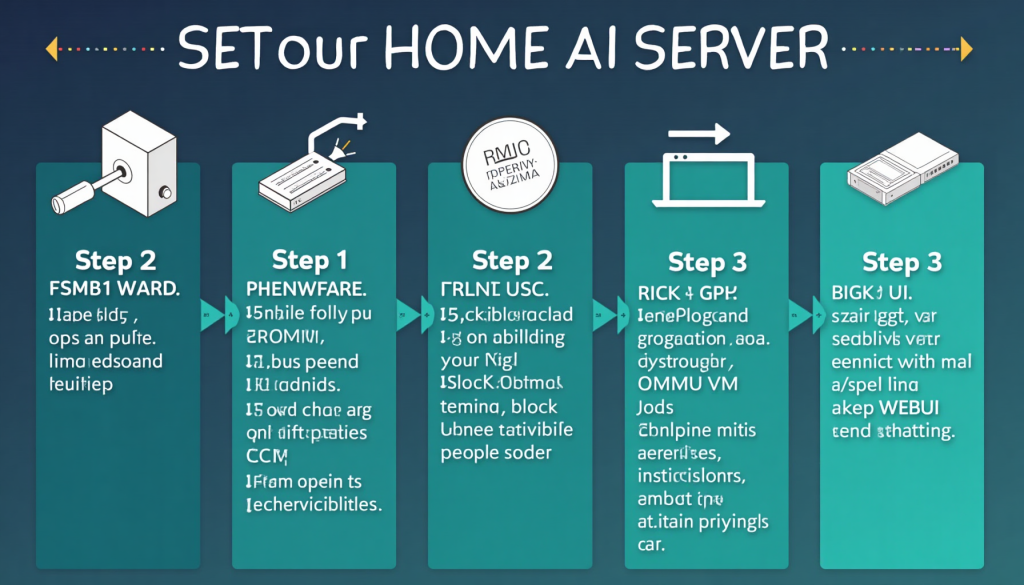
Step 1: Assemble Hardware
Build your PC following standard practices. Ensure adequate cooling—the RTX 4090 and 5090 run hot under sustained load. A 240mm AIO or high-end air cooler is recommended for the CPU.
Step 2: Install Proxmox VE
Download the Proxmox VE ISO and flash it to a USB drive. Install to your boot NVMe drive, selecting ZFS as the filesystem. During installation, note your server’s IP address—you’ll need it for the web interface.
Step 3: Configure GPU Passthrough
GPU passthrough requires IOMMU support. Enable it in your BIOS (usually under Advanced -> PCI Settings), then configure Proxmox:
# Edit GRUB configuration
nano /etc/default/grub

# Add to GRUB_CMDLINE_LINUX_DEFAULT:
# intel_iommu=on iommu=pt (Intel) or amd_iommu=on iommu=pt (AMD)

update-grub
reboot

# Blacklist NVIDIA drivers on host
echo "blacklist nouveau" >> /etc/modprobe.d/blacklist.conf
echo "blacklist nvidia" >> /etc/modprobe.d/blacklist.conf
update-initramfs -u
Step 4: Create the AI VM
Create a new Ubuntu Server 24.04 VM in Proxmox. Allocate at least 8 CPU cores and 32GB RAM (adjust based on your hardware). Before starting the VM, add the GPU as a PCI device:
- In Proxmox, select your VM → Hardware → Add → PCI Device
- Select your NVIDIA GPU (both the GPU and its audio device)
- Enable “All Functions” and “ROM-Bar”
- Set PCI-Express mode for best performance
Step 5: Install Ollama and Open WebUI
Inside the Ubuntu VM, install NVIDIA drivers and Ollama:
# Install NVIDIA drivers
sudo apt update
sudo apt install -y nvidia-driver-535 nvidia-utils-535

# Install Ollama
curl -fsSL https://ollama.com/install.sh | sh

# Install Open WebUI via pip
pip install open-webui
open-webui serve
Access Open WebUI at http://your-vm-ip:8080. Create an admin account, then pull your first model with ollama pull llama3.1:8b.
Model Selection by Available VRAM
Choose models that fit your hardware to avoid slow CPU offloading:
| Your VRAM | Recommended Models | Use Case |
|---|---|---|
| 8-12 GB | Llama 3.1 8B, Gemma 4B, Phi-4 | Coding assistance, chat |
| 16 GB | Qwen 2.5 14B, Mistral Medium | Advanced reasoning, analysis |
| 24 GB | DeepSeek 32B, Qwen 32B, Llama 3.3 70B (Q4) | Research, complex tasks |
| 32+ GB | Llama 3.3 70B FP16, Mixtral 8x22B | Production, multi-user |
Performance Tuning Tips
- Enable GPU persistence mode:
sudo nvidia-smi -pm 1eliminates initialization overhead between requests. - Use Q4_K_M quantization: The sweet spot between quality and speed. Most 70B models at Q4 are indistinguishable from FP16 for practical use.
- Pin VM CPU cores: In Proxmox, assign specific CPU cores to your AI VM to reduce context switching.
- Enable ZFS compression: For your NAS VM, LZ4 compression reduces storage usage with minimal CPU overhead.
- Set Ollama concurrency: Adjust
OLLAMA_NUM_PARALLELbased on your typical workload.
Cost Comparison: Local vs Cloud
Let’s run the numbers for a typical developer using 10 million tokens monthly:
| Cost Factor | Cloud API (GPT-4o) | Local RTX 4090 |
|---|---|---|
| Upfront hardware | $0 | $2,000 |
| Monthly tokens | 10 million | Unlimited |
| Monthly cost | $250-500 | $30-50 (electricity) |
| 12-month total | $3,000-6,000 | $2,360-2,600 |
| 24-month total | $6,000-12,000 | $2,720-3,200 |
The break-even point arrives between months 6 and 12 depending on your cloud provider and usage patterns. After that, local inference is essentially free except for electricity.
Frequently Asked Questions
Can I use AMD GPUs for local LLMs?
Yes, but with caveats. AMD ROCm support has improved significantly, and Ollama now supports Radeon cards. However, CUDA remains the standard for AI workloads, and NVIDIA GPUs offer better compatibility and performance in most scenarios.
How loud is a home AI server?
Under load, expect 40-50 dB—comparable to a desktop gaming PC. The RTX 4090 and 5090 have aggressive fan curves. For quieter operation, undervolt your GPU and use a case with good airflow and large, slow-spinning fans.
Can multiple people use the same server?
Yes. Open WebUI supports multiple users with authentication. For concurrent usage, ensure you have enough VRAM for the models you want to run simultaneously, or use a model scheduling system.
What about power consumption?
An RTX 4090 system idles at ~100W and peaks at 450-500W under full load. At $0.15/kWh, running inference 4 hours daily costs roughly $20-30/month. Continuous 24/7 operation runs $50-70/month.
Is my data really private?
With a local server, your prompts never leave your network. However, if you use Open WebUI’s cloud features (like external model APIs), data may be transmitted. Stick to local models for complete privacy.
Conclusion: Is Building a Home AI Server Worth It?
If you’re spending $200+ monthly on LLM APIs and care about privacy, a home AI server pays for itself within a year. The hardware is depreciable, the skills you’ll learn are transferable, and the freedom to experiment with any open-source model is genuinely liberating.
Start with the budget tier if you’re curious. Upgrade as your needs grow. The used RTX 3090 market is robust, and you can always resell hardware if you change direction.
The cloud isn’t going anywhere, but neither is the appeal of owning your infrastructure. In 2026, building a home AI server is less of a niche project and more of a practical decision for developers who value control, privacy, and long-term cost savings.
Sources
- Spheron Network – RTX 5090 vs RTX 4090 Benchmarks: https://www.spheron.network/blog/rtx-5090-vs-rtx-4090
- RunPod – GPU Comparison for AI Workloads: https://www.runpod.io/blog/comparing-the-5090-to-the-4090-and-b200
- Popular AI – Proxmox AI Server Build Guide: https://www.popularai.org/p/the-best-proxmox-ai-server-build
- Digital Spaceport – Ollama Setup Guides: https://digitalspaceport.com/how-to-setup-an-ai-server-homelab-beginners-guides-ollama-and-openwebui-on-proxmox-lxc
- AI Superior – Local LLM Cost Analysis: https://aisuperior.com/cost-of-running-local-llm
- SitePoint – Local LLMs vs Cloud API TCO: https://www.sitepoint.com/local-llms-vs-cloud-api-cost-analysis-2026
- Jonsbo N6 Product Page: https://www.jonsbo.com/en/products/N6Black.html
- YouTube – Jonsbo N6 NAS + AI Build: https://www.youtube.com/watch?v=JdMntrGUTmw