Running AI on your own hardware isn’t just for researchers anymore. In 2026, local LLM inference has become accessible to anyone with a decent GPU—or even just a modern Mac. With over 174,000 GitHub stars and support for 200+ models, tools like Ollama have made it easier than ever to run powerful language models without sending your data to the cloud.
But which tool should you choose? What hardware do you actually need? And how do you get from “interested” to “actually running models” without drowning in technical documentation?
This guide covers everything: the top 5 local LLM inference tools, a step-by-step setup walkthrough, hardware requirements by model size, and performance optimization tips that actually work. Whether you’re a developer looking to build AI-powered features or just someone who wants ChatGPT-level intelligence without the subscription, this is your complete roadmap.
What Are Local LLM Inference Tools?
Local LLM inference tools are software platforms that let you download and run large language models directly on your own computer. Instead of sending your prompts to OpenAI’s servers or Google’s data centers, everything happens locally—on your GPU, CPU, or Apple Silicon chip.
These tools handle the heavy lifting: model downloading, memory management, quantization (compressing models to fit your hardware), and providing an interface—whether that’s a terminal command, a GUI chat window, or an API endpoint your applications can call.
Why Run LLMs Locally?
- Privacy: Your data never leaves your machine. No logging, no training on your inputs, no corporate data policies to worry about.
- Cost: One-time hardware investment vs. ongoing API fees. Run thousands of queries for free after setup.
- Latency: No network round-trips. Responses can be 10-50x faster than cloud APIs for simple queries.
- Offline access: Work on planes, in remote locations, or during outages.
- Customization: Fine-tune models on your own data without platform restrictions.
The Top 5 Local LLM Inference Tools in 2026
Not all tools are created equal. Some prioritize ease of use; others focus on raw performance or developer flexibility. Here’s the breakdown of the five best options available right now.
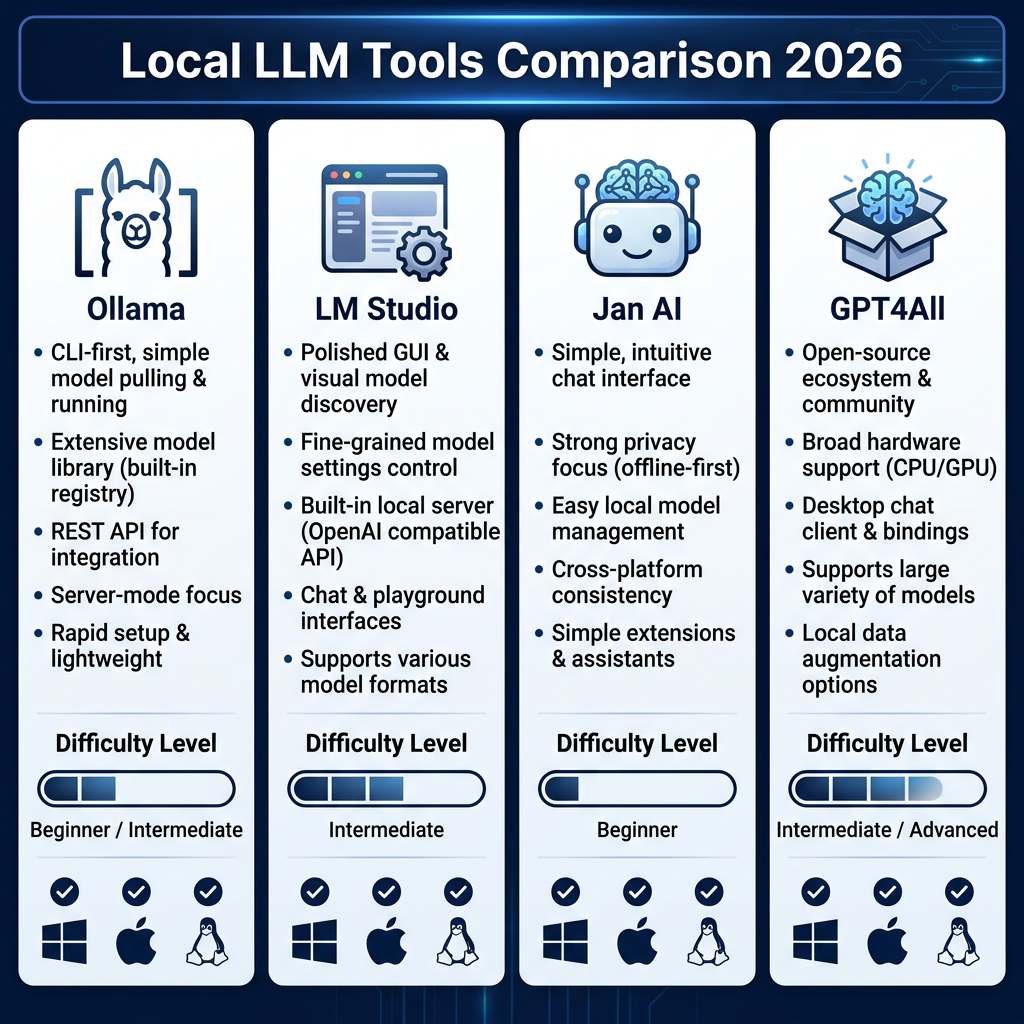
1. Ollama — The Developer’s Choice
Ollama has become the de facto standard for developers who want a terminal-first workflow. With 174,000+ GitHub stars and growing, it’s the most popular local LLM tool by a significant margin.
Key Features:
- OpenAI-compatible API that runs as a background service
- 200+ pre-configured models available via simple commands
- Cross-platform: macOS, Linux, Windows
- Docker support for containerized deployments
- Model library includes Llama 4, Qwen 3.5, Mistral, Gemma, and more
Best For: Developers building AI-powered applications, people comfortable with command-line interfaces, anyone who needs API access for integrations.
Getting Started: Install Ollama, then run ollama run llama3.2. That’s it. The model downloads automatically, and you’re chatting within minutes.
2. LM Studio — Best GUI for Beginners
If you prefer clicking to typing, LM Studio is your best bet. It wraps the complexity of local inference in a polished, intuitive interface that makes model management actually enjoyable.
Key Features:
- Built-in chat interface with conversation history
- Visual model browser with search and filtering
- Local server mode on port 1234 for API access
- One-click model downloads from Hugging Face
- Hardware detection and automatic settings optimization
Best For: Non-technical users, people who want to experiment without learning commands, developers who occasionally need a GUI for testing.
3. Jan AI — Privacy-First and Open Source
Jan AI takes a hard stance on privacy. Fully offline, completely open source, and zero telemetry. Your chat history stays on your machine—period.
Key Features:
- 100% offline operation—no internet required after download
- Open source with transparent codebase
- No telemetry or usage tracking
- Local chat history storage with encryption options
- Built-in model manager with Hugging Face integration
Best For: Privacy-conscious users, security professionals, anyone working with sensitive data that can’t touch cloud services.
4. GPT4All — Nomic AI’s Accessible Option
Created by Nomic AI, GPT4All focuses on making local LLMs accessible to the average user. It’s less feature-rich than Ollama but incredibly easy to get started with.
Key Features:
- Simple installer and setup process
- Curated model selection optimized for consumer hardware
- Local API server for application integration
- Cross-platform desktop app
- Active community and regular updates
Best For: First-time users, people who want a curated experience without decision paralysis, those running older or lower-spec hardware.
5. vLLM — Production-Grade Performance
vLLM is different from the others. It’s not a chat app—it’s a high-performance inference engine designed for serving models at scale. If you’re building a product that needs to handle many concurrent users, vLLM is what you want.
Key Features:
- State-of-the-art throughput with PagedAttention algorithm
- OpenAI-compatible API server
- Tensor parallelism for multi-GPU deployments
- Quantization support (AWQ, GPTQ, SqueezeLLM)
- Production-ready with monitoring and logging
Best For: Production deployments, high-throughput applications, teams building AI-powered products for end users.
Quick Comparison Table
| Tool | Interface | Difficulty | Best For | API Support |
|---|---|---|---|---|
| Ollama | Terminal + API | Intermediate | Developers | OpenAI-compatible |
| LM Studio | GUI | Beginner | Experimentation | Local server |
| Jan AI | GUI | Beginner | Privacy-focused | Local server |
| GPT4All | GUI | Beginner | First-time users | Local server |
| vLLM | API only | Advanced | Production | OpenAI-compatible |
Step-by-Step Setup Guide
Here’s how to go from zero to chatting with a local LLM in under 10 minutes. This walkthrough uses Ollama (recommended for most users), but the process is similar for other tools.
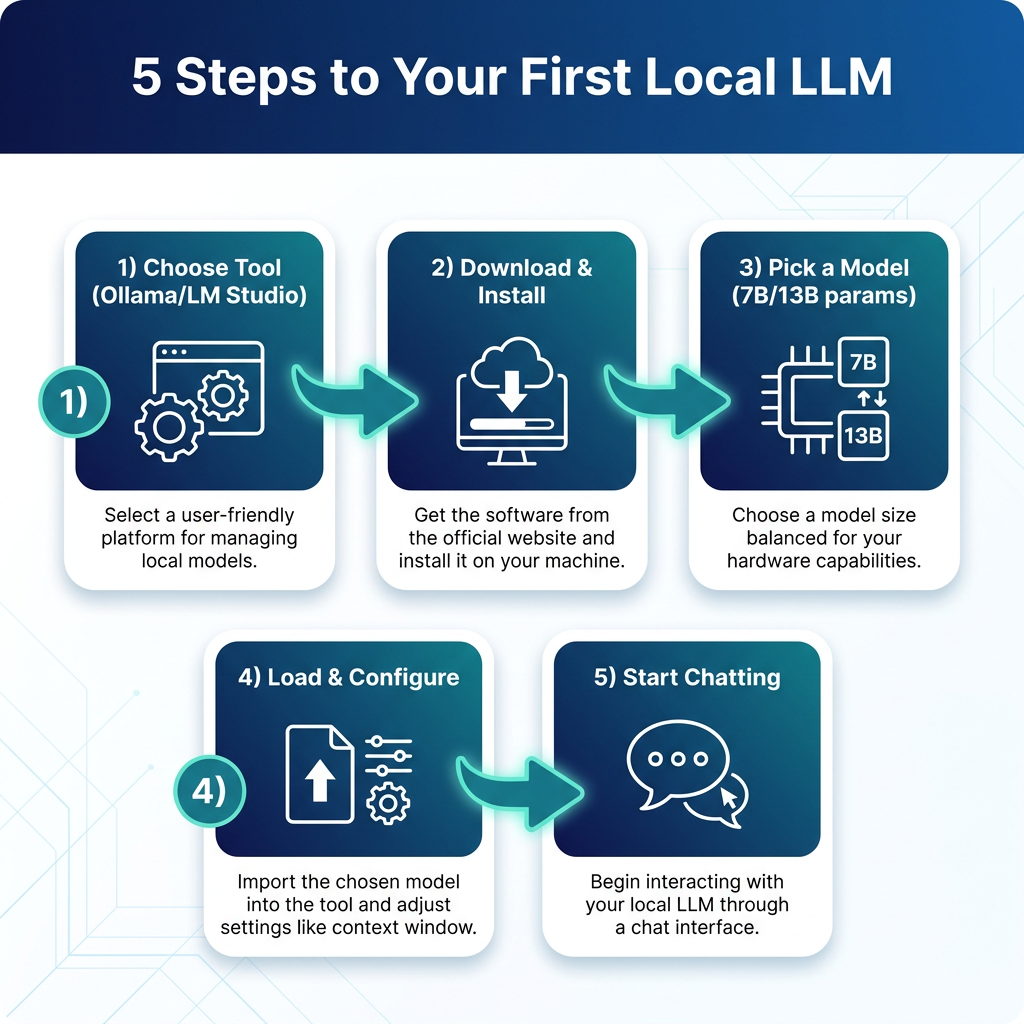
Step 1: Choose Your Tool
For this guide, we’ll use Ollama. It’s free, actively maintained, and works on macOS, Linux, and Windows. If you prefer a GUI, download LM Studio instead—the steps are similar.
Step 2: Download and Install
macOS/Linux:
curl -fsSL https://ollama.com/install.sh | sh
Windows: Download the installer from ollama.com and run it.
The installation includes everything you need—no separate CUDA downloads or dependency hell.
Step 3: Pick Your First Model
Start with something manageable. For most users, a 7B or 8B parameter model offers the best balance of capability and speed.
Recommended starter models:
llama3.2— Meta’s latest, great all-rounderqwen2.5:7b— Alibaba’s Qwen, excellent multilingual supportgemma2:9b— Google’s lightweight optionphi4— Microsoft’s 14B model, surprisingly capable
Step 4: Download and Run
Open a terminal and run:
ollama run llama3.2
The first time you run this, Ollama downloads the model (about 4-5GB for a 7B model at Q4 quantization). After that, it starts instantly.
Step 5: Start Chatting
You’ll see a prompt. Type your message and hit Enter. That’s it—you’re now running a local LLM.
>>> Explain quantum computing in simple terms
Quantum computing is like... [response appears]
Press Ctrl+D (macOS/Linux) or Ctrl+Z (Windows) to exit.
Model Selection Guide by Hardware
Not sure what your machine can handle? Here’s the breakdown of model sizes, VRAM requirements, and expected performance.
VRAM Requirements by Model Size
| Model Size | Q4 Quantization | Q5 Quantization | Best For |
|---|---|---|---|
| 7B-8B | 4-5 GB | 5-6 GB | Consumer GPUs (RTX 3060, RX 6700 XT) |
| 13B-14B | 8-10 GB | 10-12 GB | Mid-range GPUs (RTX 4070, RX 7800 XT) |
| 30B-32B | 16-20 GB | 20-24 GB | High-end GPUs (RTX 4090, RX 7900 XTX) |
| 70B+ | 40+ GB | 48+ GB | Multi-GPU or Apple Silicon Max/Ultra |
Note: Q4_K_M quantization is the sweet spot for most users. It reduces model size by ~75% with minimal quality loss.
Hardware Recommendations
Budget Option (7B-8B models):
- NVIDIA RTX 3060 12GB or AMD RX 6700 XT 12GB
- Mac Mini M2 (8GB unified memory)
- Expected speed: 20-40 tokens/second
Sweet Spot (13B-14B models):
- NVIDIA RTX 4070 Ti Super 16GB or RTX 4090 24GB
- MacBook Pro M3 Pro/Max (18GB+ unified memory)
- Expected speed: 25-50 tokens/second
Enthusiast Grade (30B+ models):
- NVIDIA RTX 5090 (45+ tokens/sec for 32B models)
- Mac Studio M2 Ultra (64GB+ unified memory)
- Mac Mini M4 Pro 48GB (~$1,999) — best value for 2026
CPU-Only: You can run smaller models (3B-7B) on CPU with 16GB+ RAM, but expect 5-15 tokens/second. Usable for experimentation, not production.
Performance Optimization Tips
Once you’re up and running, here’s how to squeeze more performance out of your setup.
1. Use the Right Quantization
Q4_K_M hits the best balance for most use cases. Q5 offers slightly better quality but uses ~25% more VRAM. Q8 is overkill for most applications.
2. Enable GPU Offloading
Make sure your tool is using your GPU, not CPU. In Ollama, this happens automatically if you have a compatible NVIDIA or AMD GPU. On macOS, Apple Silicon is used by default.
3. Adjust Context Length
Longer context windows use more VRAM. If you’re doing simple Q&A, reduce context from 8K to 2K or 4K to fit larger models or improve speed.
4. Batch Your Requests
If using the API, send multiple prompts in a batch when possible. vLLM and similar engines are optimized for throughput with batching.
5. Keep Models on Fast Storage
NVMe SSDs make a noticeable difference for model loading. If you’re switching between models frequently, avoid HDDs.
Frequently Asked Questions
Is running LLMs locally legal?
Yes. Open-weight models like Llama, Qwen, and Mistral are released under licenses that permit personal and commercial use. Always check the specific license for each model, but major releases are generally unrestricted.
Can I use local LLMs for commercial projects?
Most open models allow commercial use, including Llama 4, Qwen 3.5, and Mistral. Some have attribution requirements—check the model card on Hugging Face before deploying.
How do local models compare to GPT-4?
A 70B parameter local model approaches GPT-3.5 level performance. GPT-4 still outperforms on complex reasoning, but local models are surprisingly capable for coding, writing, and general Q&A. For many tasks, the difference isn’t worth the API cost.
Can I fine-tune models locally?
Yes, but it requires significant GPU resources. Fine-tuning a 7B model needs 16-24GB VRAM. For most users, retrieval-augmented generation (RAG) with tools like LangChain is more practical than full fine-tuning.
What’s the catch?
Upfront hardware cost, setup complexity, and no “it just works” support. You’re responsible for updates, troubleshooting, and model selection. But for privacy-conscious users and cost-sensitive applications, the tradeoff is worth it.
Conclusion
Local LLM inference has crossed the threshold from “hobbyist project” to “viable alternative.” Tools like Ollama and LM Studio have made setup trivial. Hardware requirements are reasonable for anyone with a modern gaming GPU or Apple Silicon Mac. And the models themselves—Llama 4, Qwen 3.5, Gemma 4—are genuinely useful for real work.
If you’ve been paying OpenAI $20/month and wondering if there’s a better way, there is. Your first local LLM is ten minutes away.
Start with Ollama and Llama 3.2. See how it feels. You might be surprised how little you miss the cloud.
Ready to Build AI-Powered Products?
If you’re a developer or SaaS founder looking to monetize AI features, you need more than just local inference—you need a payment infrastructure that handles global tax compliance, VAT, and sales tax automatically.
Fungies.io is the Merchant of Record platform built for indie developers and SaaS companies. We handle payments, tax compliance, and checkout so you can focus on building. No code required.
Last updated: June 2026. Hardware recommendations and model availability change frequently—check the official documentation for the latest information.